

One placeholder, two values, two results
Two jobs contain the same line. They produce different files, because the workflow changed a value between them.
1. Objective
Goal
Stop hard-coding values into manifests. Write {{ param:region }} once, let the workflow decide what it means, and change that meaning halfway through a run.
This lesson uses parameters_demo, a project that ships with the engine under test_scenarios. Open it with Open a project — everything below is already wired, so you can read rather than type. Rebuild it any time with python build_demo.py.
Prerequisites
- Hydra API started with
hdrctl serve. - Studio started from
Hydra/studiowithnpm run dev. - A workflow you have already run once.
2. Steps
01Read the shape of the workflow
Objective
See where the parameter actions sit among the jobs.
Actions
- Open Workflow configuration.
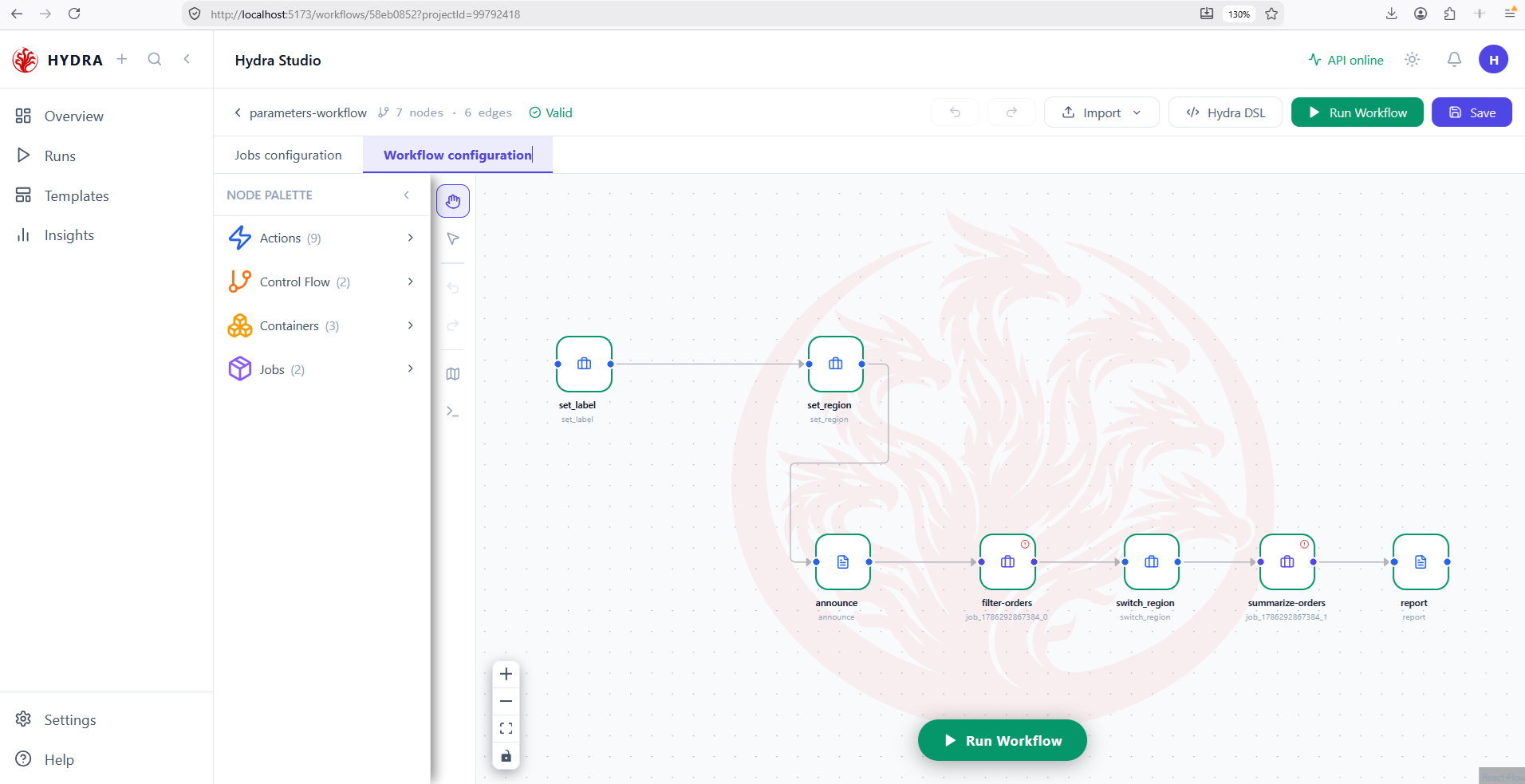
- Read the seven nodes from left to right.
- Check the counters and the validity badge.
Workflow configuration → parameters-workflow
Seven steps, one line. Two of them are jobs; the other five are actions, and three of those exist only to handle a parameter. A parameter action is an ordinary step: it takes its turn in the graph like any other.
A single chain, no branches, and the workflow reading Valid.
parameters-workflow   7 nodes · 6 edges   Valid

set_label → set_region → announce → filter-orders
          → switch_region → summarize-orders → report
02Separate the jobs from the actions
Objective
Know which nodes do the work and which only set the stage.
Actions
- Expand Jobs in the palette.
- Count the entries.
- Match them against the nodes on the canvas.
Node palette → Jobs (2)
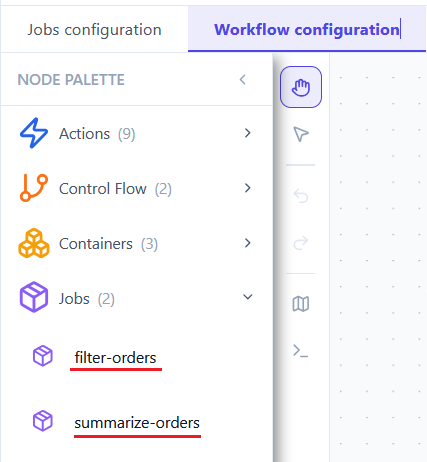
Only two of the seven nodes are jobs. Everything else is an action, and actions never move data — they announce, they wait, they decide. Here, three of them do nothing but manage one value.
| Node | Kind | What it contributes |
|---|---|---|
set_label, set_region | Set Param | Creates a value |
switch_region | Assign Param | Changes a value |
announce, report | Log | Prints the values back |
filter-orders, summarize-orders | Job | Reads the values and moves data |
Two jobs in the palette, five actions on the canvas.
Jobs (2)
  filter-orders
  summarize-orders
03Create the first parameter
Objective
Fill in a Set Param and understand its three fields.
Actions
- Double-click
set_label. - Read Parameter name, Value and Type.
- Close the dialog.
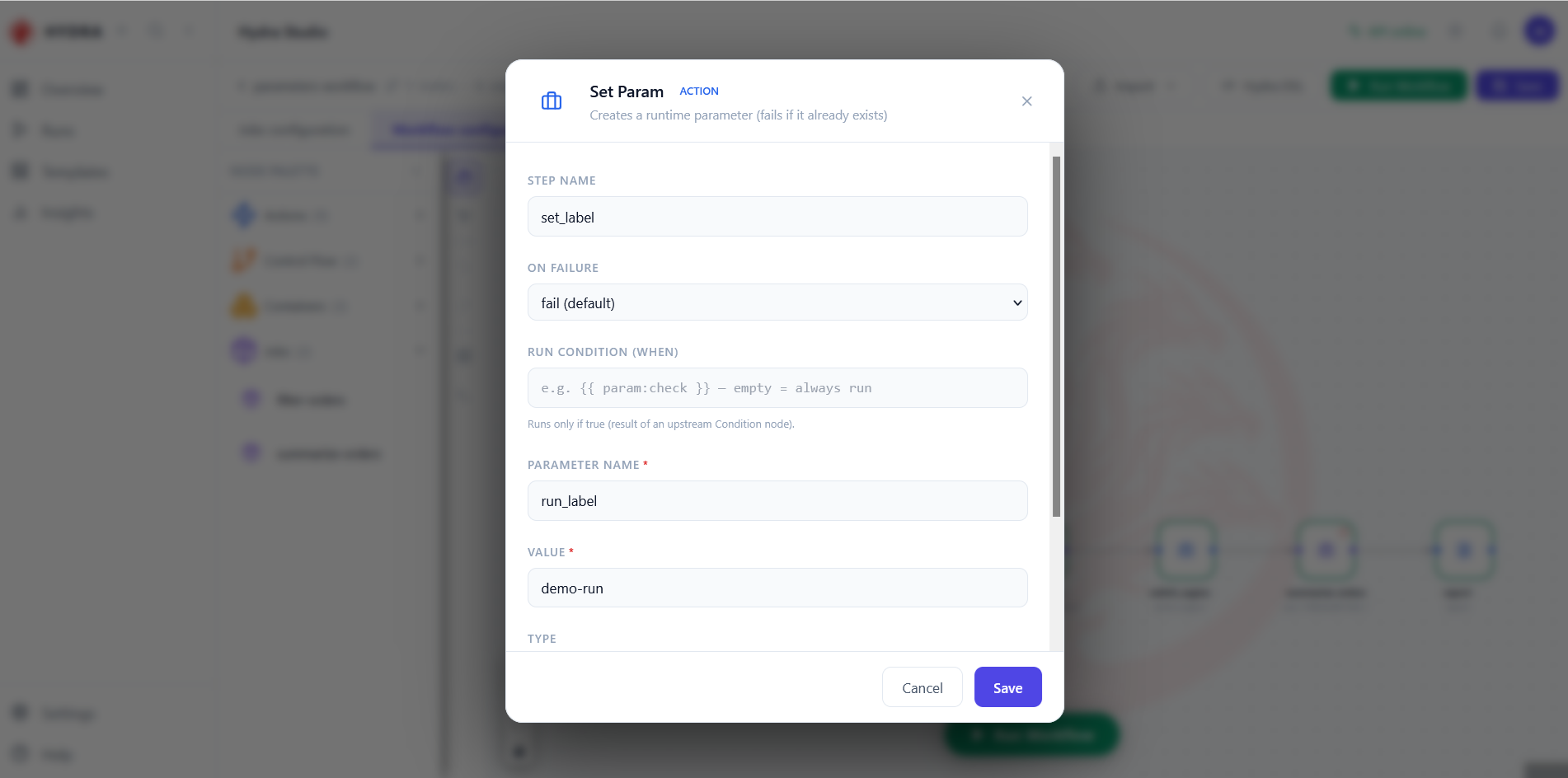
Set Param → run_label = demo-run
A name, a value, a type. Set Param creates: it fails if the name is already in the run, which makes it safe to place at the top of a graph and nowhere else. The value lands in a store that lives for the length of one run, and disappears with it.
The dialog header states the rule, and the two required fields carry a red asterisk.
Set Param   ACTION
  Creates a runtime parameter (fails if it already exists)
  STEP NAME        set_label
  PARAMETER NAME * run_label
  VALUE *          demo-run
04Create the parameter the jobs will read
Objective
Add the second value, the one this whole lesson turns on.
Actions
- Double-click
set_region. - Read the name and the value.
- Note the Type menu below the value.
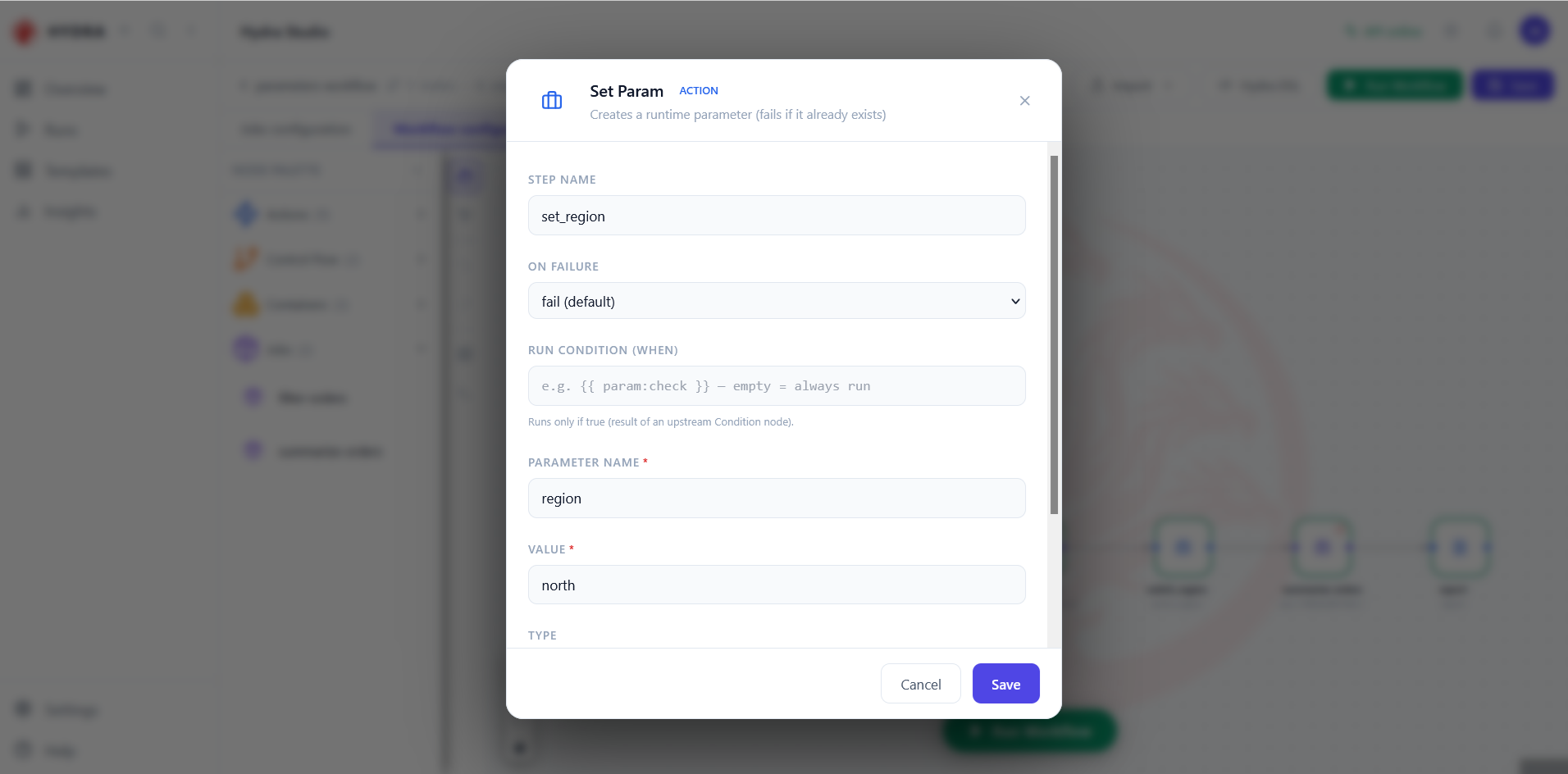
Set Param → region = north (type: str)
Same dialog, different name. Type matters more than it looks: str, int, float, bool and json decide what the value is, not just how it prints. A parameter typed int can be compared with a number; the same value typed str cannot.
A second Set Param, identical in shape, holding the value the first job will use.
Set Param   ACTION
  STEP NAME        set_region
  PARAMETER NAME * region
  VALUE *          north
  TYPE             str
filter-orders is about to read, written on the canvas rather than in a manifest.05Read a parameter back
Objective
Learn the one syntax you need, and where it works.
Actions
- Double-click
announce. - Read the Message field.
- Find the two placeholders.
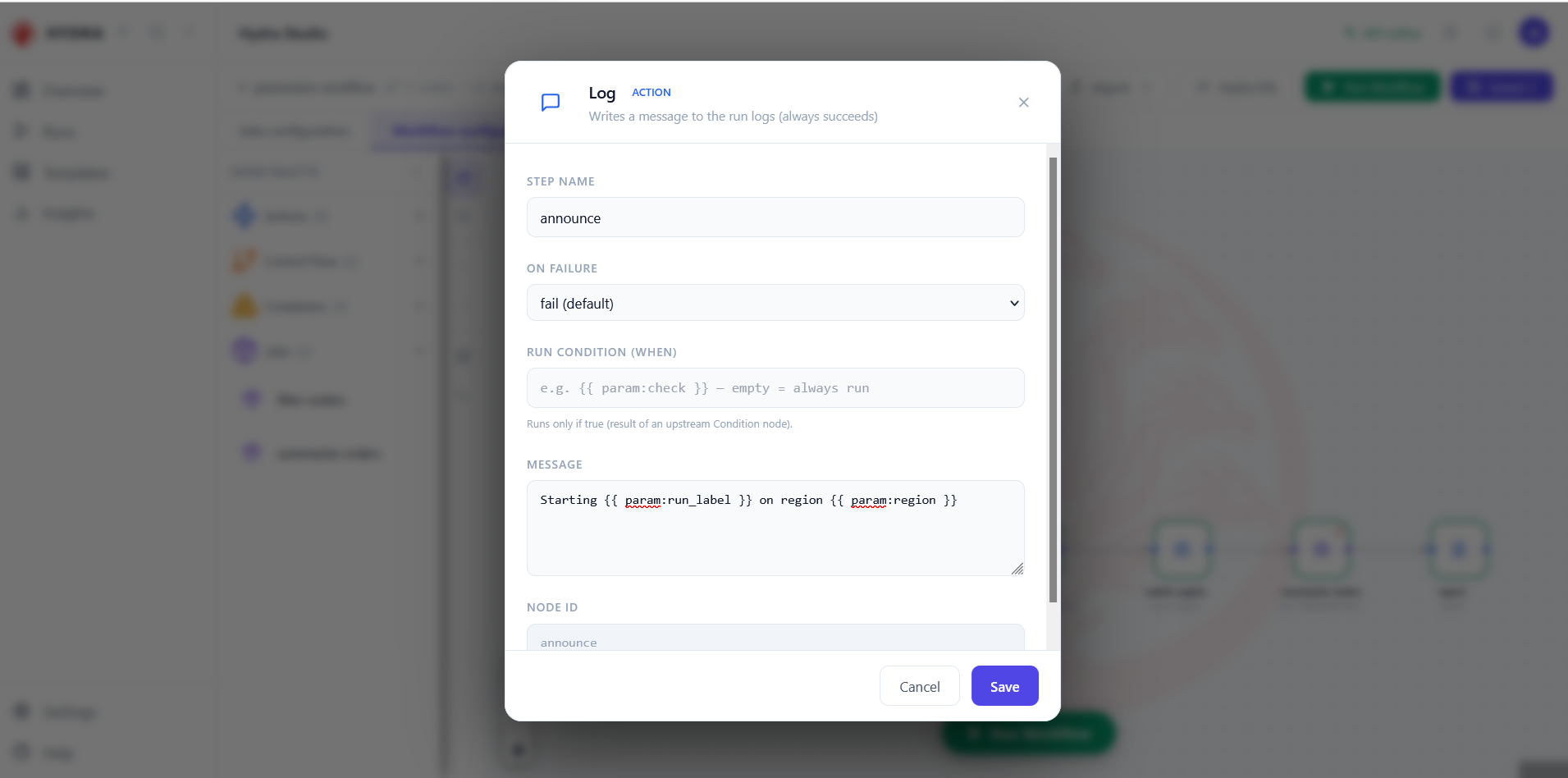
{{ param:run_label }} {{ param:region }}
One syntax, everywhere: {{ param:NAME }}. It works in a message, in a file path, in a filter expression, in a connection string. Its sibling {{ env:NAME }} reads an environment variable instead — same braces, different source.
When a field holds nothing but a placeholder, the value arrives with its declared type intact — a number stays a number. Surround it with text and the result is a string, because you asked for a sentence.
Two placeholders inside one sentence, unresolved on screen and resolved at run time.
Log   ACTION
  Writes a message to the run logs (always succeeds)
  MESSAGE   Starting {{ param:run_label }} on region {{ param:region }}
06Change a value mid-run
Objective
Use the second parameter action, and learn how it differs from the first.
Actions
- Double-click
switch_region. - Compare the header with the one from step 03.
- Read the new value.
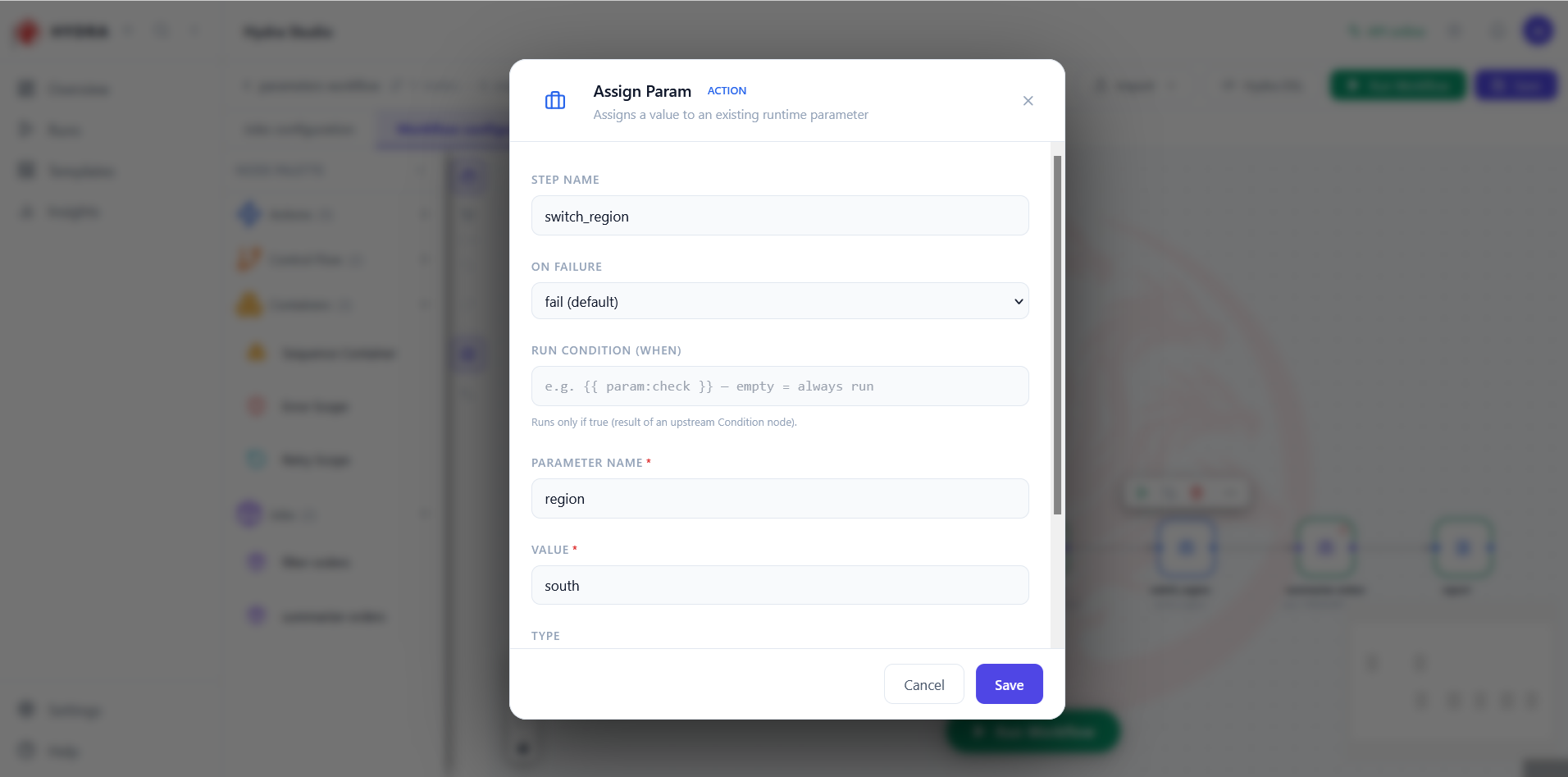
Assign Param → region = south
The dialog is identical; the rule is the opposite. Assign Param changes: it fails if the parameter does not exist yet. Together the two actions cover the whole lifecycle, and neither can silently do the other's job — the failure is the feature.
| Action | Does | Fails when |
|---|---|---|
| Set Param | Creates the parameter | The name already exists in this run |
| Assign Param | Replaces its value | The name does not exist yet |
The same three fields, under a header that announces a different contract.
Assign Param   ACTION
  Assigns a value to an existing runtime parameter
  STEP NAME        switch_region
  PARAMETER NAME * region
  VALUE *          south
07Read it back after the change
Objective
Confirm that the placeholder is resolved late, not once.
Actions
- Double-click
report. - Compare its message with the one in
announce. - Note that the placeholder is written identically.
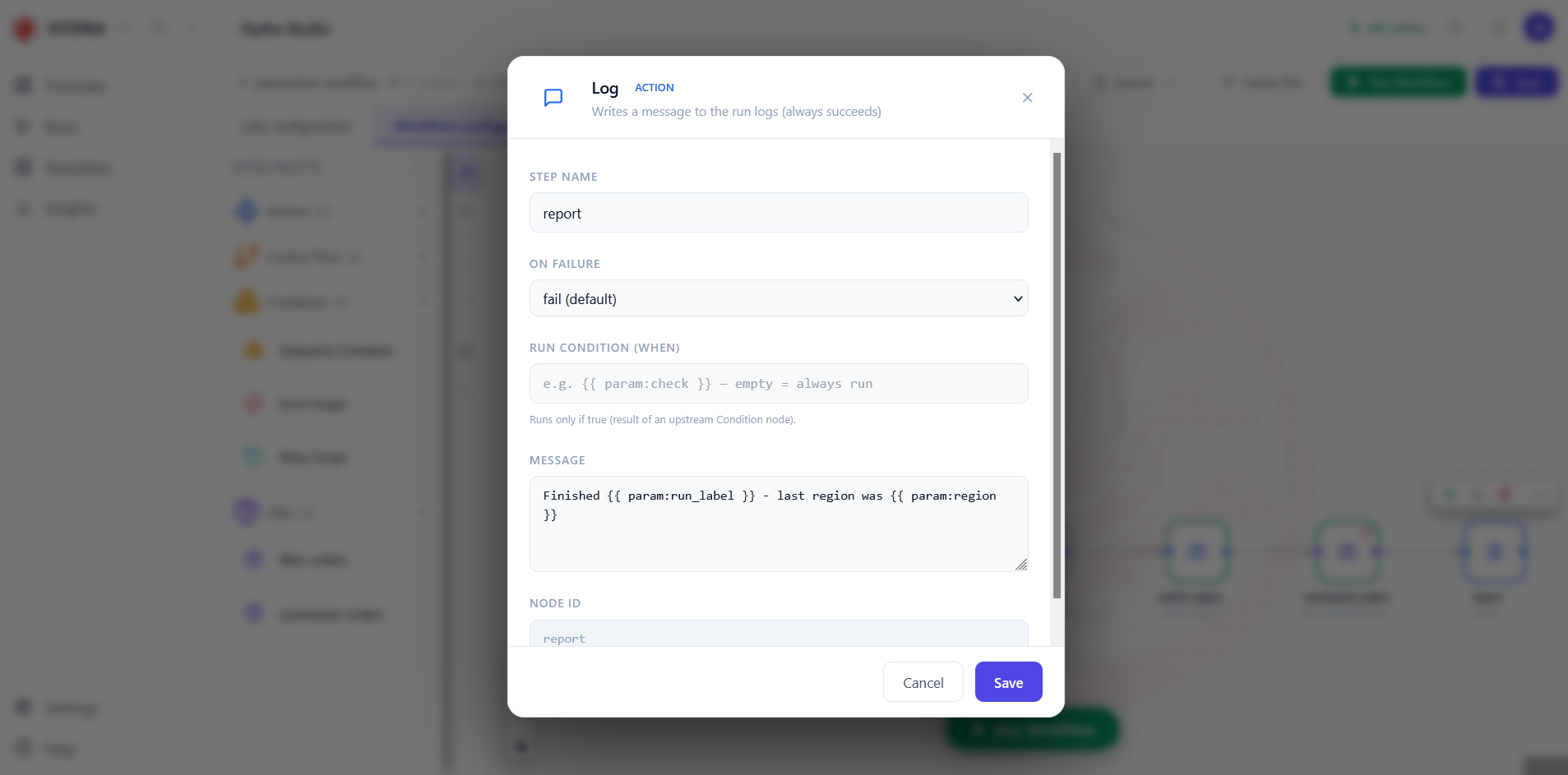
Finished {{ param:run_label }} - last region was {{ param:region }}
The two Log steps contain the same placeholder, and will print different regions. A placeholder is resolved when its step runs, against the store as it stands at that moment — not when the workflow is saved.
An identical placeholder in a step that sits after the change.
Log   ACTION
  STEP NAME   report
  MESSAGE     Finished {{ param:run_label }} - last region was {{ param:region }}
announce. Position in the graph is what makes the answer differ.08Run it and read the timeline
Objective
Watch the seven steps take their turn.
Actions
- Select Run Workflow.
- Open the run from Runs.
- Read the execution timeline top to bottom.
Run Workflow → Runs → parameters-workflow
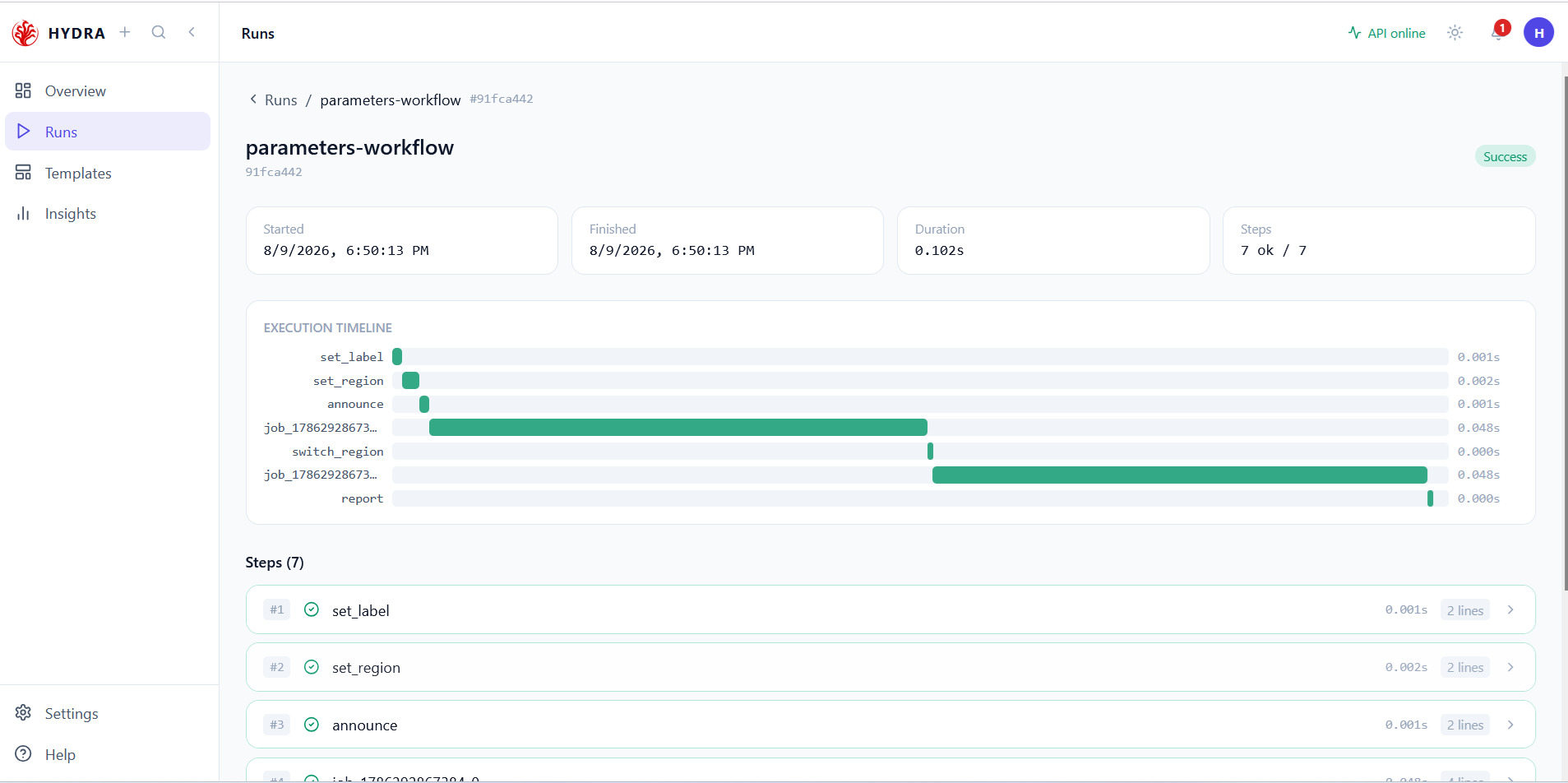
Three parameter actions cost about three milliseconds together, against roughly fifty for each job. Managing a value is free; the work is elsewhere. The timeline also proves the order was respected, which is what makes the whole thing predictable.
Seven steps, all green, and two visibly longer bars.
parameters-workflow   #91fca442   Success
Duration 0.102s        Steps 7 ok / 7

set_label      0.001s
set_region     0.002s
announce       0.001s
job_…_0        0.048s
switch_region  0.000s
job_…_1        0.048s
report         0.000s
09Watch the value change in the log
Objective
Find the two lines that prove the whole lesson.
Actions
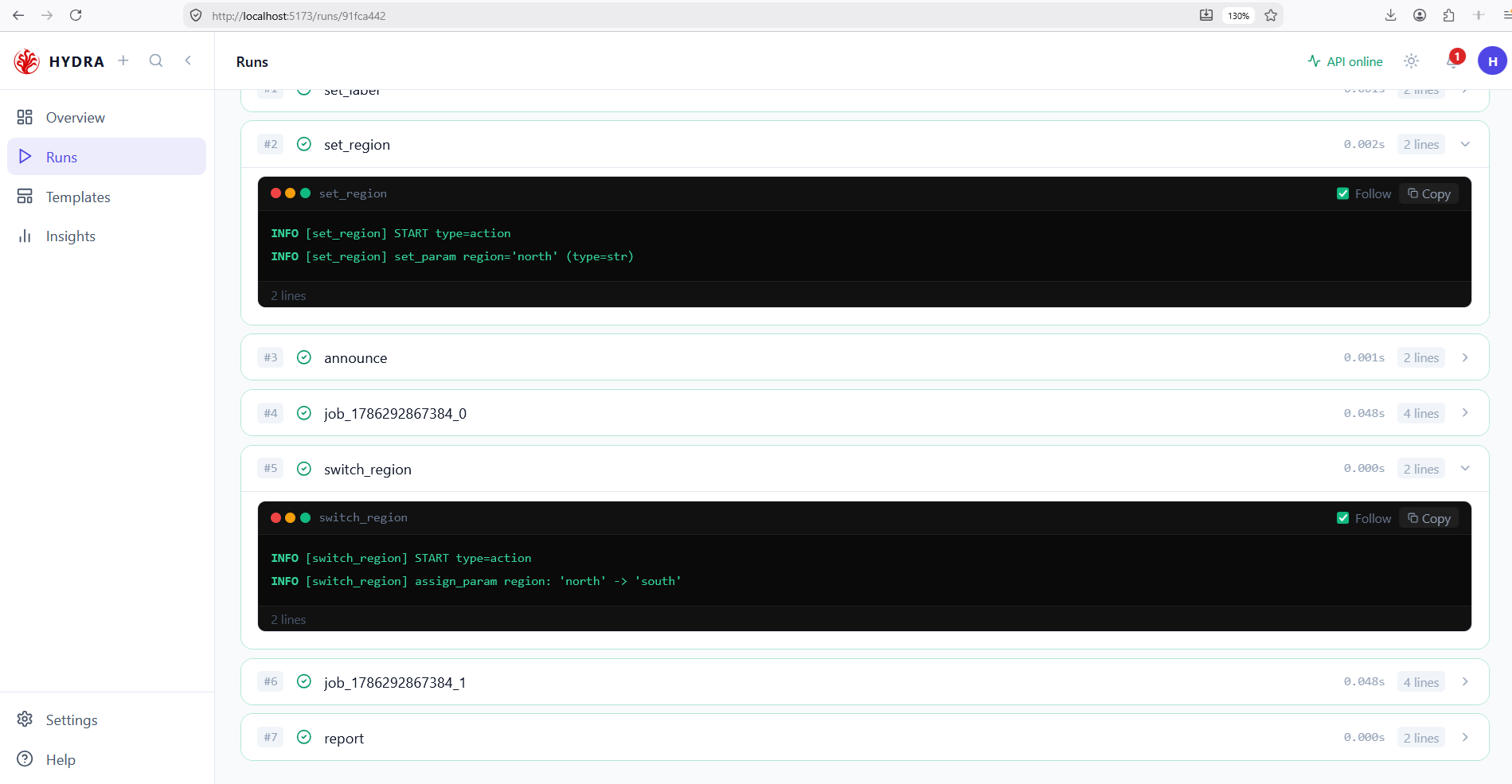
- Expand step #2 set_region.
- Expand step #5 switch_region.
- Read one line in each.
region: 'north' -> 'south'
Every write to the store is logged, with the old value and the new one. That single arrow is where you debug a parameter: if a job behaves unexpectedly, read the last write before it and you have your answer.
One creation, one replacement, both named and timestamped.
#2 set_region
   INFO [set_region] START type=action
   INFO [set_region] set_param region='north' (type=str)

#5 switch_region
   INFO [switch_region] START type=action
   INFO [switch_region] assign_param region: 'north' -> 'south'
filter-orders ran between them.10Look at what the jobs wrote
Objective
See the consequence outside Studio.
Actions
- Open the
outputfolder of the project. - Read the two file names.
- Open
transformations.yamlof either job.
output/demo-run_orders_north.csv
output/demo-run_summary_south.csv
Neither job knows the word north or south. Both contain region == '{{ param:region }}' and a destination path built from the same two placeholders. The names differ because the value did — and a parameter that builds a path is as useful as one that filters rows.
Values also come from parameters.yaml and environments/<env>.yaml, edited in the Parameters tab. Those are the project layer: declared once, fixed for the whole run. What Set Param writes is the runtime layer, and it wins. In this workflow min_amount comes from the project layer and is never touched.
Two files, two names, one manifest each.
demo-run_orders_north.csv
  id,order_date,region,customer,amount
  1006,2026-01-08,north,Farid,220.4
  1001,2026-01-04,north,Alice,120.5

demo-run_summary_south.csv
  region,orders,revenue,average_order
  south,4,597.2,149.3
Tips and traps
One syntax everywhere: {{ param:NAME }} in a message, a path, a filter or a connection.
A Set Param creates and refuses to overwrite. Use Assign Param to change a value.
An Assign Param needs the parameter to already exist. Place a Set Param upstream of it.
A project parameter must be Set Param-ed once before it can be assigned. Declaring it is not creating it.
A placeholder is resolved when its step runs. Two identical steps can print different values.
Only the steps downstream see a value. A parameter action off the chain changes nothing.
A field holding only a placeholder keeps the declared type. Wrap it in text and you get a string.
The runtime store lives for one run. Nothing survives to the next one — that is what the project layer is for.
Every write is logged with its old and new value. Read the last one before a surprising step.
The runtime layer overrides the project layer. A Set Param on a declared name silently wins.
3. Checklist
| Verification | Expected result |
|---|---|
| Canvas | Seven nodes, six edges, Valid |
| Palette | Two jobs among seven nodes |
| Set Param | Name, value and type filled in |
| Assign Param | The same fields, a different header |
| Run | 7 ok / 7 |
| Log | A set_param line and an assign_param line |
| Output | Two files whose names carry the parameter values |
4. Troubleshooting
| Symptom | Cause | Fix |
|---|---|---|
| The parameter already exists | Two Set Param on the same name | Keep one, turn the other into an Assign Param |
| The parameter does not exist | Assign Param with no Set Param upstream | Add a Set Param and connect it before |
| The placeholder prints as written | The syntax is not exactly {{ param:NAME }} | Check the braces, the colon and the spelling |
| A job ignores the value | The parameter action runs after it | Move it upstream and redraw the edge |
| A numeric comparison misbehaves | The value is typed str | Set the Type menu to int or float |
| The value is not what the log said | A later Assign Param changed it | Read the writes in order and find the last one |
5. Next lesson
The Studio track is complete. You opened a workspace, built and ran a job, reviewed its execution, composed a workflow, organized it with containers, and made it react to values decided at run time. Return to the course map or open the DSL reference.