
Keys that match the context
The offered keys depend on where the cursor sits. A MySQL source offers host and port; a web_api source offers base_url and pagination. Enumerated values come with their explanation.
 Hydra ETL
 Context-aware completion, live validation and ready-to-fill skeletons for the five Hydra manifests. The extension runs nothing: it speeds up authoring and flags structural mistakes. Cross-file consistency stays the job of hdrctl validate.
Three mechanisms
The offered keys depend on where the cursor sits. A MySQL source offers host and port; a web_api source offers base_url and pagination. Enumerated values come with their explanation.
Unknown key, wrong type, value outside the allowed set, missing required field, unsatisfied conditional rule. Errors are underlined in the editor and listed in the Problems panel.
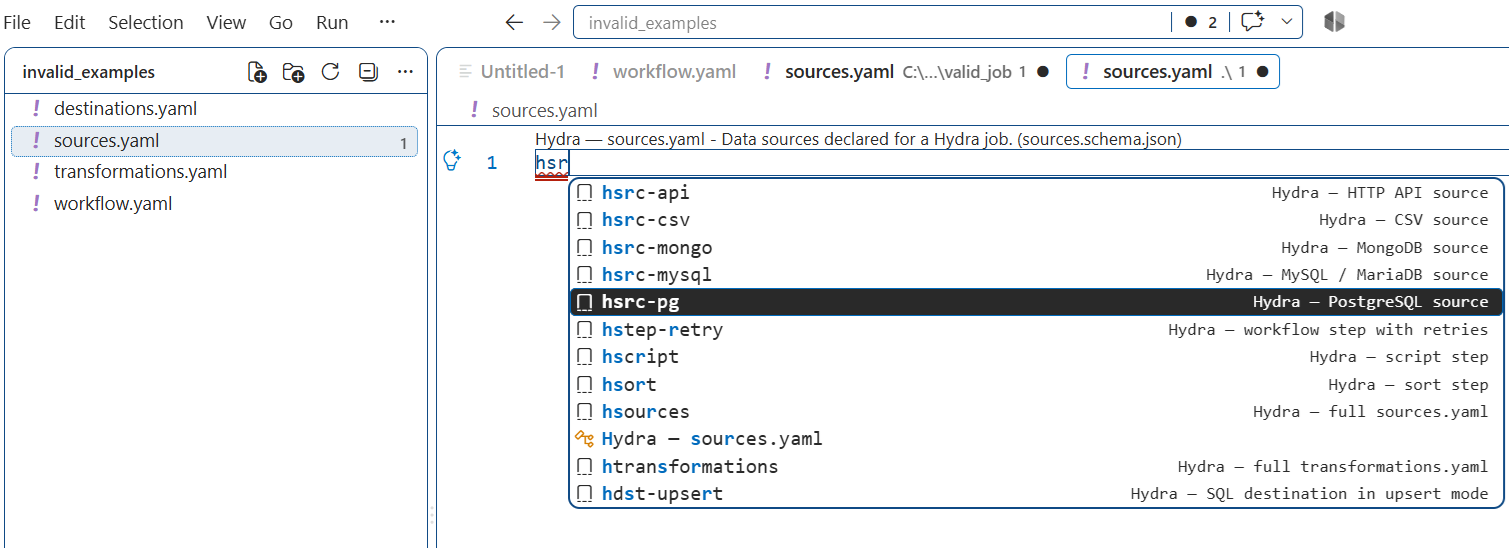
32 prefixes, all starting with h. Type hsrc-pg and press Tab to get a complete PostgreSQL source, then Tab through the fields. Fixed-value fields open a dropdown.
VS Code Extension/What the editor knows about each file
sources:
  src_orders:
    type: mysql
    connection:
      host: ${ENV:DB_HOST}
      port: 3306
      database: ${ENV:DB_NAME}
    extract:
      table: orders
      batch_size: 10000   # 10 to 100000
destinations:
  dst_dwh:
    type: postgresql
    load:
      table: fact_orders
      mode: upsert
      key: [id]          # required by upsert
      batch_size: 5000
version: "1.0"
pipeline:
  from: src_orders
  to: dst_dwh
steps:
  - select:
      columns: [id, amount, status]
  - filter:
      expr: "status == 'paid'"
  - cast:
      mapping:
        amount: float   # int float str bool date datetime
workflow:
  name: "daily_sales_etl"
  trigger:
    type: schedule
    cron: "0 8 * * *"   # required by schedule
  steps:
    - name: "extract"
      type: job
      job: "./jobs/extract"
      depends_on: []
Type first. Once type is set, the keys offered under connection change with it — host and port for a database, base_url and pagination for an API.
Three steps, about two minutes
The Red Hat YAML extension provides the language server that reads the Hydra schemas. VS Code installs it on its own, since it is declared as a dependency, but you can add it first.
$ code --install-extension redhat.vscode-yaml
The extension appears under Ctrl+Shift+X, or a message saying it is already installed.
A .vsix file is a ZIP archive. The build script assembles it with the Python standard library, so neither Node, npm nor vsce is needed.
# from the VS Code Extension directory $ python build_vsix.py
The list of packaged files, then the path to install.
Package built: hydra-etl-0.1.2.vsix  (42.0 KB, 12 entries)
  extension/schemas/sources.schema.json
  extension/snippets/hydra.json
  ...
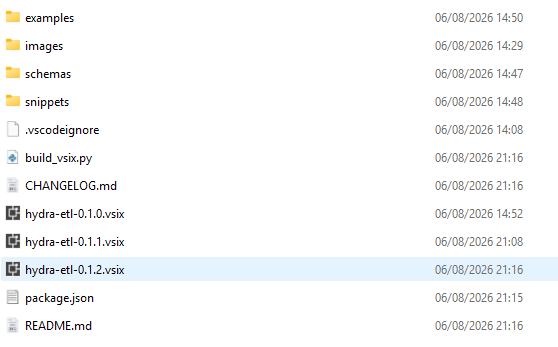
Install it from VS Code, never from the file explorer. Two routes lead to the same result — pick either.
$ code --install-extension hydra-etl-0.1.2.vsix
code is not recognised, run Shell Command: Install 'code' command in PATH from the command palette first.... menu at the top of the panel.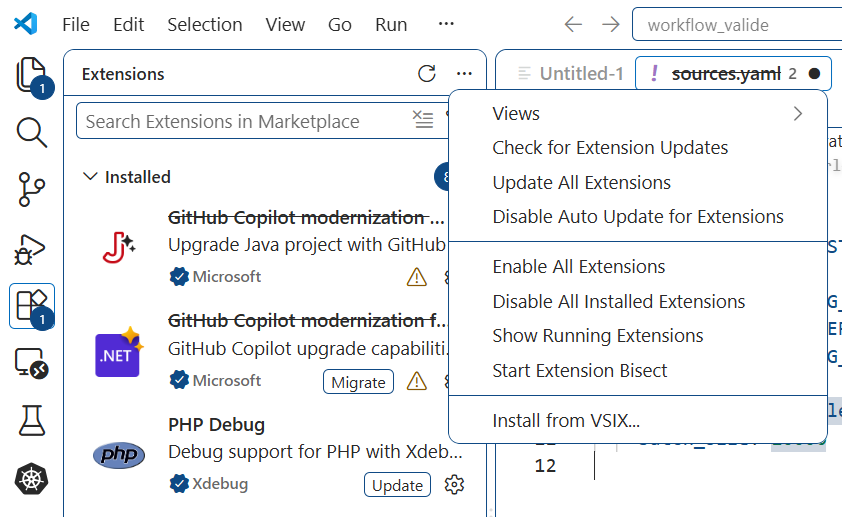
Whichever route you took, reload with Ctrl Shift P, then Developer: Reload Window.
Do not double-click the .vsix in the file explorer: Windows hands it to the Visual Studio installer, which refuses it. Do not copy the folder into the extensions directory either — since VS Code 1.74 a directory missing from the registry is ignored at startup, silently.
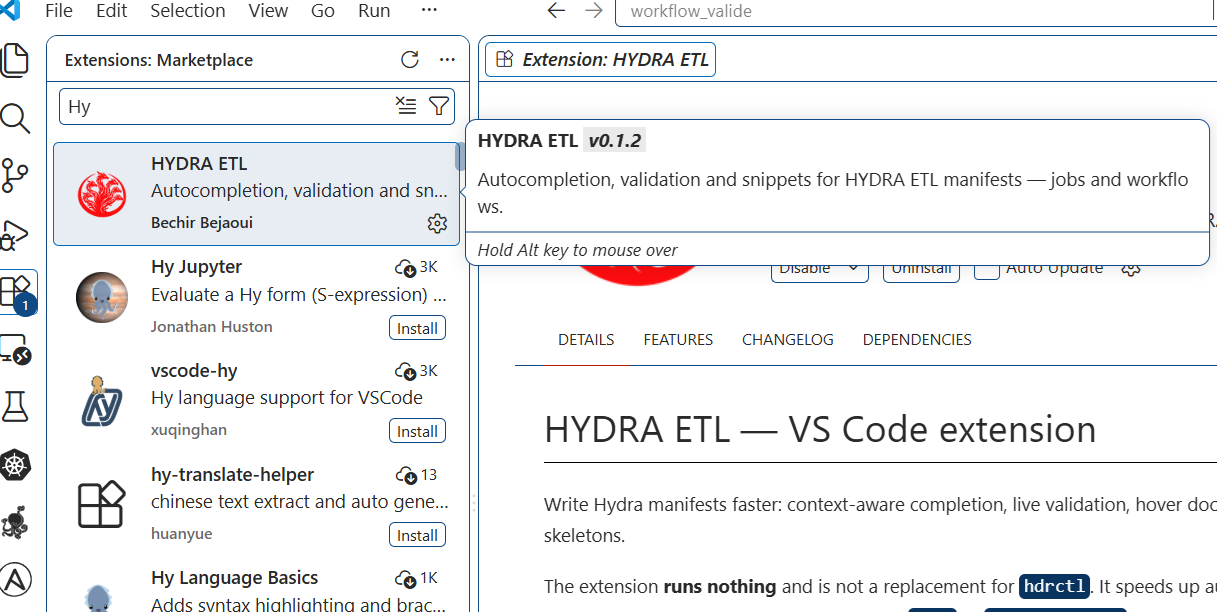
A notification confirming the installation, and the extension in the installed list.
Hydra.HYDRA ETL, version 0.1.2, published by Bechir Bejaoui. The full identifier is Bechir Bejaoui.hydra-etl — it contains a space, so quote it when passing it to a shell.
Five checks, about five minutes
Open the examples/ folder of the extension in VS Code. It ships correct manifests and a set of deliberately faulty ones, each error documented in a comment.
examples/invalid_examples/destinations.yaml.workflow.yaml and transformations.yaml.Sixteen entries in total, each pointing at the right line. The offending keys are underlined in the editor, and the file tab carries the error count.
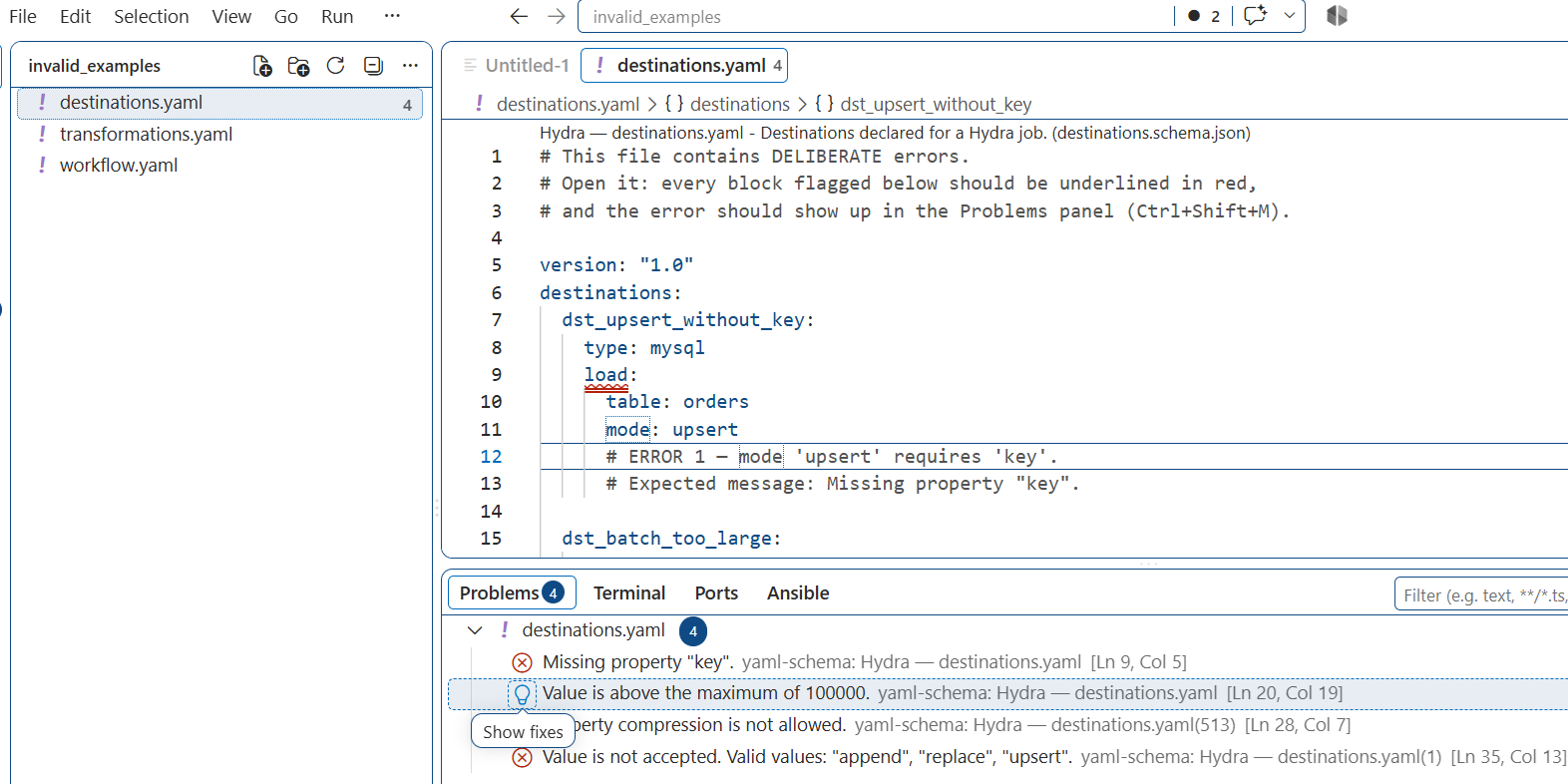
upsert firing.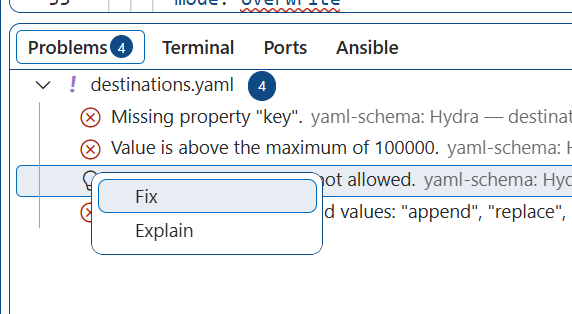
examples/valid_job/.examples/valid_workflow/workflow.yaml.No entry at all. A warning here means the schema is stricter than the engine — worth reporting.
This is the check that matters: it proves the conditional schemas are wired correctly.
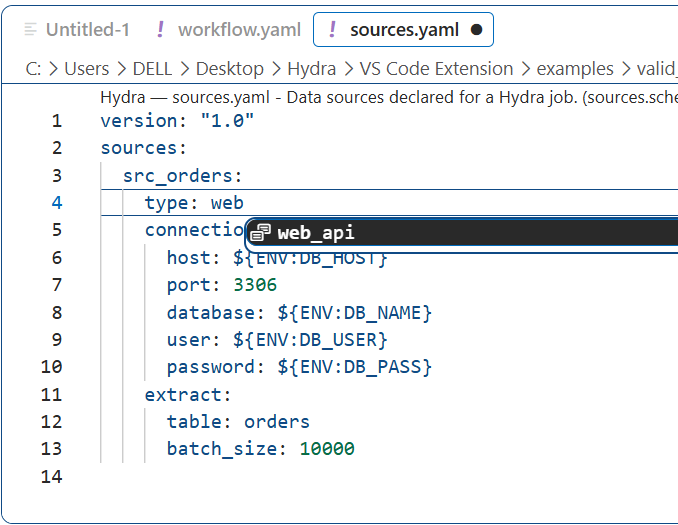
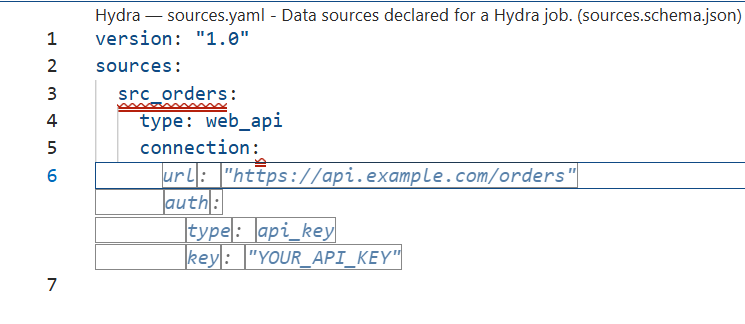
examples/valid_job/sources.yaml, replace type: mysql with type: web_api.connection: block, keeping the key itself.Typing web on the type line already offers web_api. Once it is set, the keys under connection switch from host, port, database, user and password to base_url, auth and pagination.
sources.yaml.sources:hsrc-pg and press Tab.The Esc matters. On an empty line the schema opens its own key suggestions, and that popup captures the Tab before the snippet does. Dismissing it first lets the prefix expand. Typing h then Ctrl Space lists all 32 prefixes.
A complete PostgreSQL source, cursor on the source name. On the table or query field, a dropdown opens.
The same checks, run without opening the editor. Useful in continuous integration.
$ pip install jsonschema pyyaml $ python examples/check_schemas.py
Every schema valid, correct manifests clean, faulty ones caught.
=== 1. Schema validity ===
[  OK  ] destinations.schema.json
...
PASSED — every check succeeded.
What the faulty examples advertise
| File | Errors | One of them |
|---|---|---|
| destinations.yaml | 4 | Missing property "key" — upsert needs one |
| transformations.yaml | 7 | "integer" is not one of int, float, str, bool, date, datetime |
| workflow.yaml | 5 | "cron" is a required property |
Copying the folder into the extensions directory no longer works. Since VS Code 1.74, extensions.json acts as the registry, and a directory missing from it is ignored at startup without any message.
Install through the .vsix instead, then remove the stray copy.
The window titled VSIX Installer belongs to Visual Studio, not to VS Code. Windows opens it on double-click.
Close it and install from inside VS Code, through Install from VSIX or the code command.
The YAML language server has not taken over. Check the language mode in the status bar reads YAML, then reload the window once more — the server sometimes needs a second cycle to pick up schemas from a freshly installed extension.
The extension sets editor.suggest.snippetsPreventQuickSuggestions to false by default. A workspace or user setting can override it.
Connectors supplied by a plugin are not part of the offered list. They are accepted without error, so this should not happen — report the case with the manifest.
Version 0.1.0
pipeline.from matches a declared source, or a step directory exists, is checked by hdrctl validate.h prefix keeps collisions rare.