

Everything Hydra can do, in one panel
The palette is not a list of icons. It is the complete vocabulary of the product: seven connectors, eighteen transformations, nine actions, three containers — and your own jobs.
1. Objective
Goal
Open both palettes, read every category, and leave knowing what Hydra can do without writing a line of YAML. By the end you should be able to answer one question for any task: is there a node for this, and in which scene does it live?
Keep one cumulative Studio project named studio-course, one manual workflow named first-workflow, and one job named first-job. Each lesson builds on the state saved by the previous one.
Prerequisites
- Hydra API started with
hdrctl serve. - Studio started from
Hydra/studiowithnpm run dev. - A workflow open in the editor.
2. Steps
01Discover the palette
Objective
See that there are two catalogues, not one, and read what each offers.
Actions
- Open the Workflow configuration tab and read the four categories.
- Switch to Jobs configuration and read them again.
- Note the number beside each category name.
Workflow configuration ⇄ Jobs configuration
The palette follows the scene. Orchestration offers what a workflow can do; a job offers what data can go through. Nothing is hidden — what a scene does not show, it cannot do.
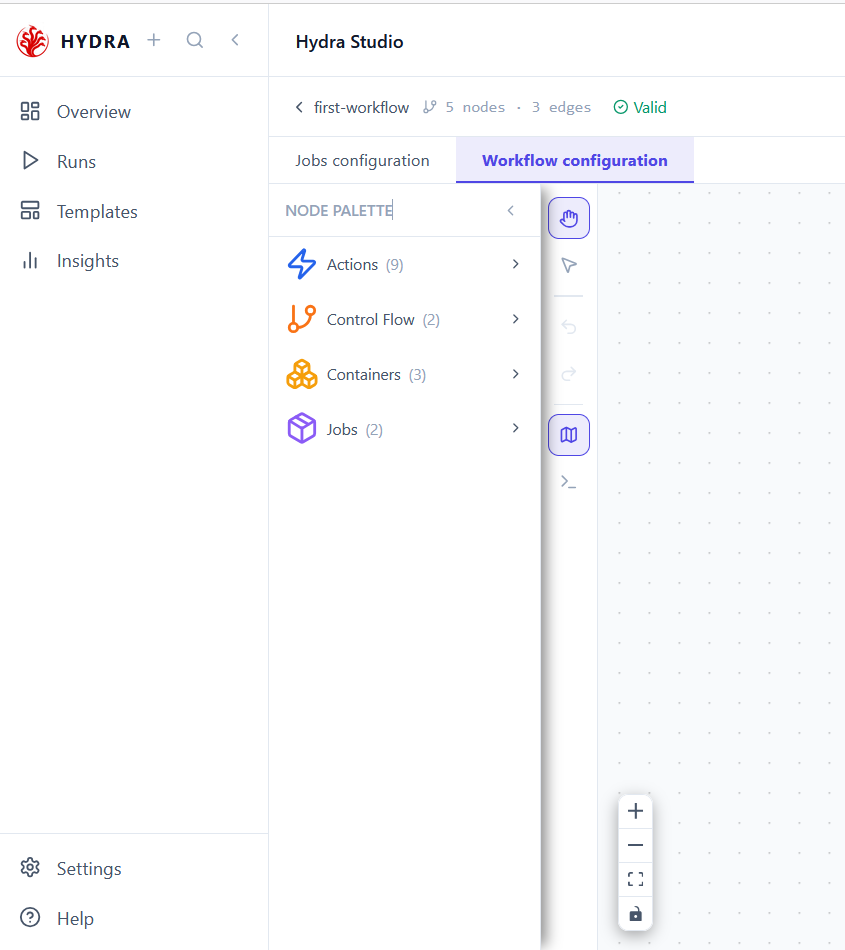
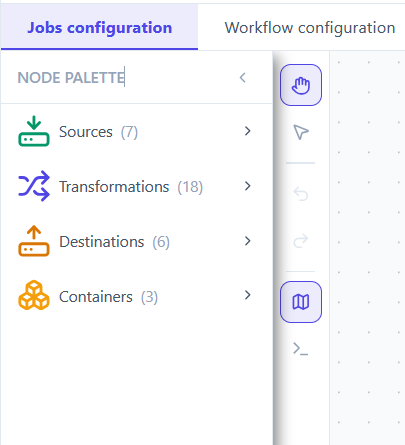
Only Containers appears in both. Every other category belongs to one scene and one only.
Workflow    Actions (9)  Control Flow (2)  Containers (3)  Jobs (2)
Job         Sources (7)  Transformations (18)  Destinations (6)  Containers (3)
02Read what a workflow can do
Objective
Discover that a workflow is not limited to running jobs.
Actions
- Expand Actions.
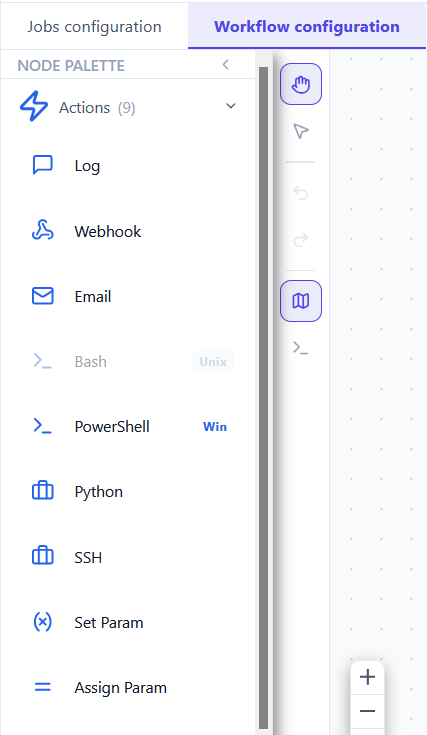
- Read the nine entries from top to bottom.
- Leave it expanded for the next steps.
Actions (9)
This is where a data pipeline becomes an operational one. A job moves rows; an action tells someone, calls something, runs a command, or remembers a value.
| Action | What it does |
|---|---|
| Log | Writes a message to the run log. Always succeeds. |
| Webhook | Sends an HTTP request — notify a service, trigger a build. |
| Sends a message when a load finishes or fails. | |
| Bash · PowerShell | Runs a shell command on the host that carries Hydra. |
| Python | Runs Python — inline or a .py file. Works on every platform. |
| SSH | Runs a command on another machine. |
| Set Param · Assign Param | Create and update values that later steps can read. |
Nine entries, one of them dimmed. That dimming is the subject of the next step.
03Tell someone, or tell something
Objective
Meet the three actions that carry news out of the workflow.
Actions
- Open Log and read its subtitle.
- Open Webhook and read the method list.
- Open Email and note which fields carry a red asterisk.
Actions → Log · Webhook · Email
These three answer the same question — who needs to know? — at three distances. Log speaks to whoever reads the run afterwards. Webhook speaks to another system. Email speaks to a person who is not watching.
| Action | Required | Worth knowing |
|---|---|---|
| Log | nothing | The only action that always succeeds. Safe to place anywhere, including after a failure. |
| Webhook | a URL | POST by default, with a JSON body. Choose another method from the list when the service expects one. |
| recipient and subject | Sends over SMTP. The server, port and credentials belong to the step, so each workflow can use its own. |
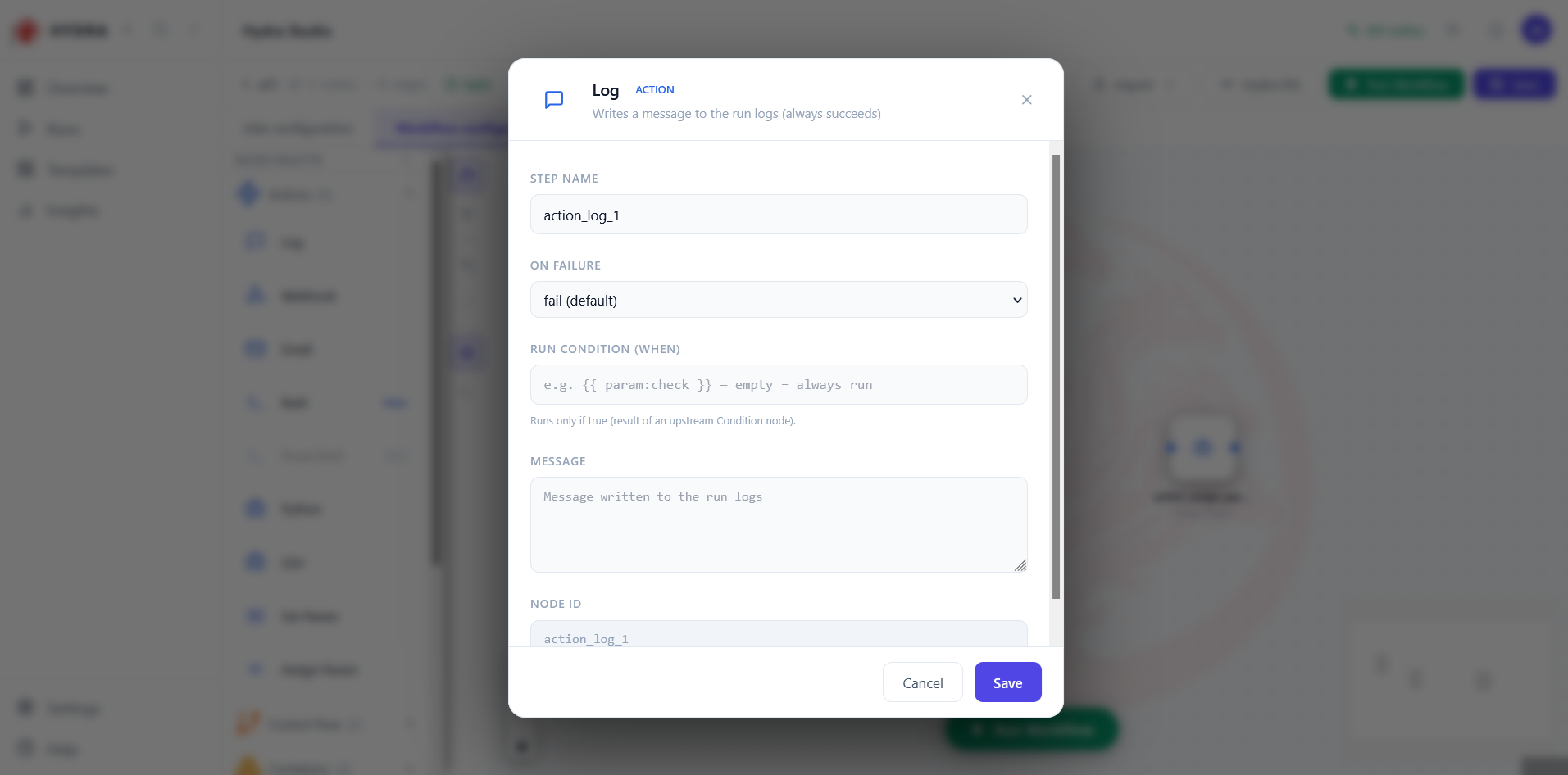
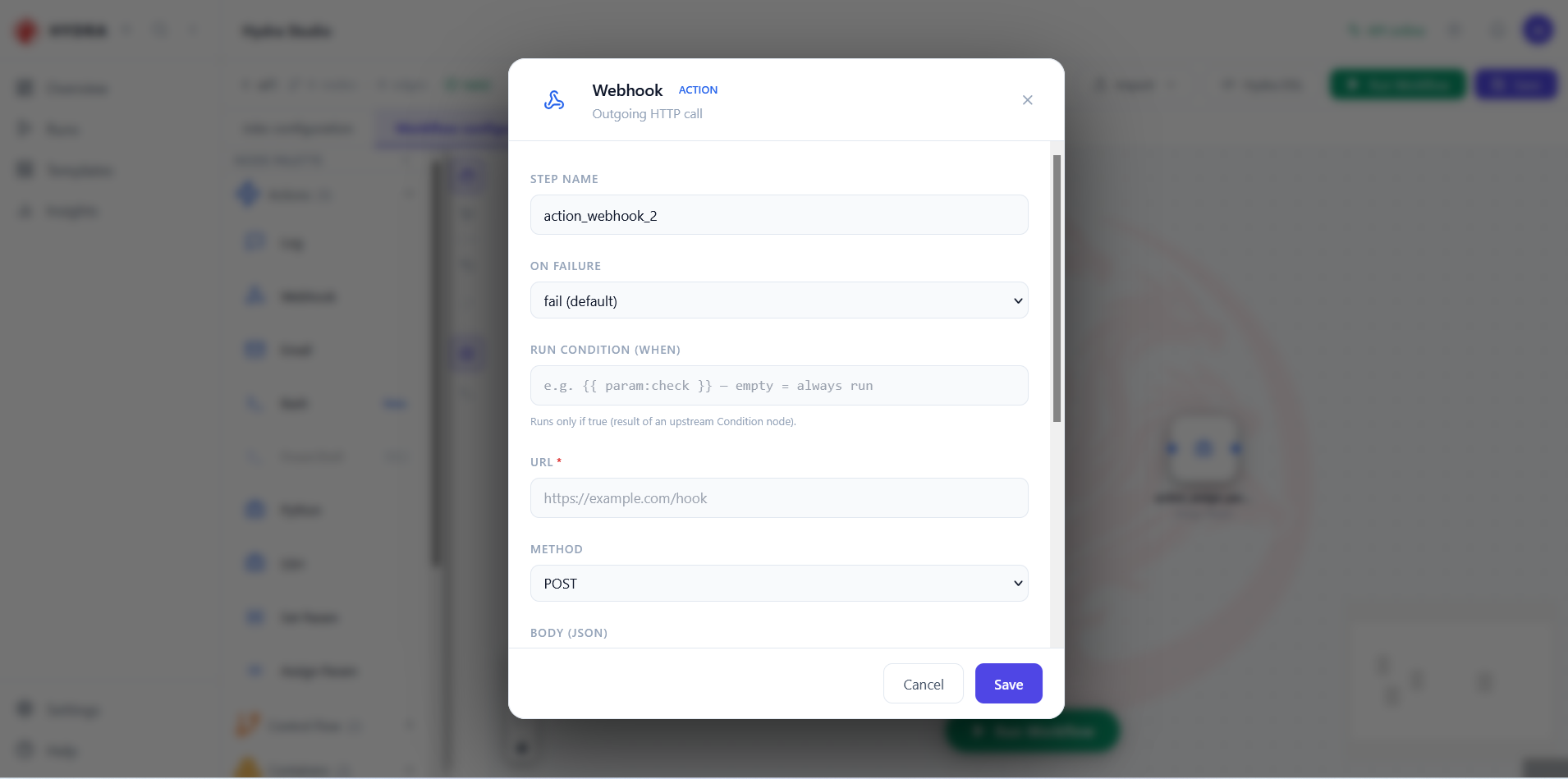
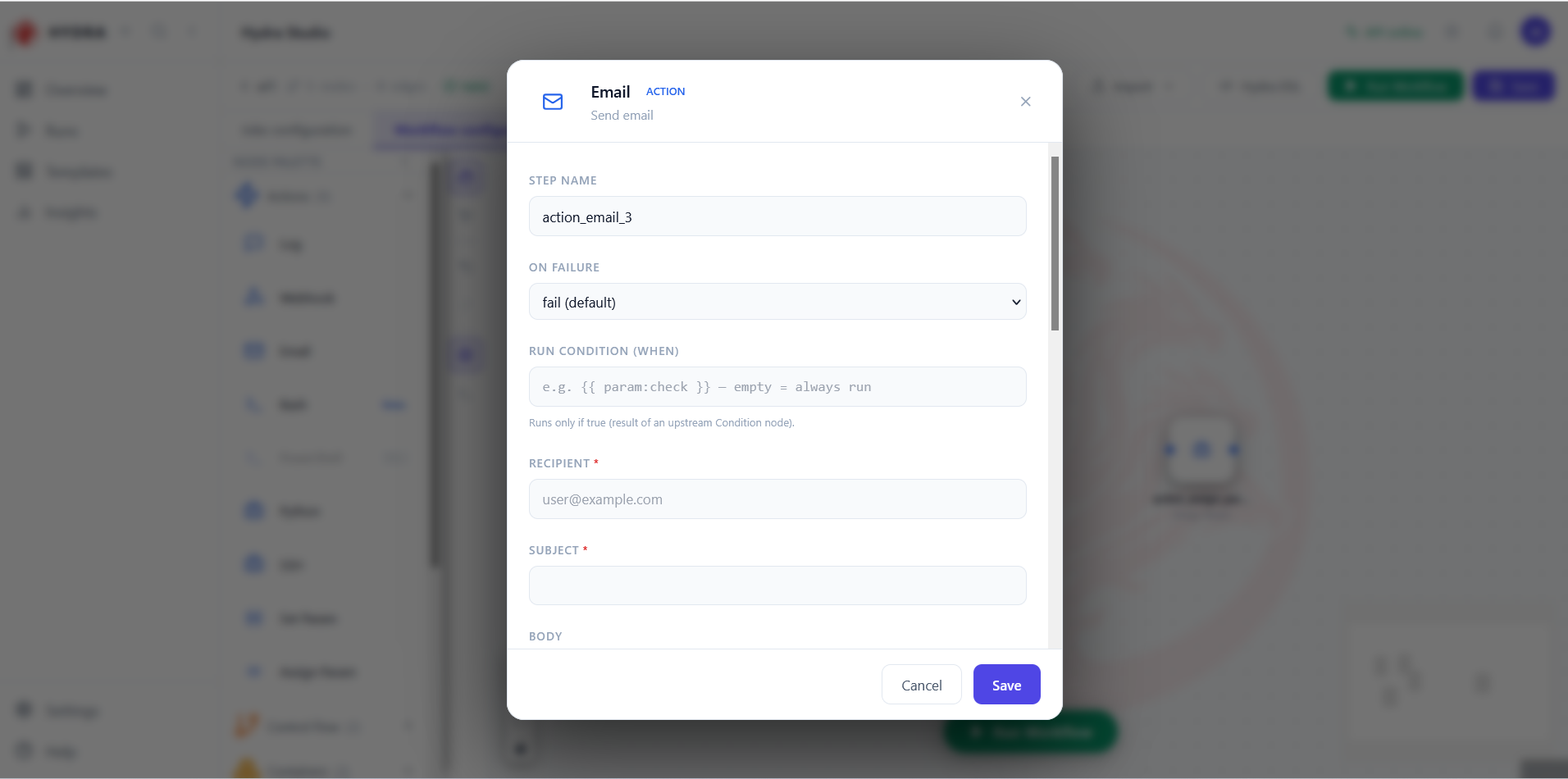
Three subtitles that say exactly what each one does, and no more.
Log       ACTION   Writes a message to the run logs (always succeeds)
Webhook   ACTION   Outgoing HTTP call
Email     ACTION   Send email
04The palette knows which machine it runs on
Objective
Read the platform badges, and understand why one shell is always unavailable.
Actions
- Find Bash and PowerShell in the list.
- Read the badge on the right of each: Unix or Win.
- Note which of the two is dimmed.
Actions → Bash · PowerShell
Hydra runs the command on the machine that hosts it, so only one of the two shells can ever work. The palette does not hide the other — it shows it, dimmed, with the platform it needs. You always know the whole vocabulary, and what your host is missing.
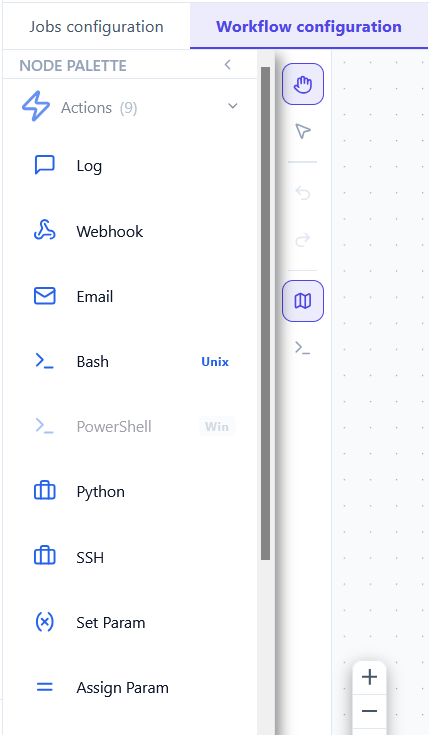
Hydra never substitutes one shell for the other. A workflow carrying a PowerShell step fails on Linux, and a Bash step fails on Windows — by design, with a clear message. If a workflow must run on both, use Python instead: it is the only interpreter available everywhere.
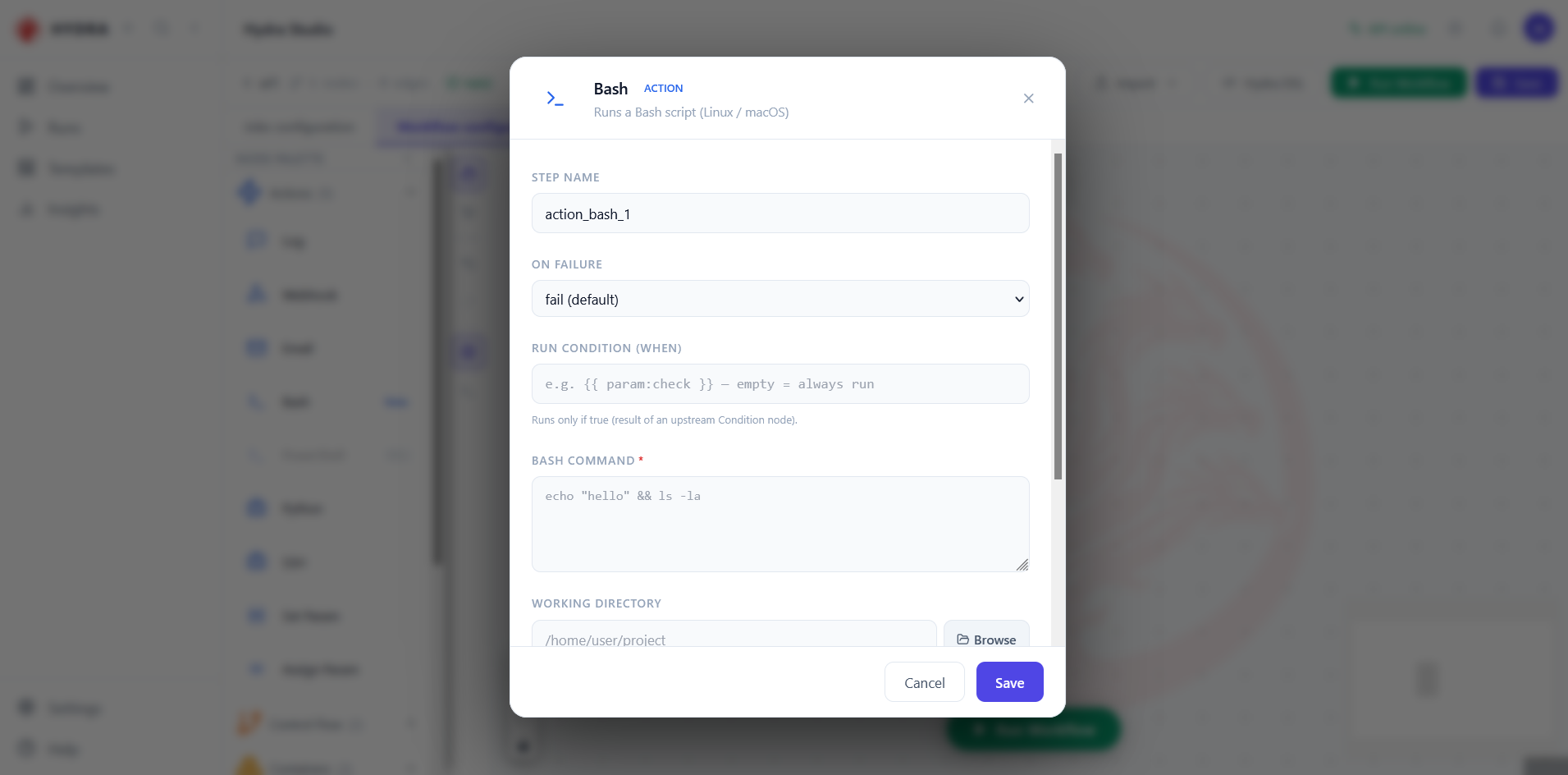
Both dialogs are the same, only the command differs. The subtitle states the platform outright.
Bash        ACTION   Runs a Bash script (Linux / macOS)
PowerShell  ACTION   Runs a PowerShell script (Windows)
05Run Python, on any host
Objective
Find the one interpreter that never depends on the platform, and its two ways of receiving code.
Actions
- Open the Python action.
- Select Inline script and read the editor.
- Select .py file and read the fields that replace it.
Actions → Python → Inline script | .py file
Python carries no platform badge, because there is nothing to warn about: it runs on Windows, Linux and macOS alike. Where a shell action ties a workflow to one host, this one keeps it portable — which is why it is the answer whenever a workflow has to travel.
| Mode | What you provide | When to choose it |
|---|---|---|
| Inline script | The code, typed in the dialog | A few lines that belong to this workflow and nowhere else. Everything stays in one file. |
| .py file | A path, plus a working directory | Real code — one you test, review and version separately. The workflow references it instead of copying it. |
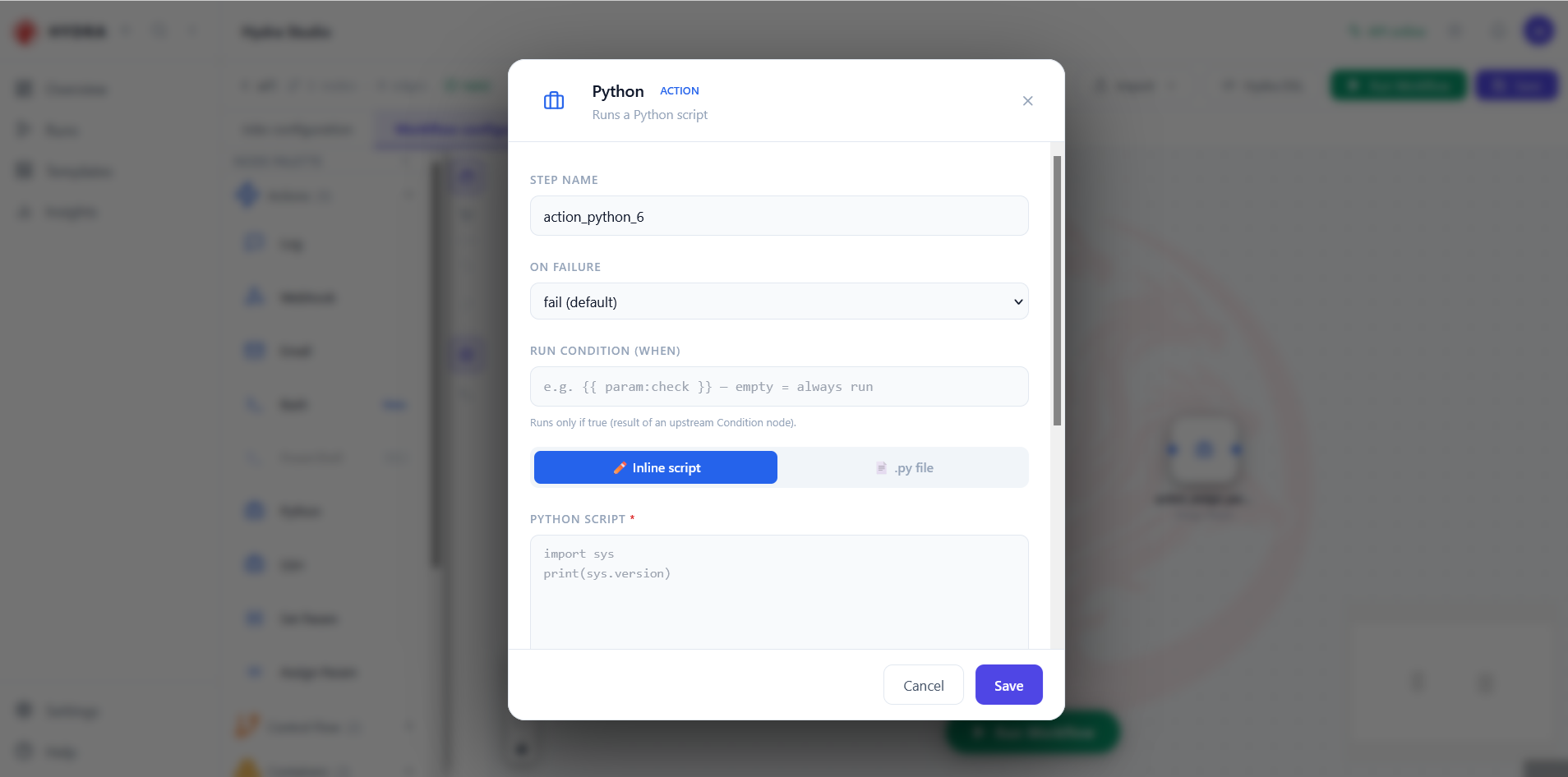
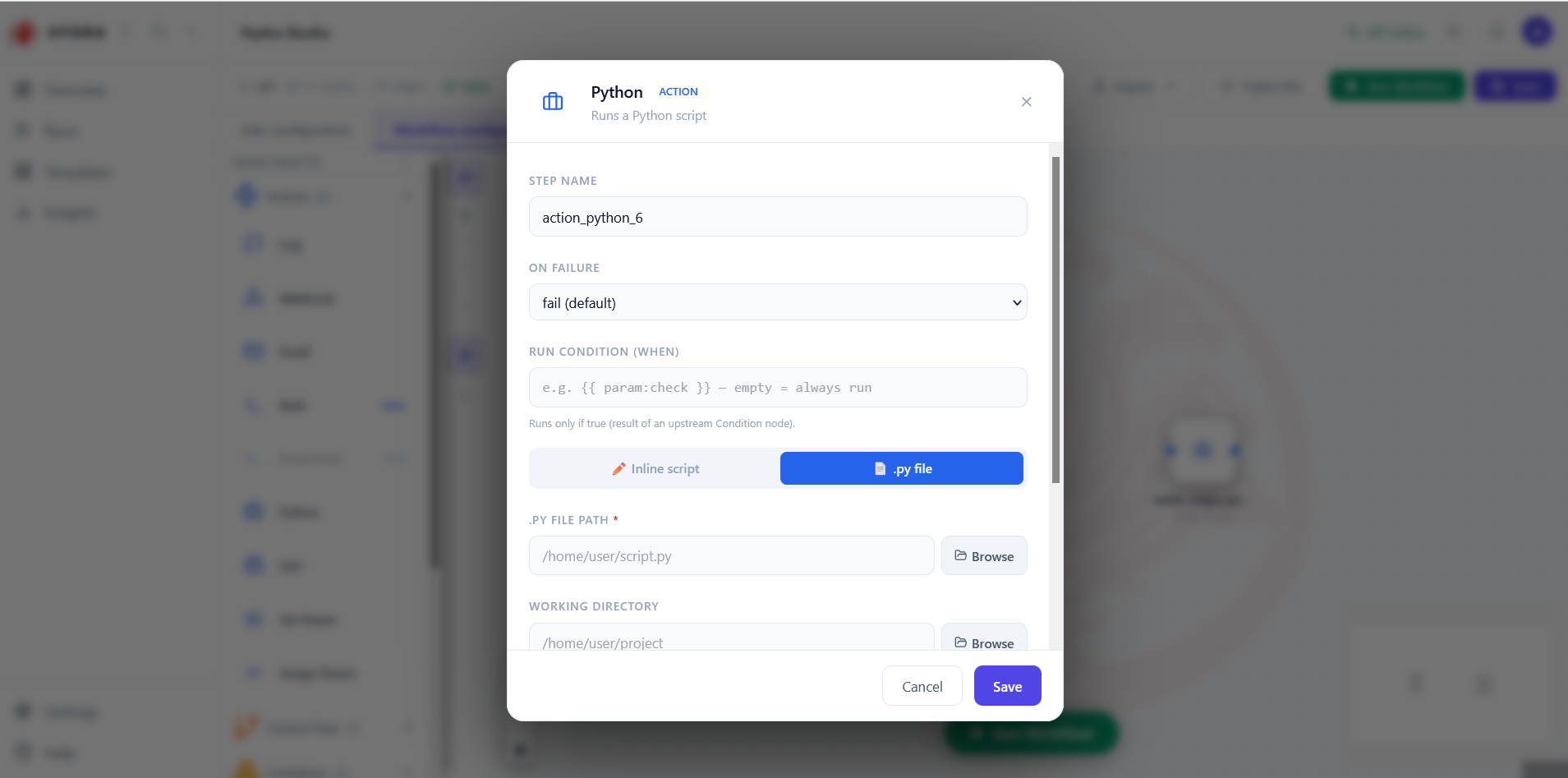
One toggle, two shapes, the same action. Parameters set earlier reach the script as environment variables, so you rarely need to hard-code a value.
Python  ACTION  Runs a Python script
  Inline script   →  PYTHON SCRIPT *
  .py file        →  .PY FILE PATH *   WORKING DIRECTORY
06Reach outside the machine, and carry values across steps
Objective
Meet the three actions that make a workflow more than a sequence of loads.
Actions
- Open SSH and read the fields it requires.
- Open Set Param, then Assign Param.
- Compare the two subtitles word for word.
Actions → SSH · Set Param · Assign Param
SSH runs a command on another machine — restart a service, move a file, trigger a job on a server Hydra does not live on.
Set Param creates a value; Assign Param changes one that already exists. The distinction is deliberate: creating twice is a mistake, and Hydra refuses it rather than overwriting something you forgot about. Later steps read the value with {{ param:name }}, and shell and Python actions also receive it as an environment variable.
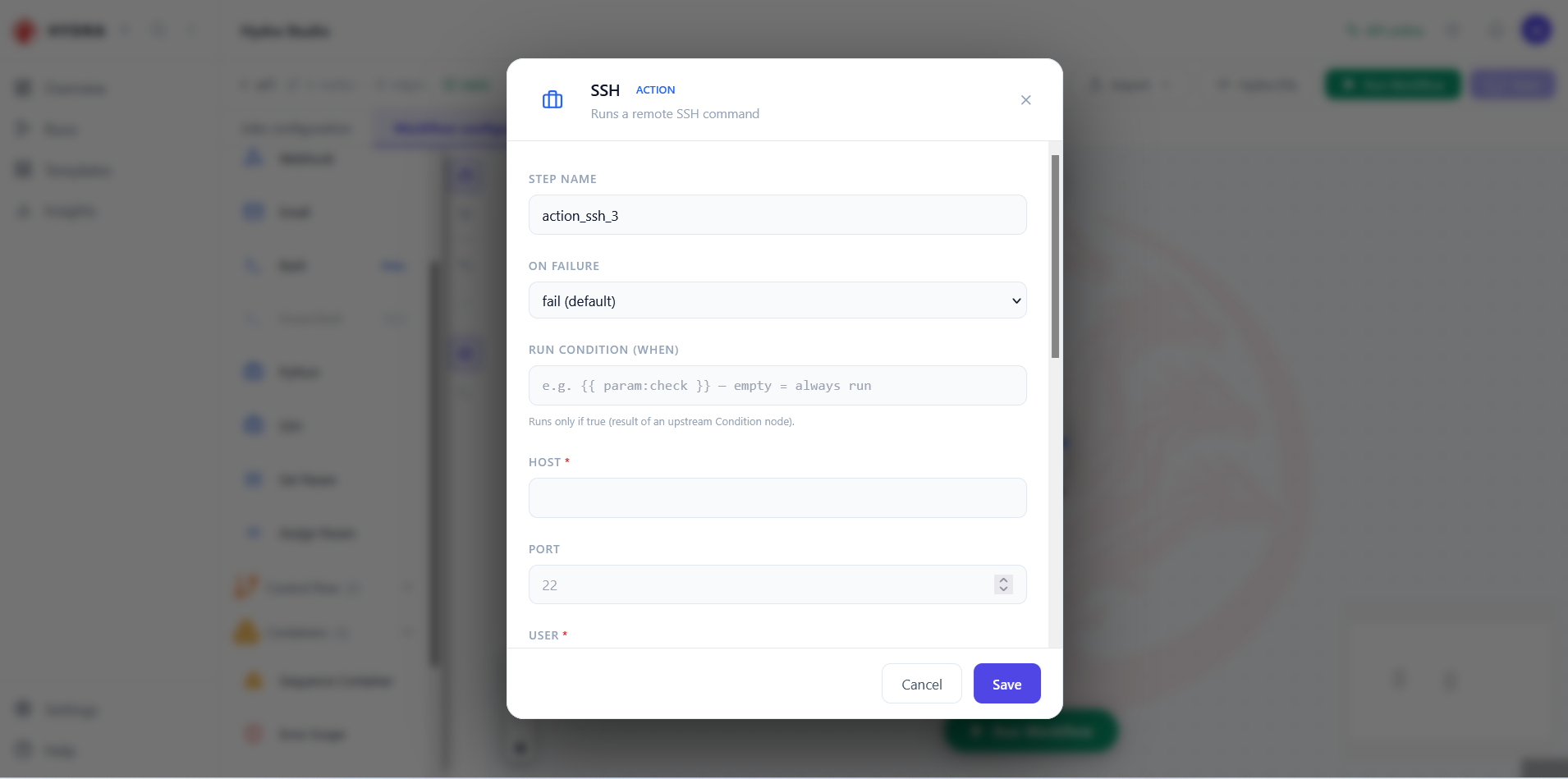
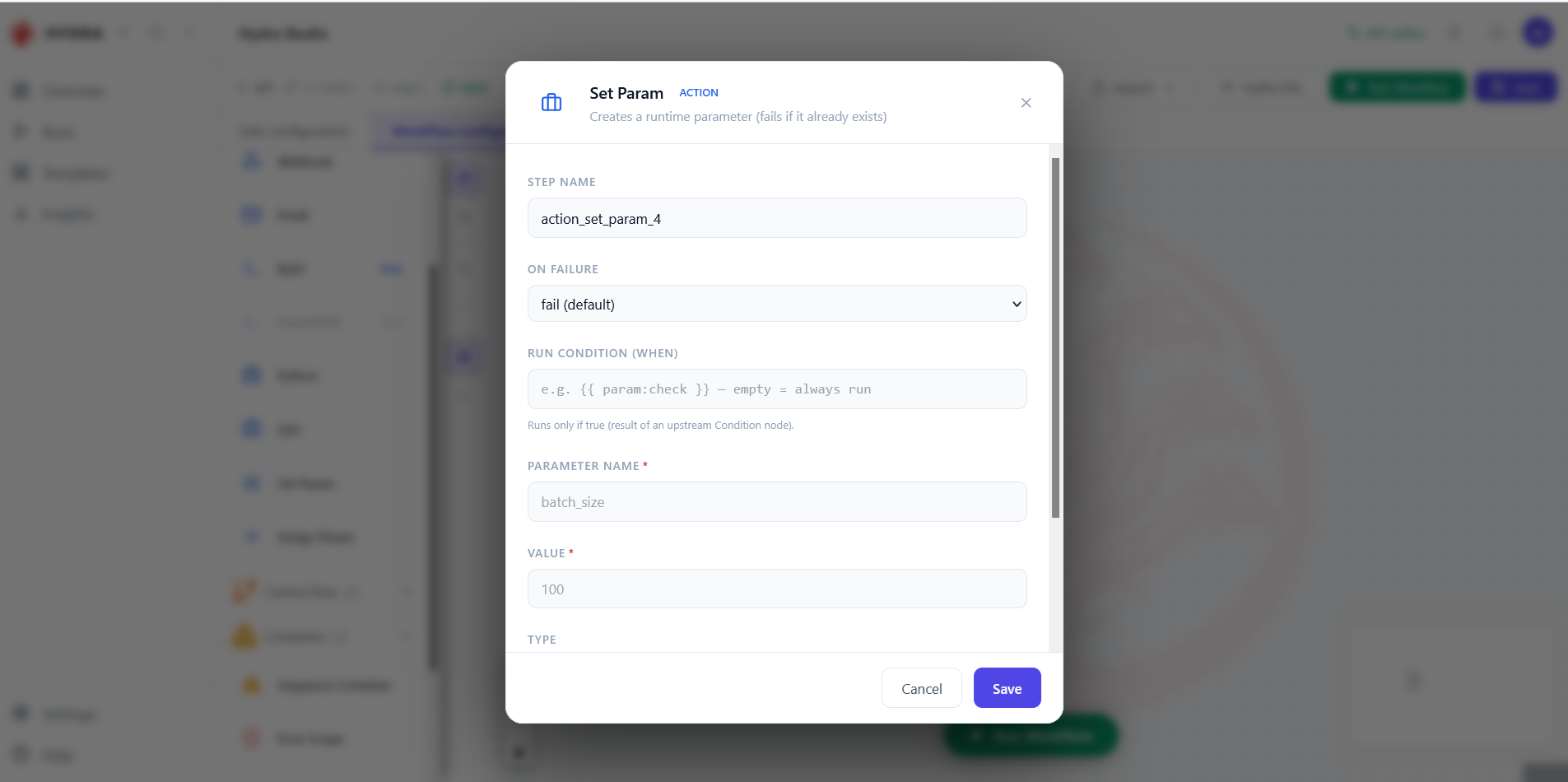
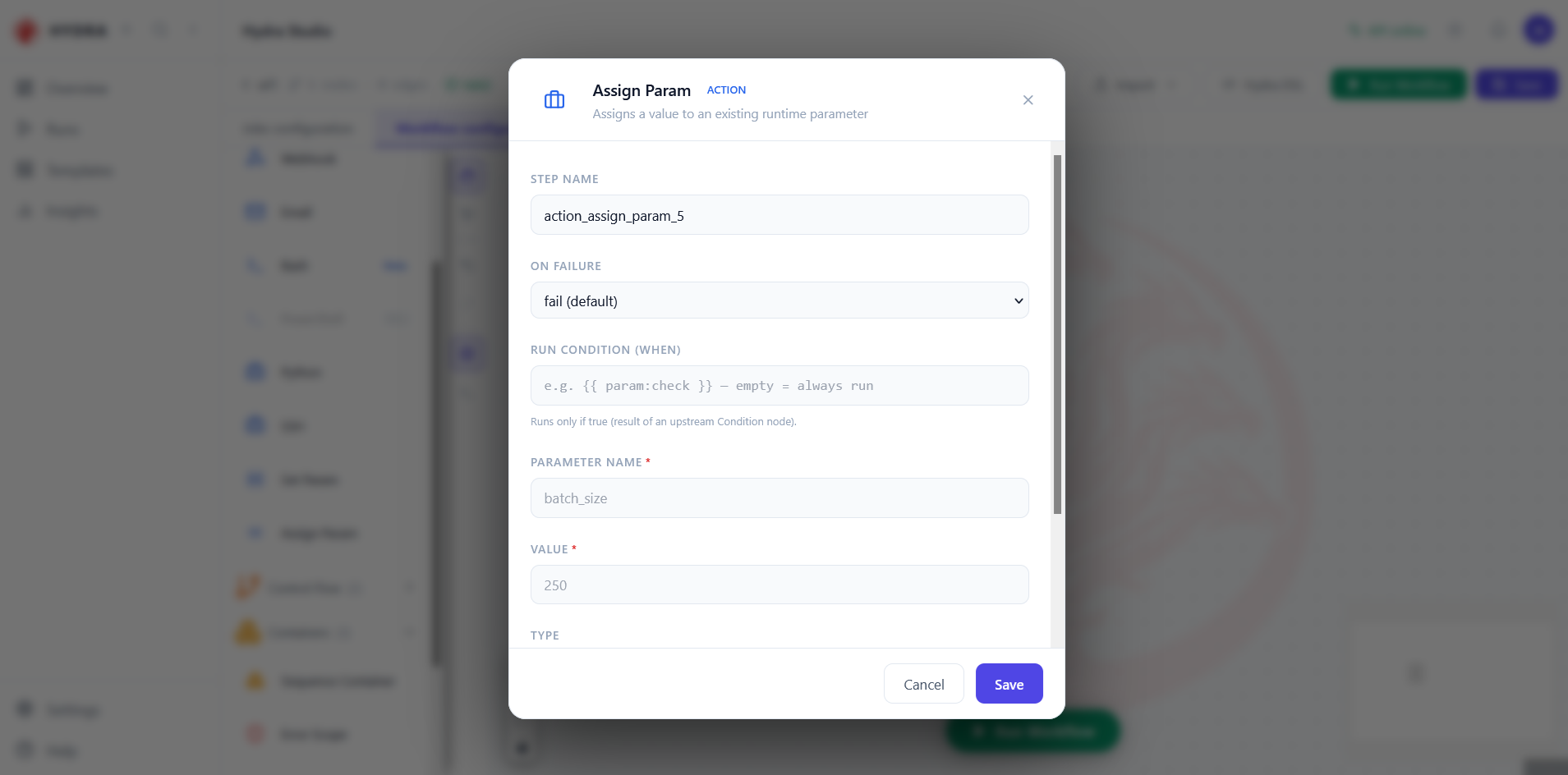
Two dialogs that look alike and mean the opposite. Read the subtitle, not the shape.
Set Param      Creates a runtime parameter (fails if it already exists)
Assign Param   Assigns a value to an existing runtime parameter
07Steer the graph, and group what it holds
Objective
Find the two categories that shape execution rather than perform it.
Actions
- Expand Control Flow and read its two entries.
- Expand Containers in the workflow scene.
- Switch to Jobs configuration and expand Containers there too.
Control Flow (2) · Containers (3)
Condition evaluates an expression and lets downstream steps decide whether to run; Delay simply waits. Containers do not execute at all — they group nodes and hand a policy down to whatever they enclose.
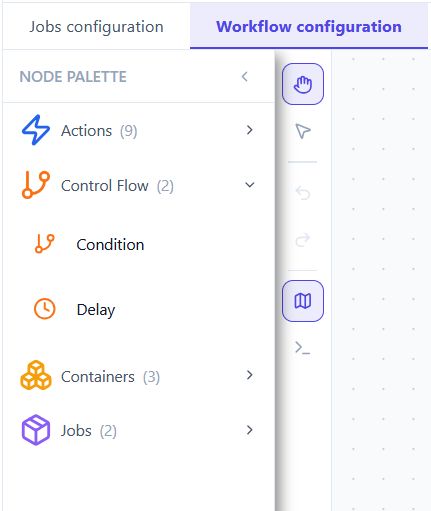
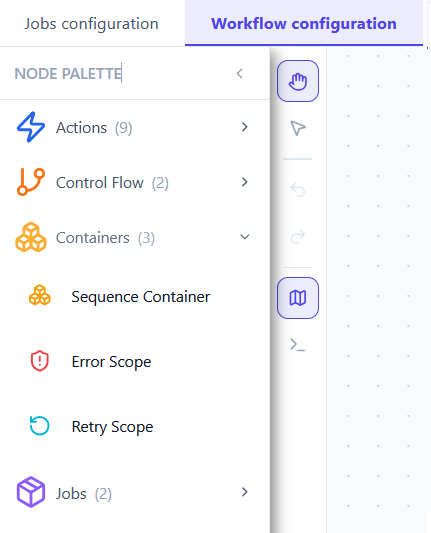
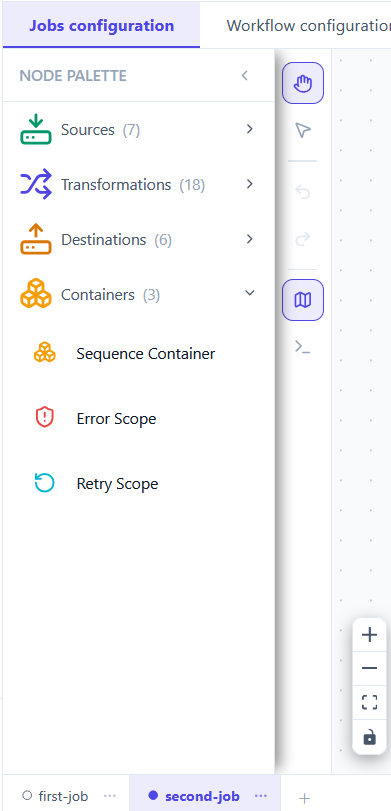
Three containers in both scenes, and the same names. Their effect differs: in a workflow they write a policy onto steps, in a job they only tidy the canvas.
Control Flow   Condition   Delay
Containers     Sequence Container   Error Scope   Retry Scope
08Your own jobs become palette entries
Objective
See that the palette is not fixed — it grows with the project.
Actions
- Expand Jobs in the workflow scene.
- Read the names listed there.
- Look at the tab bar at the bottom of the job scene.
Jobs (2)
Every job you design in this project appears here, ready to be dropped into any workflow. That is what makes a job reusable: written once in Jobs configuration, orchestrated as many times as needed. The count is the size of your own library, not a product limit.
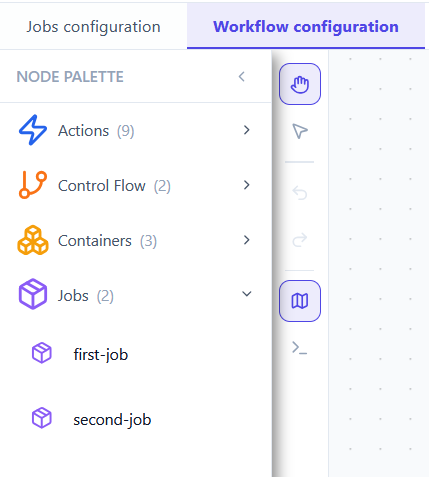

The job names you created, nothing else. An empty project shows Jobs (0) and says so in plain words.
Jobs (2)
  first-job
  second-job
09Read the connectors, in and out
Objective
Learn what Hydra can read from and write to, and spot the one asymmetry.
Actions
- In Jobs configuration, expand Sources.
- Expand Destinations.
- Compare the two lists entry by entry.
Sources (7) · Destinations (6)
Six connectors work in both directions: three file formats and three databases. The seventh, Web API, reads only — Hydra pulls from an HTTP endpoint but does not push to one. To send data out over HTTP, use the Webhook action in the workflow scene instead.
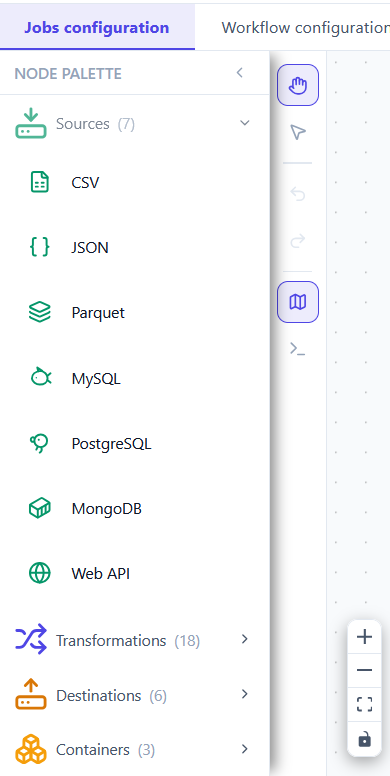
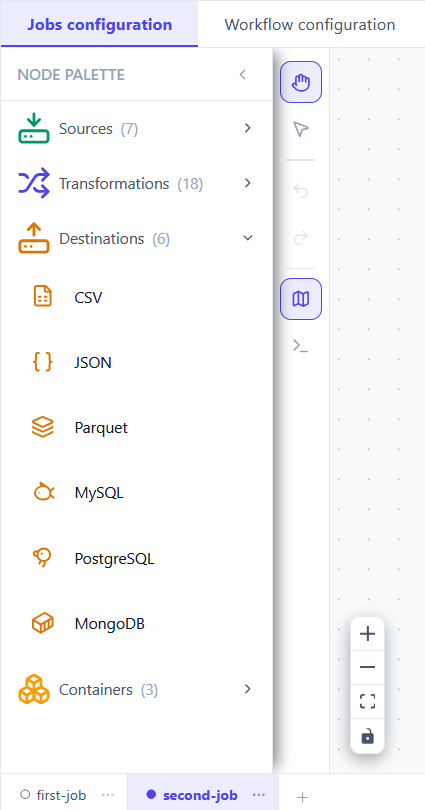
Seven on the way in, six on the way out. The difference is one entry, and it is not an oversight.
Sources        CSV  JSON  Parquet  MySQL  PostgreSQL  MongoDB  Web API
Destinations   CSV  JSON  Parquet  MySQL  PostgreSQL  MongoDB
10Eighteen ways to reshape data
Objective
Read the full transformation list once, so you stop reinventing what already exists.
Actions
- Expand Transformations.
- Scroll to the end of the list.
- Note the last entry, Script.
Transformations (18)
They fall into four families. Knowing which family you need is usually faster than remembering a name.
| Family | Operations |
|---|---|
| Choose | Filter · Select · Deduplicate |
| Change | Rename · Cast · Derive · Fill Null · Trim · Clean |
| Reshape | Sort · Aggregate · Pivot · Unpivot · Transpose |
| Combine | Join · Merge · Union |
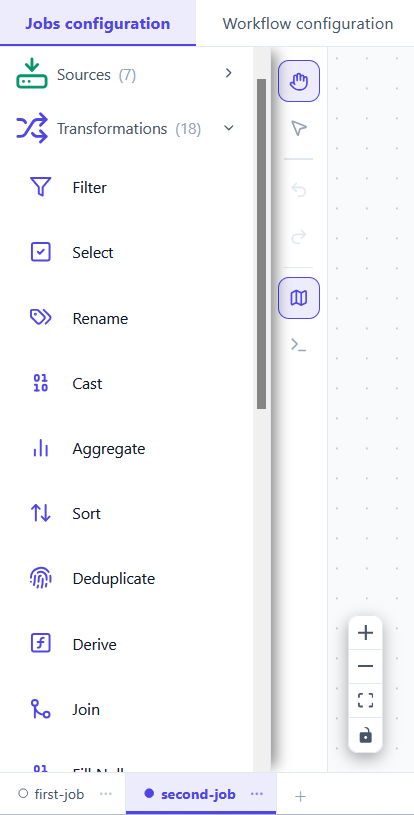
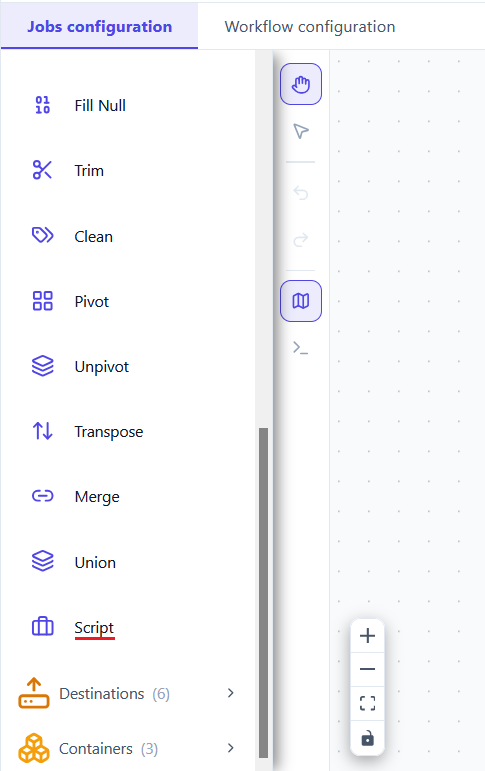
Seventeen named operations, then one that is not an operation at all.
Filter  Select  Rename  Cast  Aggregate  Sort  Deduplicate  Derive  Join
Fill Null  Trim  Clean  Pivot  Unpivot  Transpose  Merge  Union  Script
11Write the transformation that does not exist
Objective
Find the way out when none of the seventeen operations fits.
Actions
- Drop a Script node onto the job canvas.
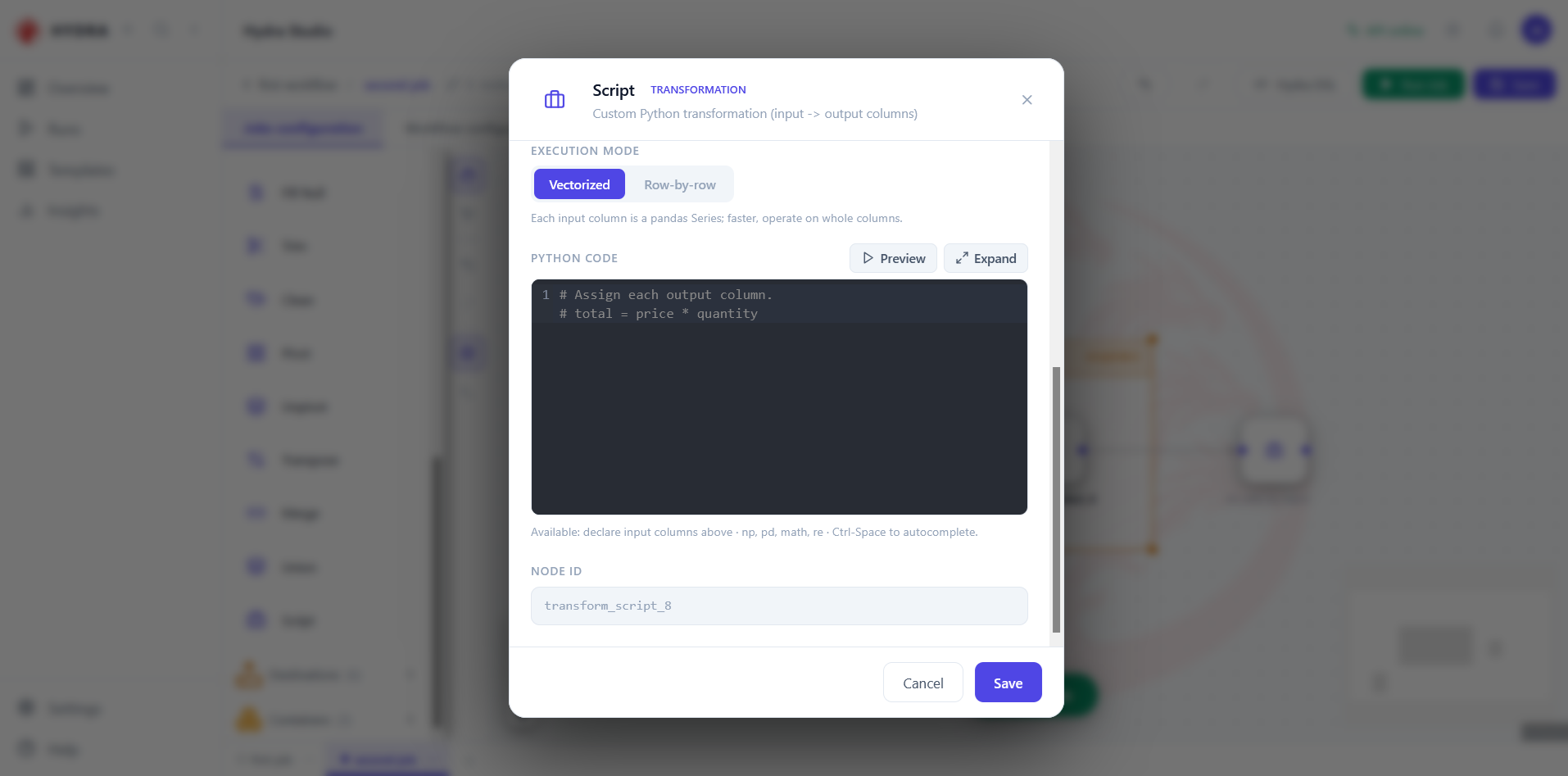
- Read the two execution modes.
- Use Preview to run it against real rows before saving.
Transformations → Script
Every declarative tool eventually meets a rule its authors did not foresee. Hydra answers with Script: you declare which columns come in and which go out, then write Python between the two. The contract stays readable in the YAML even though the logic is code.
| Execution mode | What your code receives | When to choose it |
|---|---|---|
| Vectorized | Each input column as a pandas Series | The default. Operates on whole columns, so it stays fast on large volumes. |
| Row-by-row | Each input column as a single value | Easier to reason about, much slower. Keep it for genuinely per-row logic. |
np, pd, math and re are available, and Ctrl Space completes as you type. Preview runs the code on real rows so you find out here, not during a run.
12Give the canvas room
Objective
Recover screen space once you know where everything is.
Actions
- Select the < control at the top right of the palette.
- Work on the canvas with the palette collapsed.
- Select it again to bring the panel back.
NODE PALETTE → ‹
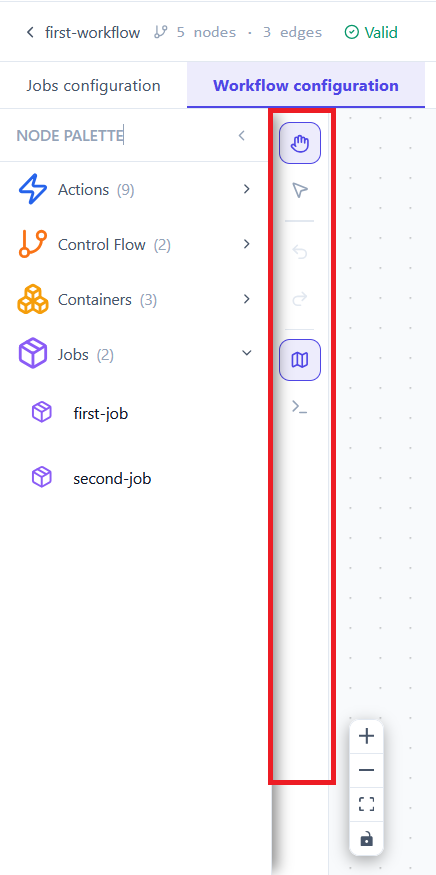
Collapsed, the palette keeps its icons: you can still drag a node onto the canvas without giving up the width. The vertical toolbar beside it stays put in both states — pan, select, undo, redo, minimap and terminal.
The panel narrows to a strip of icons. Nothing is lost, and the canvas gains a third of the window.
Tips and traps
The palette follows the scene. If a node is missing, you are probably in the other tab.
A dimmed entry is not a bug. It names what your host cannot run, and tells you which platform it needs.
Only Python runs everywhere, inline or from a .py file. Prefer it when a workflow must travel.
Remember that Set Param creates and Assign Param updates. The wrong one fails on purpose.
A Web API node reads only. To send data out over HTTP, use the Webhook action.
Reach for Script last. Seventeen named operations are read by everyone; your Python is read by you.
Counts beside Jobs grow with the project. Every job you write becomes a reusable node.
The Webhook action calls out; the Webhook trigger listens in. Same word, opposite direction.
A container in a job tidies the canvas. Only in a workflow does it write a policy.
3. Checklist
| Verification | Expected result |
|---|---|
| Workflow palette | Actions, Control Flow, Containers, Jobs |
| Job palette | Sources, Transformations, Destinations, Containers |
| Shared category | Containers, and it alone |
| Platform badges | One shell active, the other dimmed |
| Connectors | Seven in, six out — Web API reads only |
| Transformations | Eighteen, the last one being Script |
| Jobs category | Lists the jobs of this project |
| Collapse | Icons remain, and stay draggable |
4. Troubleshooting
| Symptom | Cause | Fix |
|---|---|---|
| No Sources in the palette | You are in the workflow scene | Switch to Jobs configuration |
| No Actions in the palette | You are inside a job | Actions orchestrate; switch to Workflow configuration |
| Bash or PowerShell cannot be dragged | Your host does not provide that shell | Use the other one, or Python for portability |
| Jobs (0) in the palette | The project has no job yet | Create one from the tab bar in Jobs configuration |
| No HTTP destination | Web API is a source only | Send data out with the Webhook action |
| Set Param fails at runtime | The parameter already exists | Use Assign Param to change an existing value |
5. Next lesson
You now know the whole vocabulary and where each word lives. The next lesson puts it to use: dragging a source onto the canvas and pointing it at a real file.