

Build your first Studio job
Download a working file-to-file example, import it into a blank Studio project, inspect its four manifests, and verify its first execution.
1. Download the example
Take the complete archive or download only the files you need. The archive preserves the expected folder structure.
Studio stores jobs below the project. Keep the input and output folders at project level so the relative paths in the manifests resolve unchanged.
first-project/
├── data/
│   └── orders.csv
├── output/
├── jobs/
│   └── first-job-example/
│       ├── sources.yaml
│       ├── destinations.yaml
│       ├── transformations.yaml
│       └── pipeline.yaml
└── workflows/
    └── first-workflow/
2. Integrate the job in Studio
01Create a blank project
Actions
- Open Hydra Studio.
- Create a project named
first-project. - Choose the blank or empty project option.
- Open the new project.
first-project opens without an existing workflow or job.
02Create the first workflow
Actions
- Create a workflow named
first-workflow. - Choose Manual as its trigger.
- Open the workflow editor.
The header identifies first-workflow and the editor opens on an empty canvas.
03Import the downloaded job
Actions
- Extract
first-job-example.zip. - In Studio, select Workflow configuration.
- Open Import, then select Import a job.
- Choose the extracted folder that contains the four YAML manifests.
- When the browser asks for permission, select Upload.
Studio reads the four manifests, creates a job named from the selected folder, and adds it to the project.
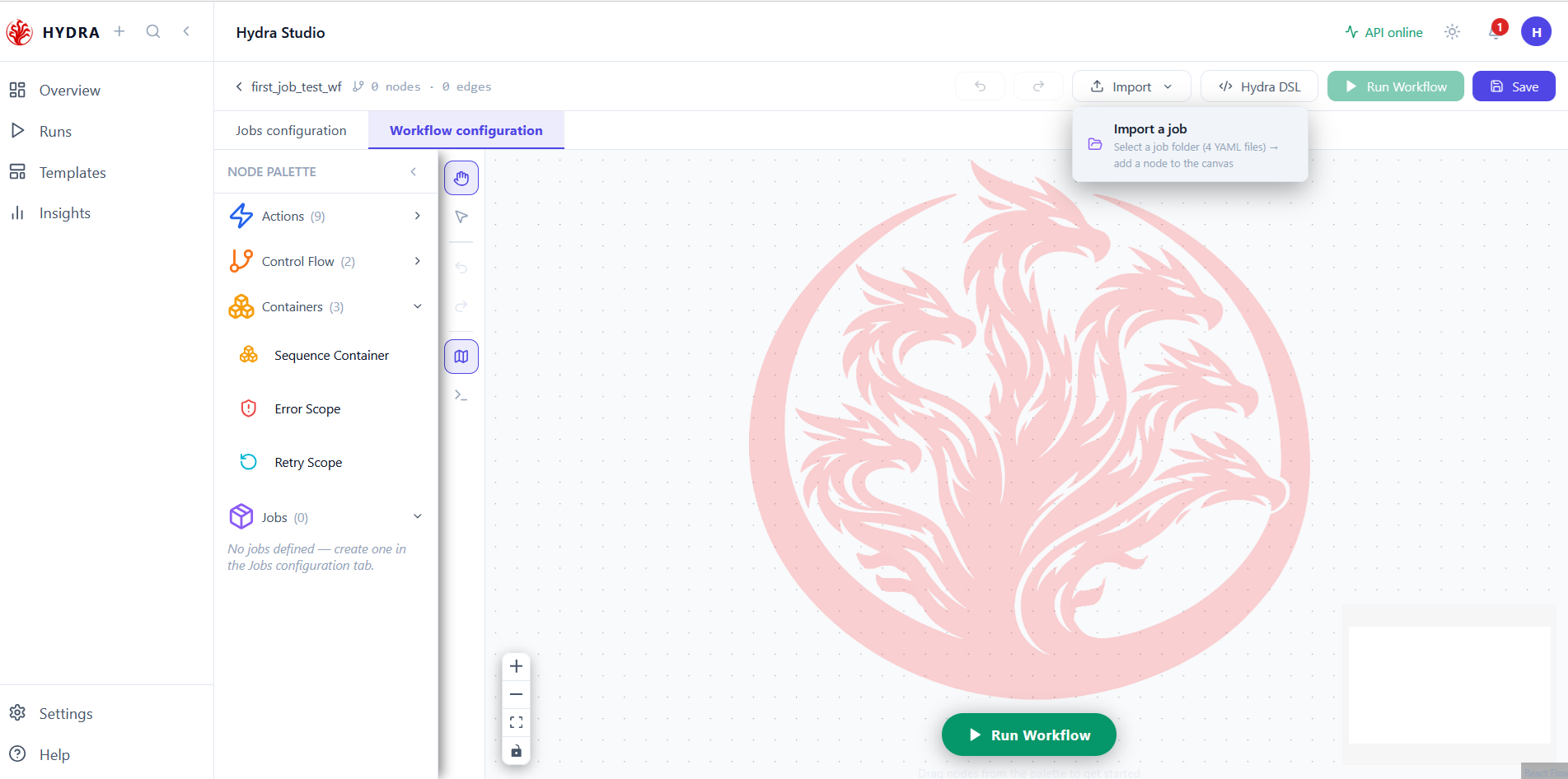
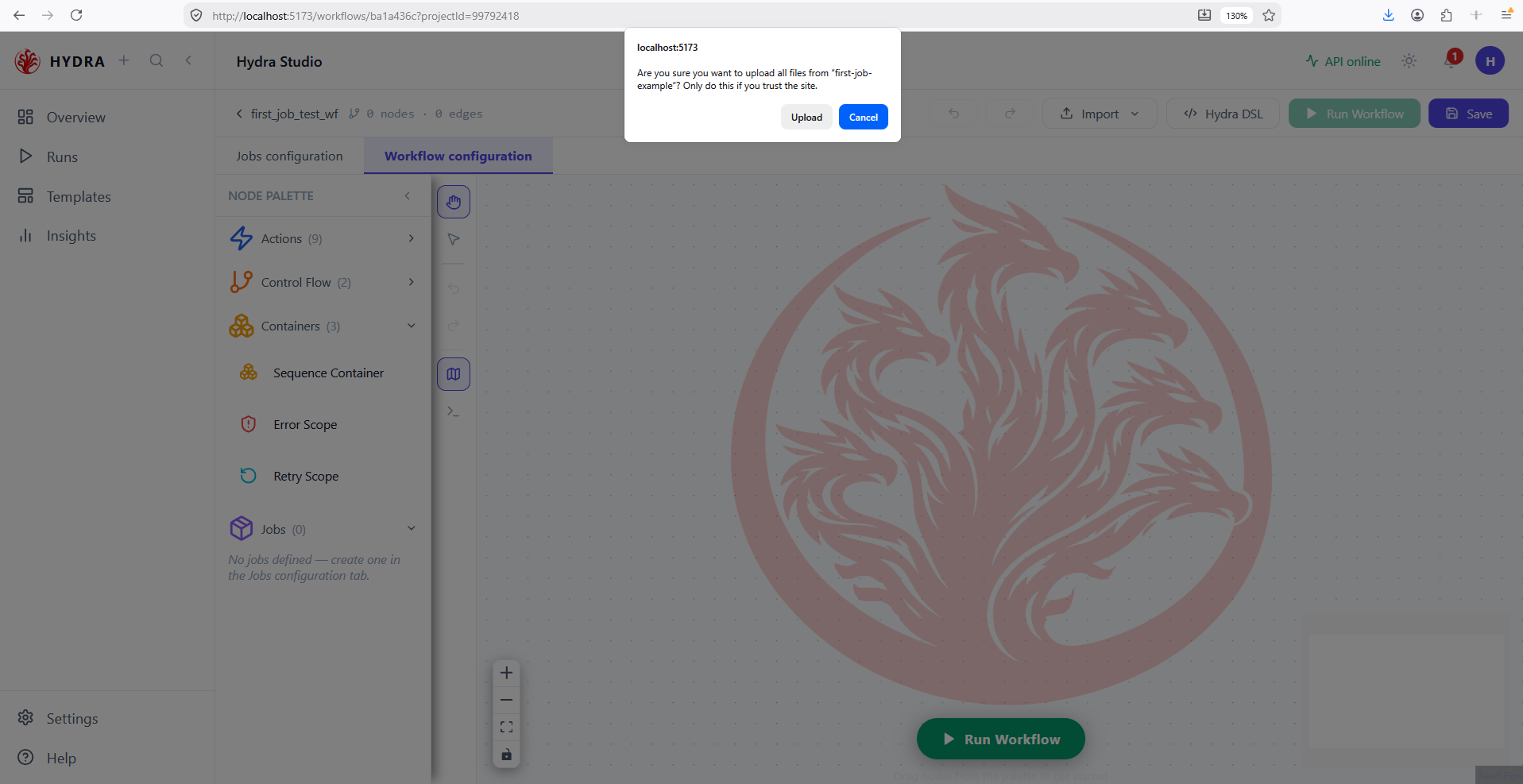
If folder import is unavailable, open Jobs configuration, select the + button, create first-job-example, then paste the four downloaded manifests into their matching Hydra DSL tabs.
04Explore the imported job
Actions
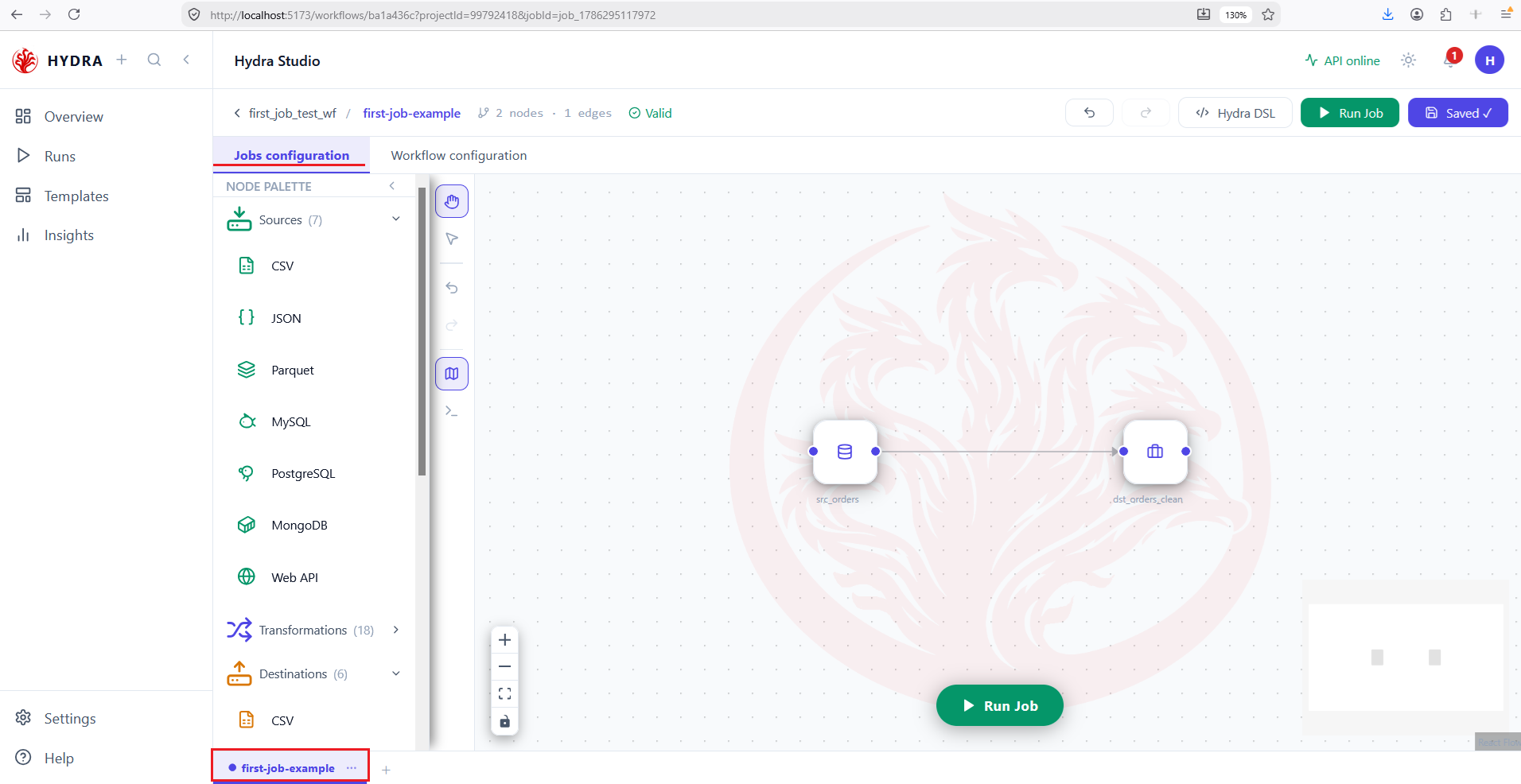
- Switch to Jobs configuration.
- Select the
first-job-exampletab. - Read the source node, destination node, connecting edge, and validity indicator.
- Confirm that Run Job is available.
The imported declarations become a two-node graph: src_orders flows to dst_orders_clean, and the header reports Valid.
05Explore the four DSL manifests
Actions
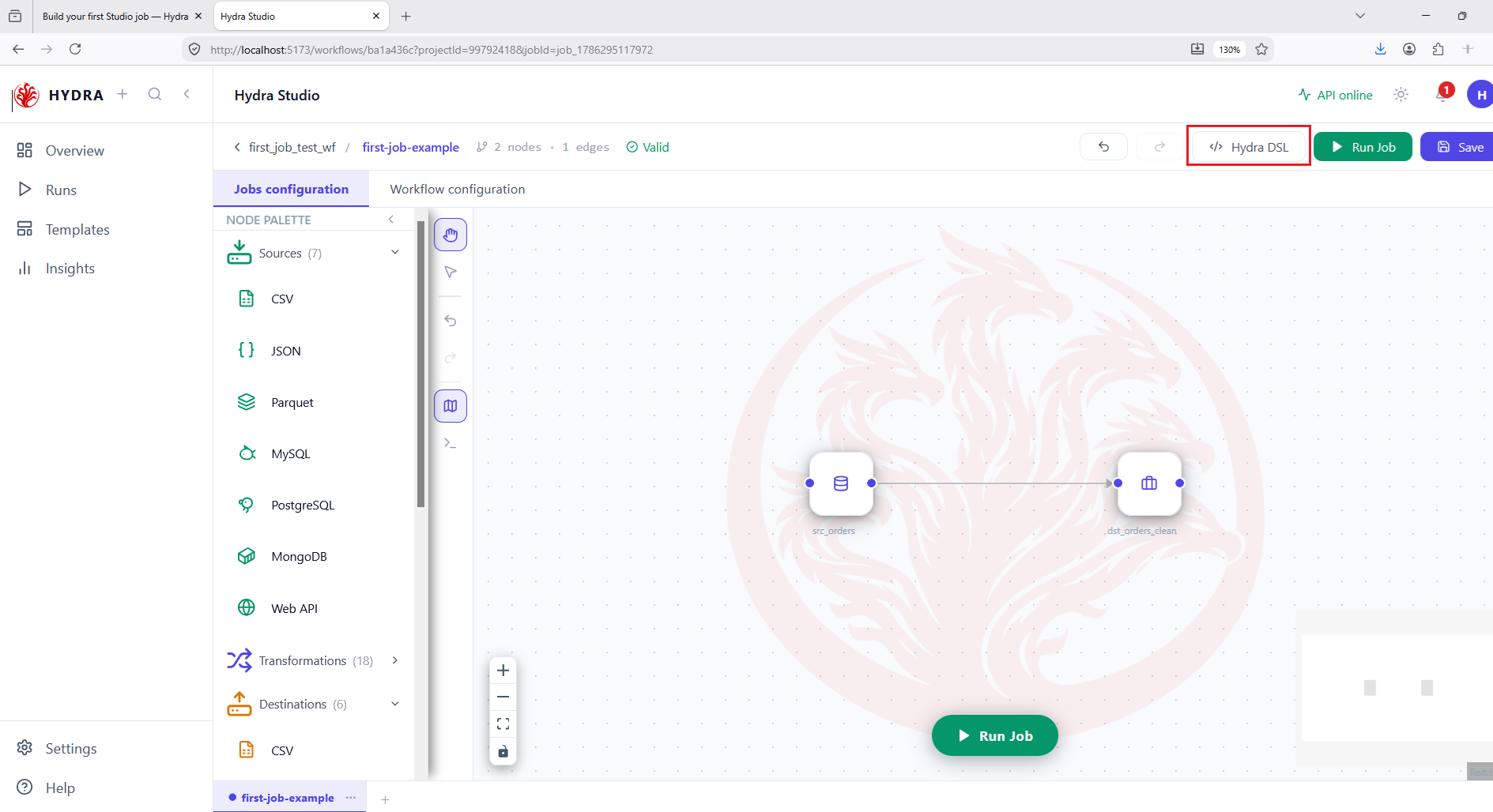
- Select Hydra DSL.
- Open Sources, Transformations, Destinations, and Pipeline in turn.
- Compare each panel with the downloaded file of the same name.
- If a panel is empty or incomplete, paste the matching downloaded manifest.
- Save after all four panels match the example.
| Downloaded file | Paste into | Purpose |
|---|---|---|
sources.yaml | Sources | Read orders |
destinations.yaml | Destinations | Write cleaned orders |
transformations.yaml | Transformations | Keep and normalize valid rows |
pipeline.yaml | Pipeline | Wire src_orders to dst_orders_clean |
Studio regenerates a source-to-destination graph and the header reports Valid.
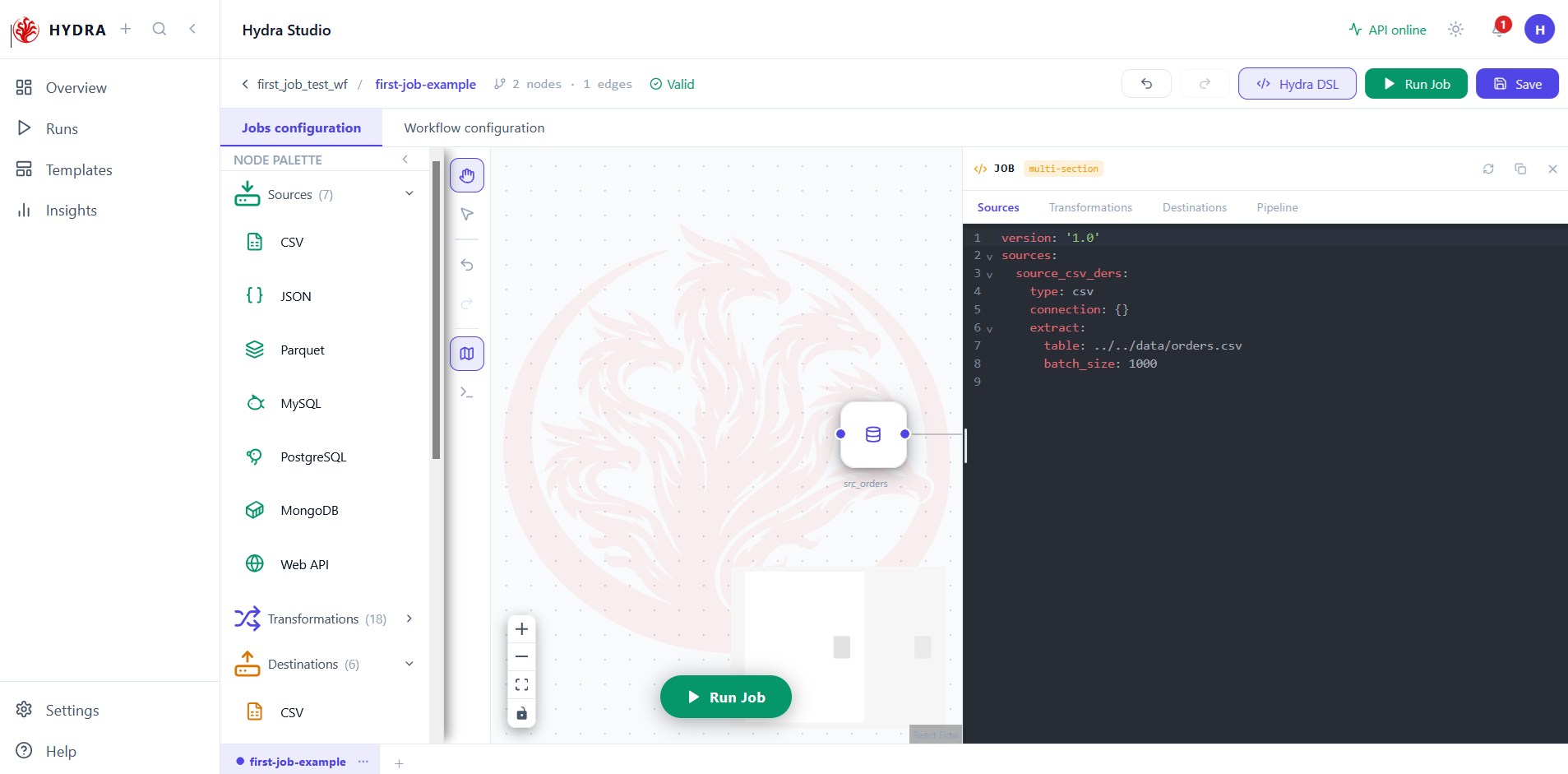
orders.csv.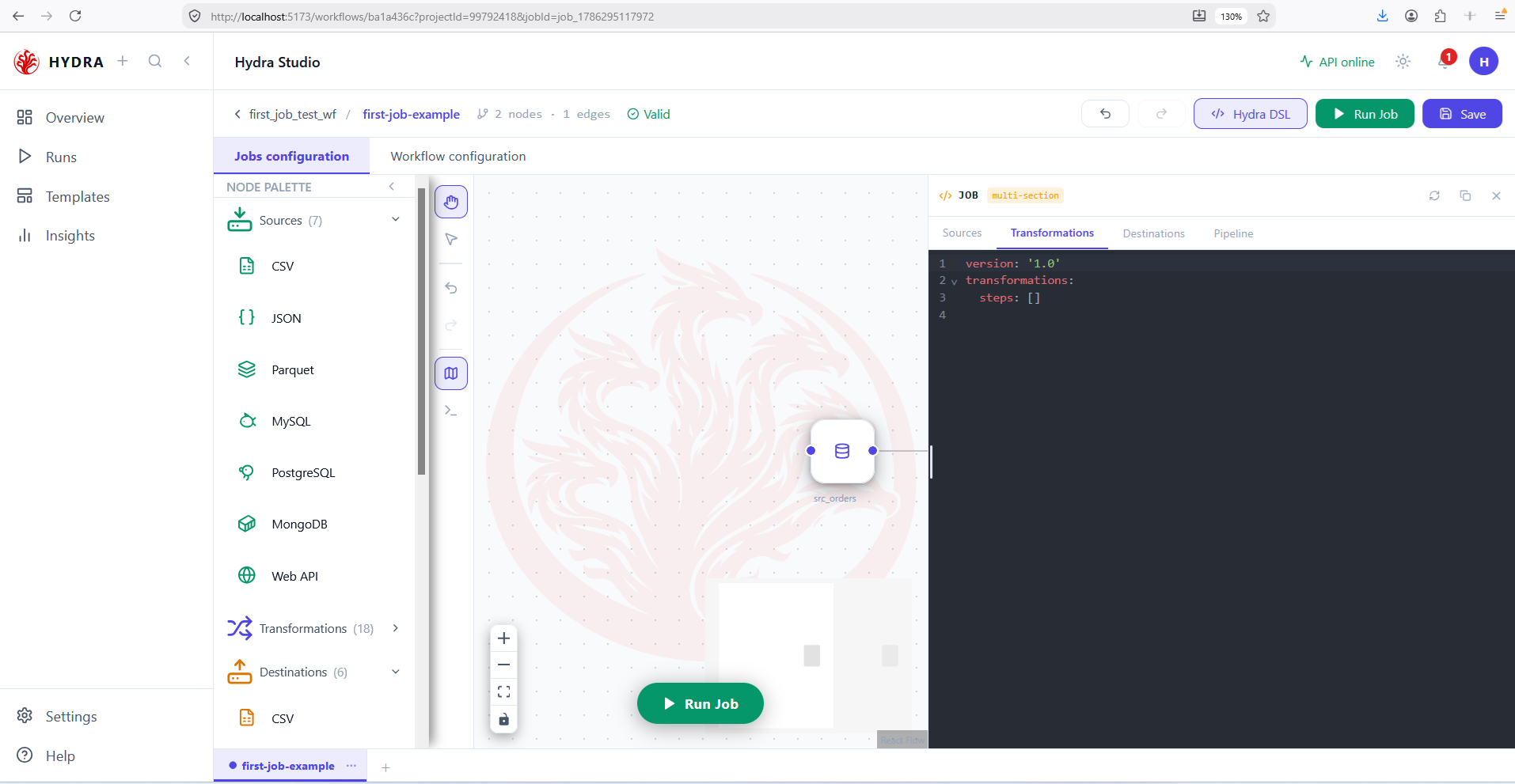
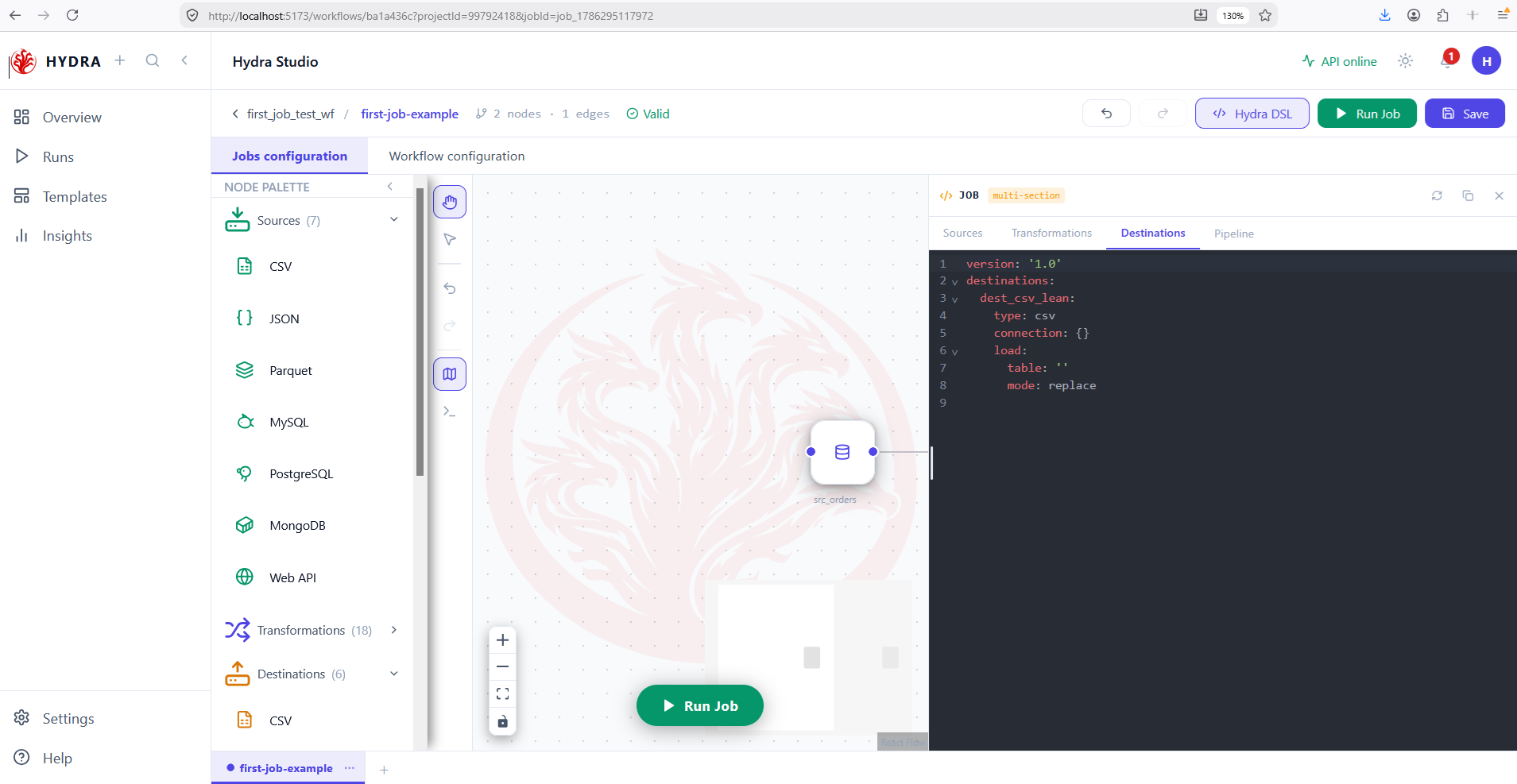
load.table points to the project output file; an empty value must be replaced.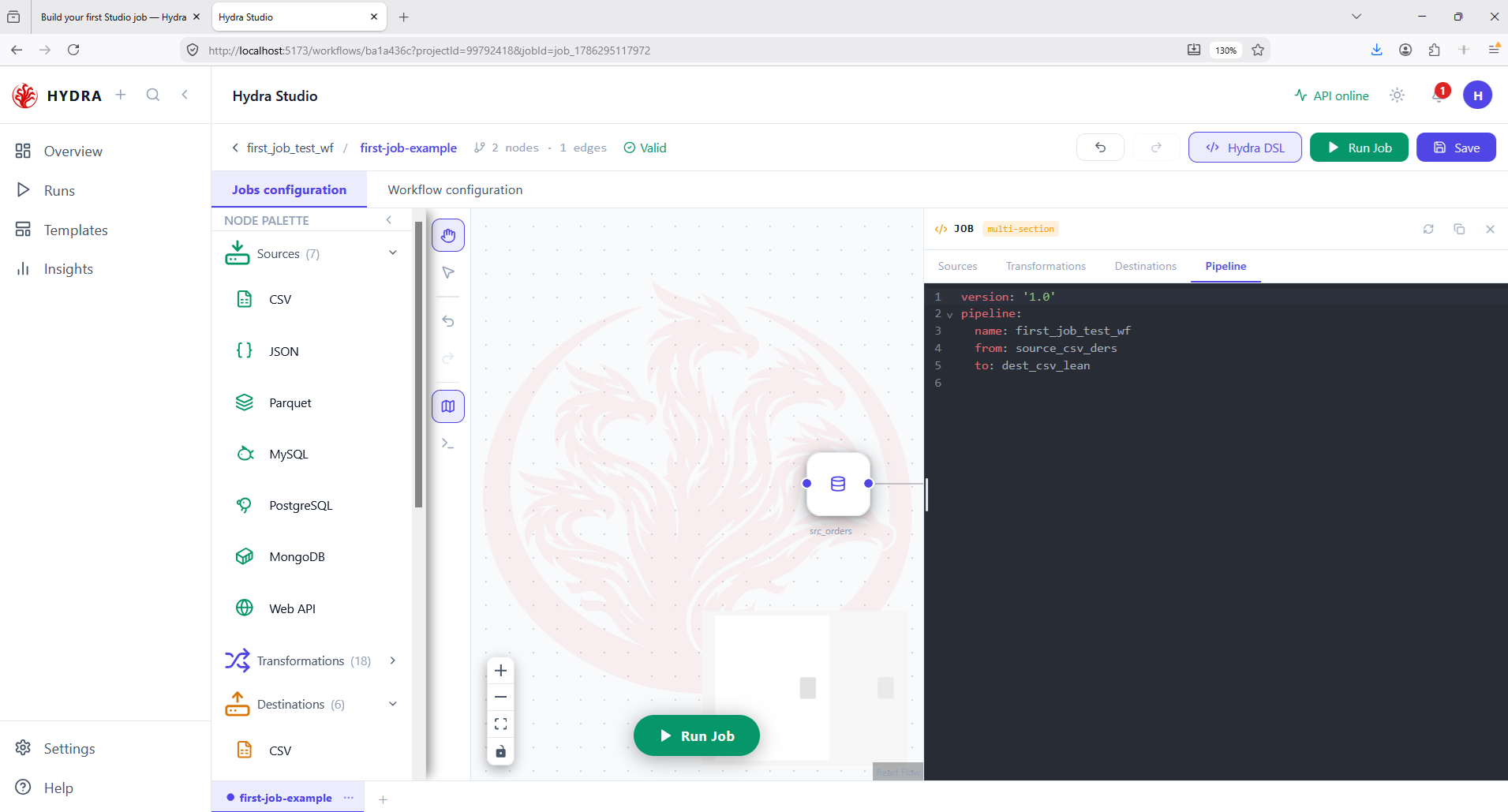
from and to values must match the identifiers declared in Sources and Destinations.06Place the input data
Actions
- Open the workspace folder used by Studio.
- Create
first-project/dataif it does not exist. - Copy the downloaded
orders.csvtofirst-project/data/orders.csv. - Create
first-project/outputfor the generated result.
first-project/data/orders.csv
The input file contains twelve orders and is reachable through ../../data/orders.csv from the imported job folder.
07Run the job
Actions
- Return to the
first-job-examplecanvas. - Confirm the API is online and the job is valid.
- Select Run Job.
- Wait for a terminal state before editing anything.
The lower execution panel opens and the job moves from pending to running, then to success.
08Verify the execution
Actions
- Read the terminal status and row counters.
- Open
first-project/output/orders_clean.csv. - Confirm pending, cancelled, and zero-amount orders are absent.
- Open Runs to inspect the persisted execution.
id,order_date,region,customer,amount
1001,2026-01-04,north,Alice,120.5
1002,2026-01-05,south,Bob,89.0
…
1012,2026-01-14,west,Lea,64.3
Tips and traps
Keep the downloaded filenames unchanged so each manifest is pasted into the correct editor.
Paths are resolved from jobs/first-job-example. Moving orders.csv without updating sources.yaml breaks the run.
Wait for Valid before selecting Run Job.
A successful animation is not enough. Confirm the terminal state, counters, and output file.
3. Completion checklist
| Verification | Expected result |
|---|---|
| Project | first-project |
| Workflow | first-workflow, Manual trigger |
| Job | first-job-example |
| Manifests | Four files saved and Valid |
| Input | Twelve rows in data/orders.csv |
| Execution | Success, 12 rows in, 8 rows out |
| Output | output/orders_clean.csv |