

Recognize nodes, ports and edges
Take a guided tour of first-workflow: two jobs, two actions, three containers, and the YAML each of them produces.
1. Objective
Goal
Open first-workflow and read everything it holds without changing anything. Tell Jobs configuration, where a job runs source to destination, from Workflow configuration, where jobs and actions form a graph. Recognize the three containers and what each writes into the manifest.
Why this matters
One screen hosts two different graphs. Confusing them is the most common beginner mistake: connector nodes belong inside a job, Job and Action nodes belong to orchestration. Reading before editing is what makes the next nine lessons quick.
Keep one cumulative Studio project named studio-course, one manual workflow named first-workflow, and one job named first-job. Each lesson builds on the state saved by the previous one.
What you are looking at
| Piece | Where it lives | What it does |
|---|---|---|
first-job | Jobs configuration | Reads a CSV, keeps some rows, writes a CSV |
second-job | Jobs configuration | Reads the first job's output, keeps some columns, writes a CSV |
| Log action | Workflow configuration | Writes a message to the run log |
| PowerShell action | Workflow configuration | Runs a shell command on the host |
| Three containers | Both scenes | Group nodes, and two of them apply a policy |
Prerequisites
- Hydra API started with
hdrctl serve. - Studio started from
Hydra/studiowithnpm run dev. - A project holding
first-workflowwith its two jobs — or the bundle below.
import_bundle folder. hdrctl workflow run works on it too.
2. Steps
01Open the workflow
Objective
Read what the card announces before entering the editor.
Actions
- Open the project from Overview.
- Read the line under the workflow name.
- Select Open in editor.
Overview → project → first-workflow → Open in editor
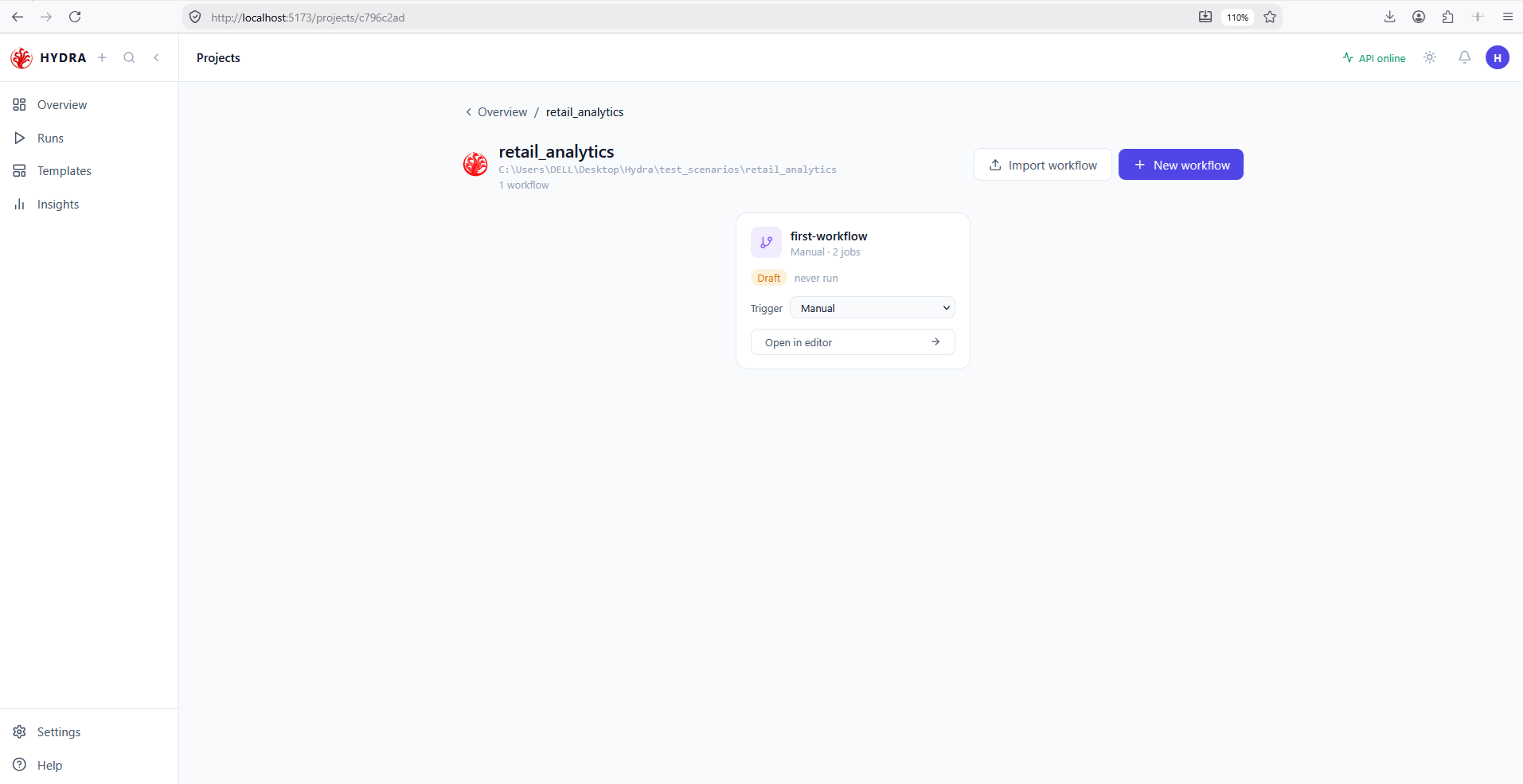
The card summarises the workflow in one line: its trigger and how many jobs it orchestrates. Draft and never run describe the file and its history, not its validity.
first-workflow
Manual · 2 jobs
Draft   never run
02Read the workflow graph
Objective
Identify the four executable nodes and the direction of the edges between them.
Actions
- Stay on the Workflow configuration tab.
- Read the counters beside the workflow name.
- Follow the arrows from left to right, then select the PowerShell node.
Workflow configuration → select a node
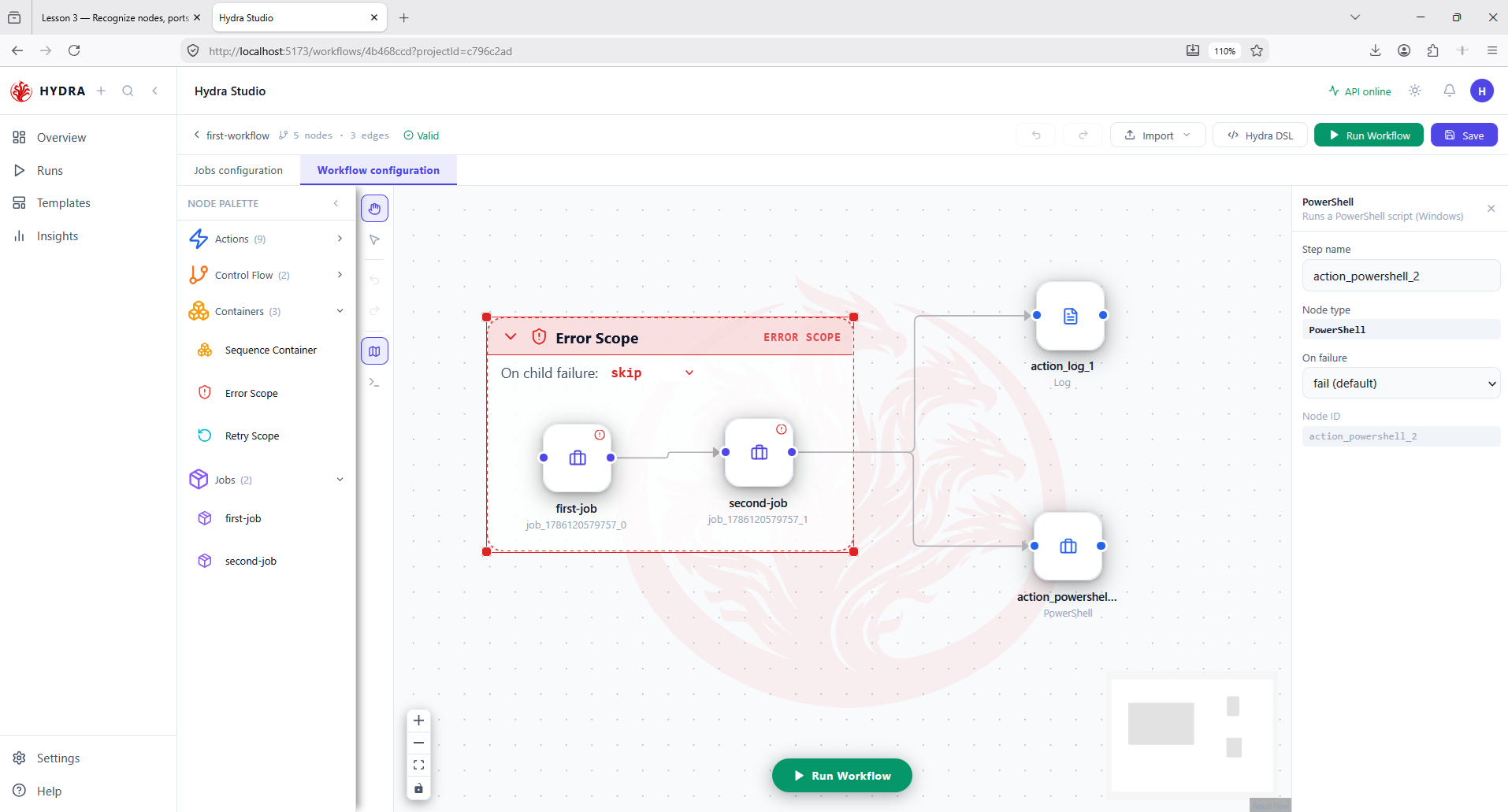
Five nodes for four steps: the fifth is the container, which never executes. Each node carries a blue handle on the left and on the right — an edge always leaves a right handle and enters a left one, so the graph reads in one direction only.
first-workflow   5 nodes · 3 edges   Valid
first-job → second-job → action_log_1
                      → action_powershell_2
03Read the containers
Objective
Understand what a container is, and what it is not.
Actions
- Look at the header of the red container around the two jobs.
- Open its On child failure list.
- Close it again without changing the value.
Error Scope → On child failure
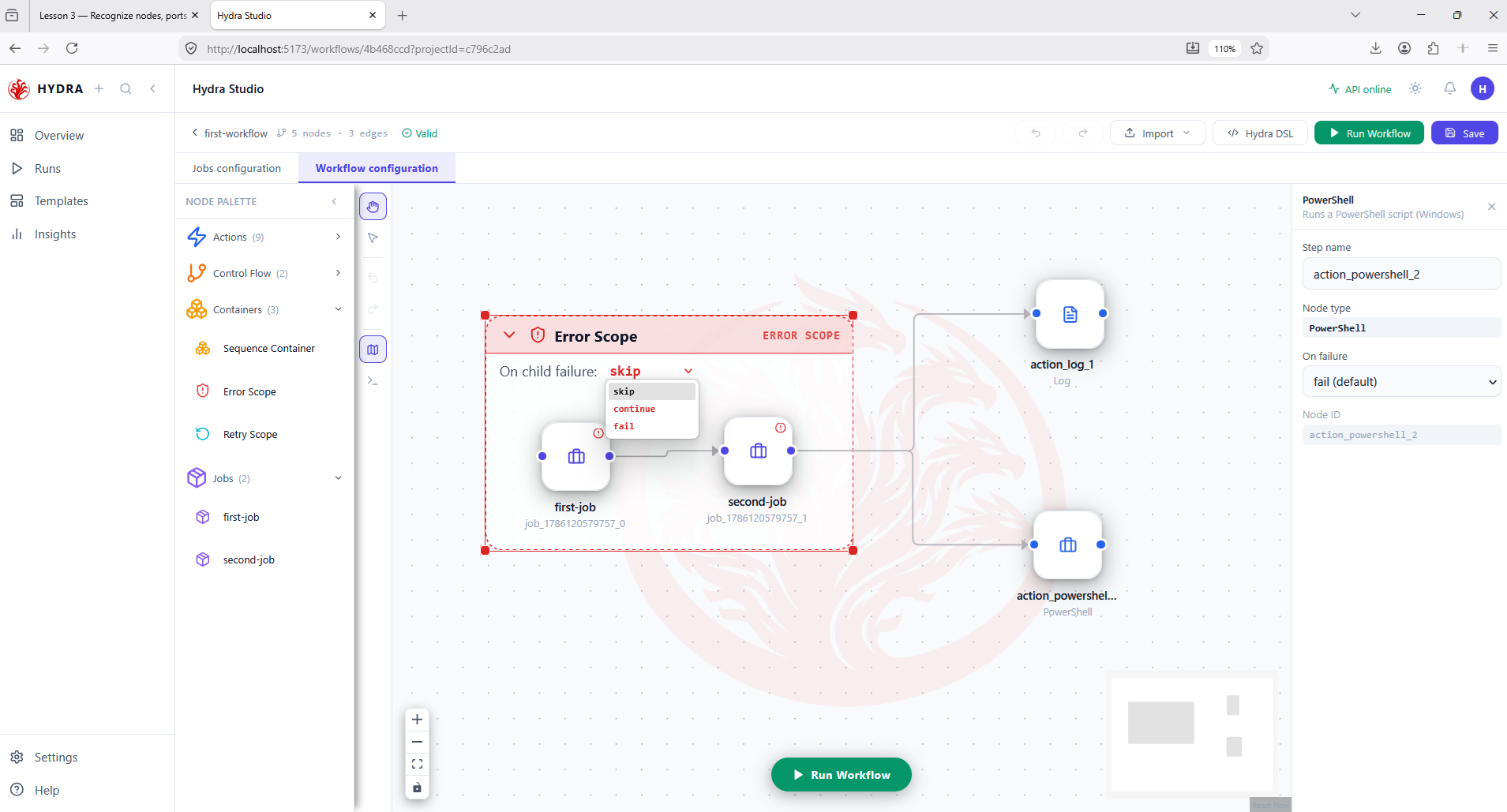
A container never executes. Hydra's runner never sees one. What it does is copy a policy onto the nodes it encloses when the YAML is written — so you set the rule once, in one place, instead of on every step.
| Container | Option on its header | What each child receives |
|---|---|---|
| Sequence | none | nothing — it only groups the canvas |
| Error Scope | On child failure: skip · continue · fail | on_failure |
| Retry Scope | Retries N × · delay N s | retry |
Three values, and only three. fail stops the workflow, skip marks the step skipped, continue carries on. A child that sets its own value keeps it — the container fills in the blanks, it does not overrule.
On child failure:
  skip
  continue
  fail
04Open the first job
Objective
Switch scenes and read a job as a straight line from source to destination.
Actions
- Select the Jobs configuration tab.
- Pick first-job in the tab bar at the bottom.
- Read the header of the container around the first two nodes.
Jobs configuration → first-job
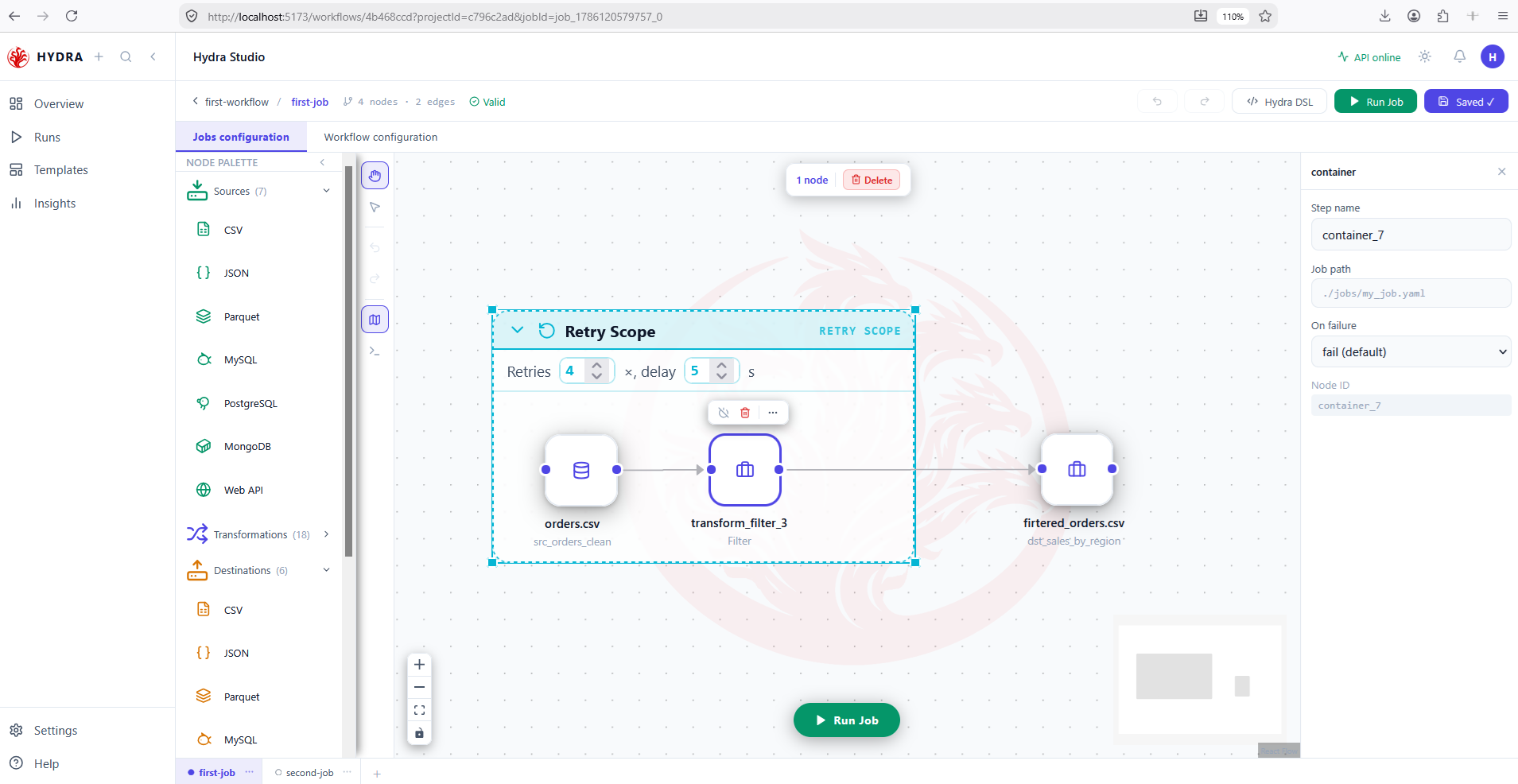
Three executable nodes in a row — source, transformation, destination — plus the container. The palette also changes: Sources, Transformations and Destinations replace Actions and Jobs, because those have no meaning inside a job.
first-workflow / first-job   4 nodes · 2 edges   Valid
orders.csv → transform_filter_3 → firtered_orders.csv
Retry Scope   Retries 4 ×, delay 5 s
05Open the second job
Objective
Confirm the shape repeats, and meet the container that changes nothing.
Actions
- Select second-job in the tab bar.
- Read the three nodes and the two edges.
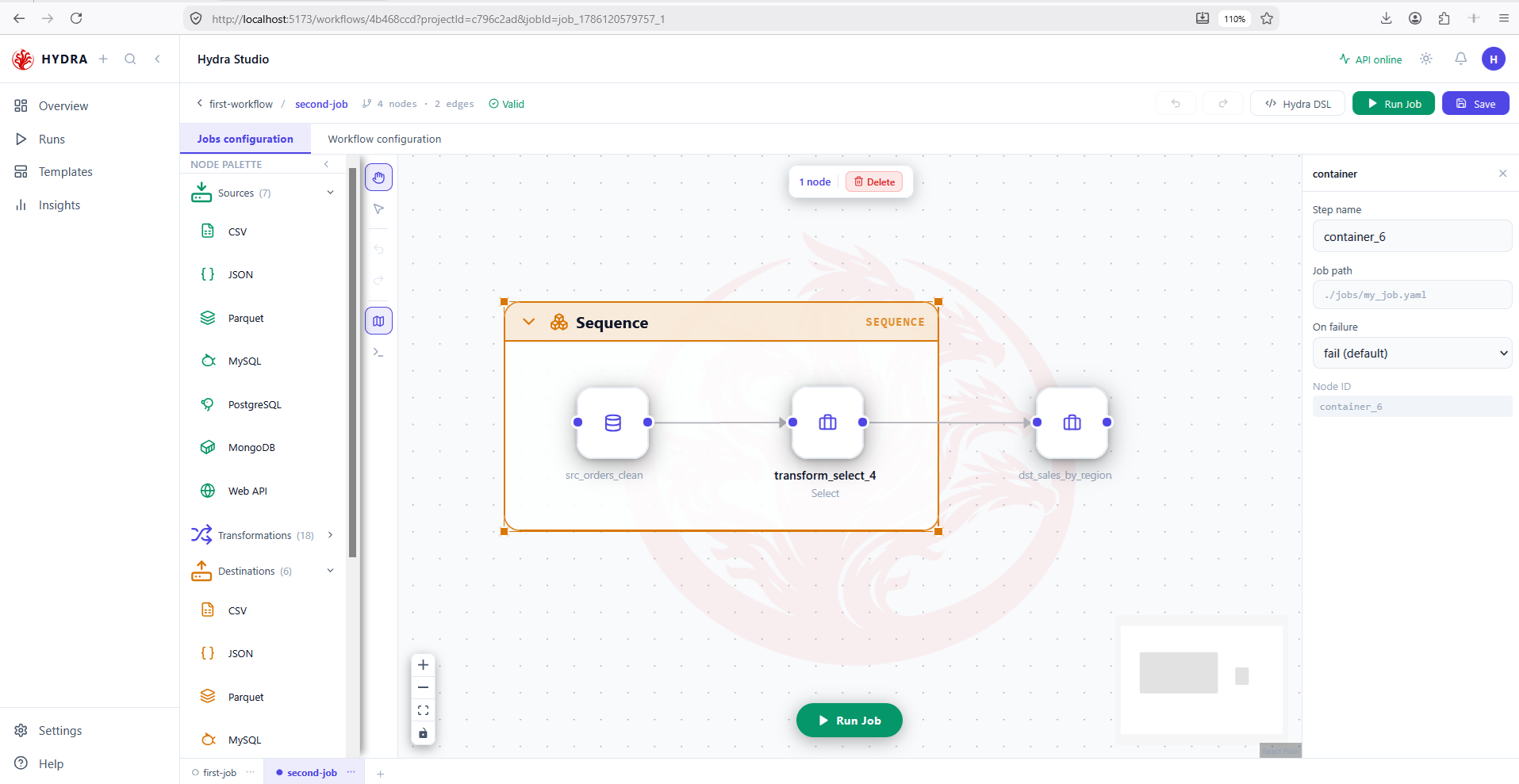
- Look at the container header — it has no option.
Jobs configuration → second-job
The same source-transformation-destination line, this time reading the file the first job wrote. The Sequence container carries no setting because it applies no policy: it is there to make a long chain readable.
first-workflow / second-job   4 nodes · 2 edges   Valid
src_orders_clean → transform_select_4 → dst_sales_by_region
Sequence   (no option)
06Read what a node is configured with
Objective
Open the four connector nodes and see that each holds only what its role needs.
Actions
- Double-click the source of first-job.
- Close it, then open the Filter node, then the destination.
- Switch to second-job and open its source.
double-click a node → read → Cancel
Every dialog shows the same three parts: a step name you choose, the fields required by that node type, and a read-only node ID. The name is what appears in the YAML; the ID is what the canvas uses internally and never changes.
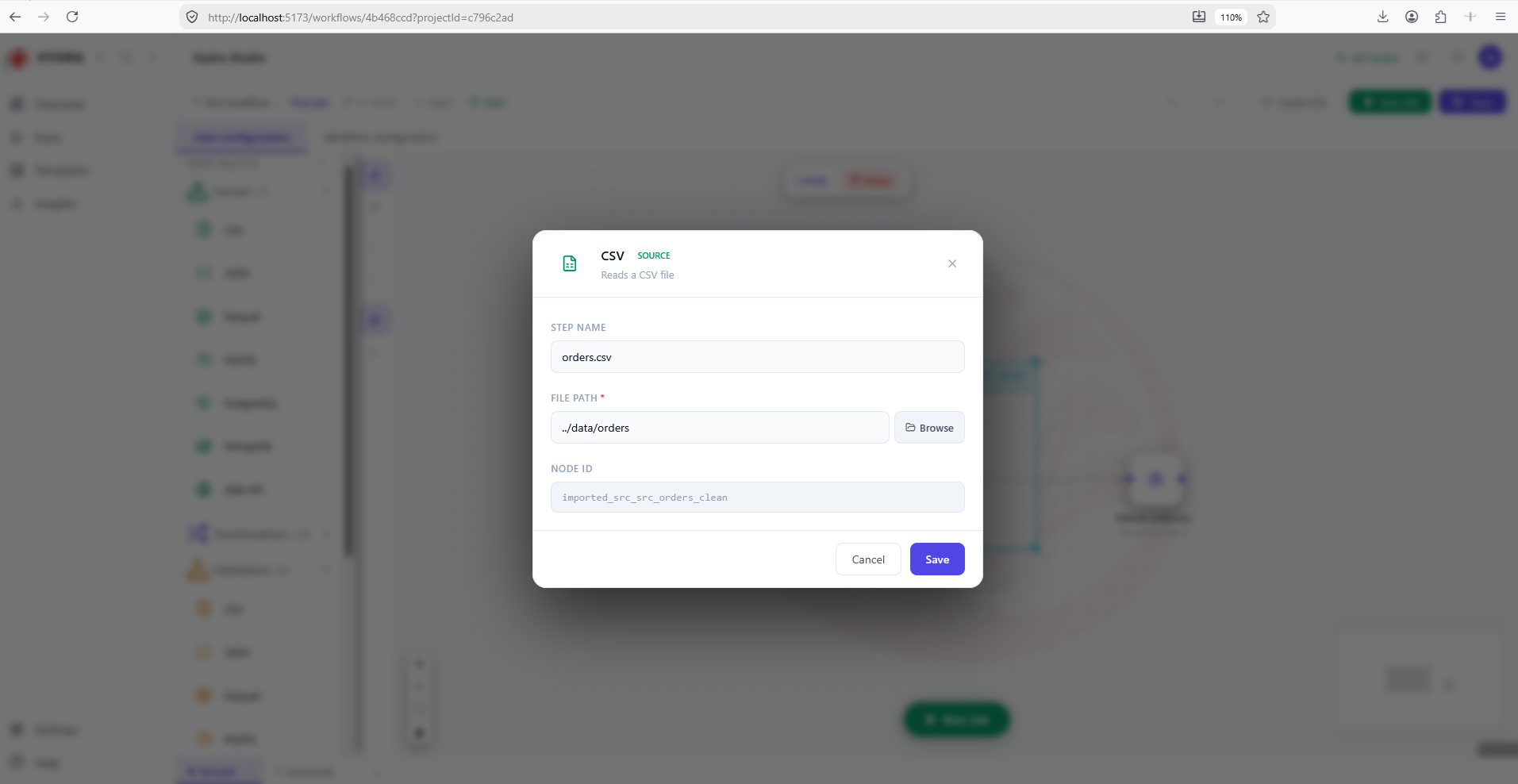
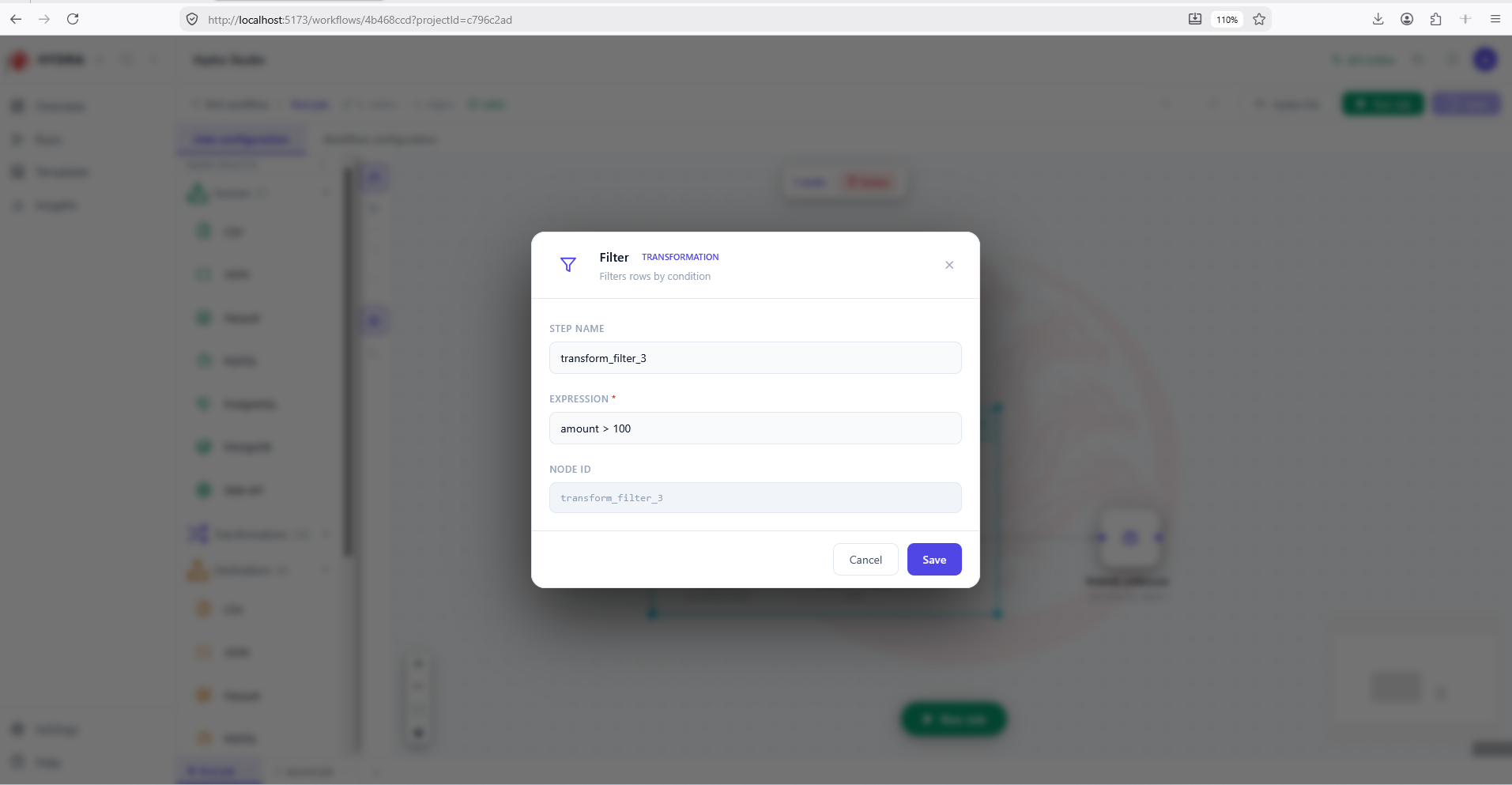
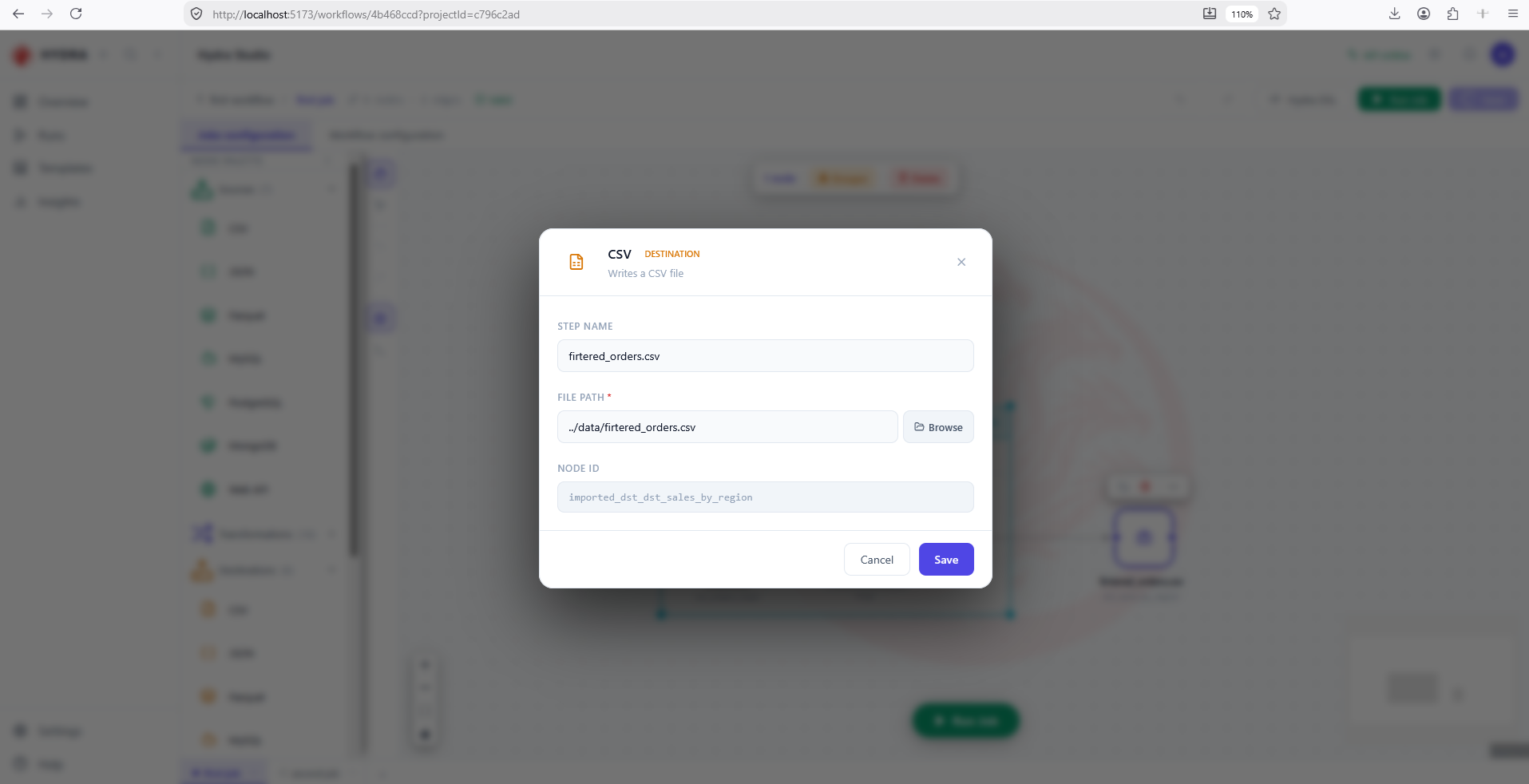
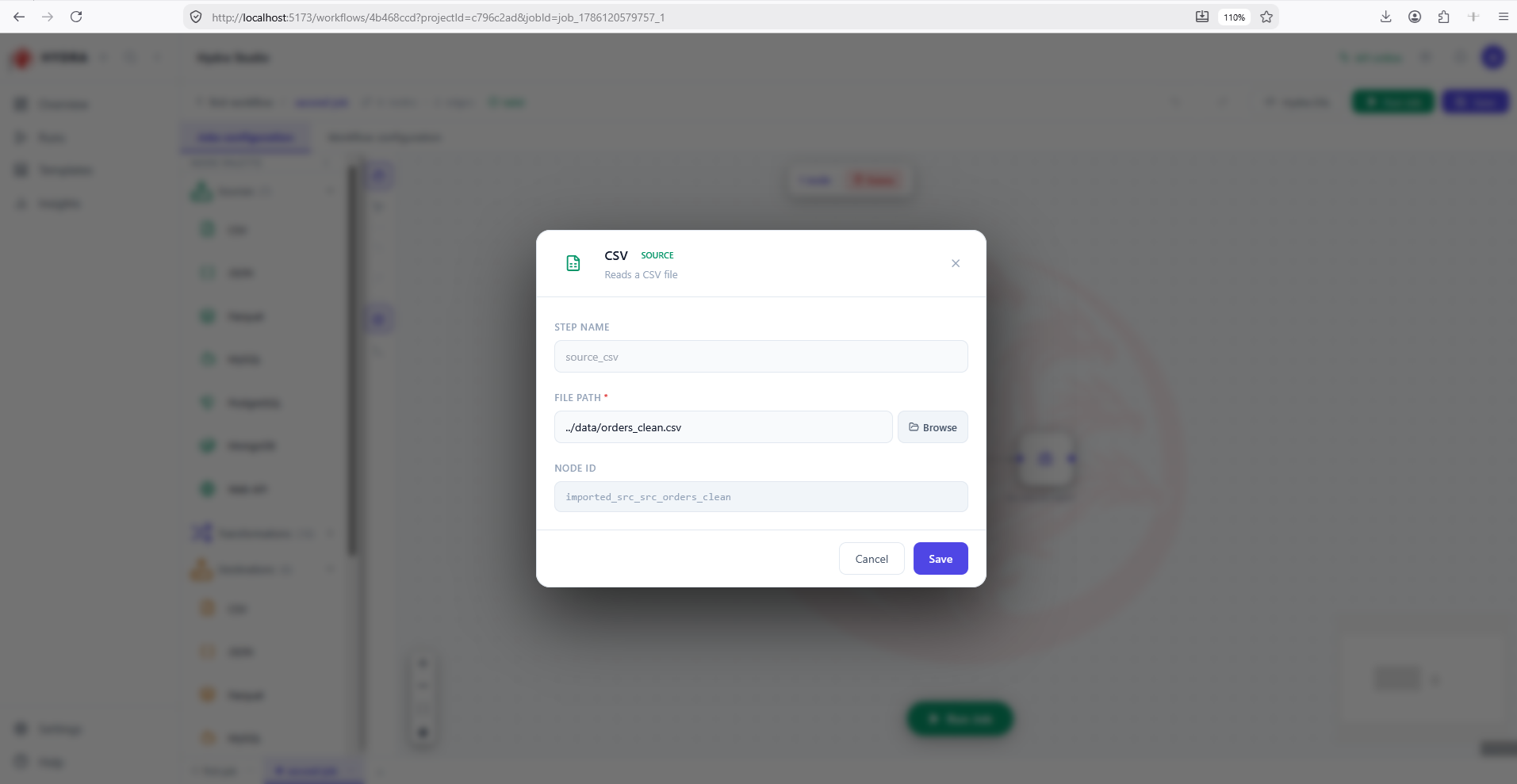
No dialog asks for anything it does not need. That is the whole idea of the node types: the form is the contract.
CSV  SOURCE        step name · file path · node ID
Filter  TRANSFORMATION   step name · expression · node ID
CSV  DESTINATION   step name · file path · node ID
07Read the two actions
Objective
See what an action is, and why one of them is tied to the operating system.
Actions
- Return to Workflow configuration.
- Open the Log node, read its message, cancel.
- Open the PowerShell node and read its command, working directory and timeout.
Workflow configuration → double-click an action
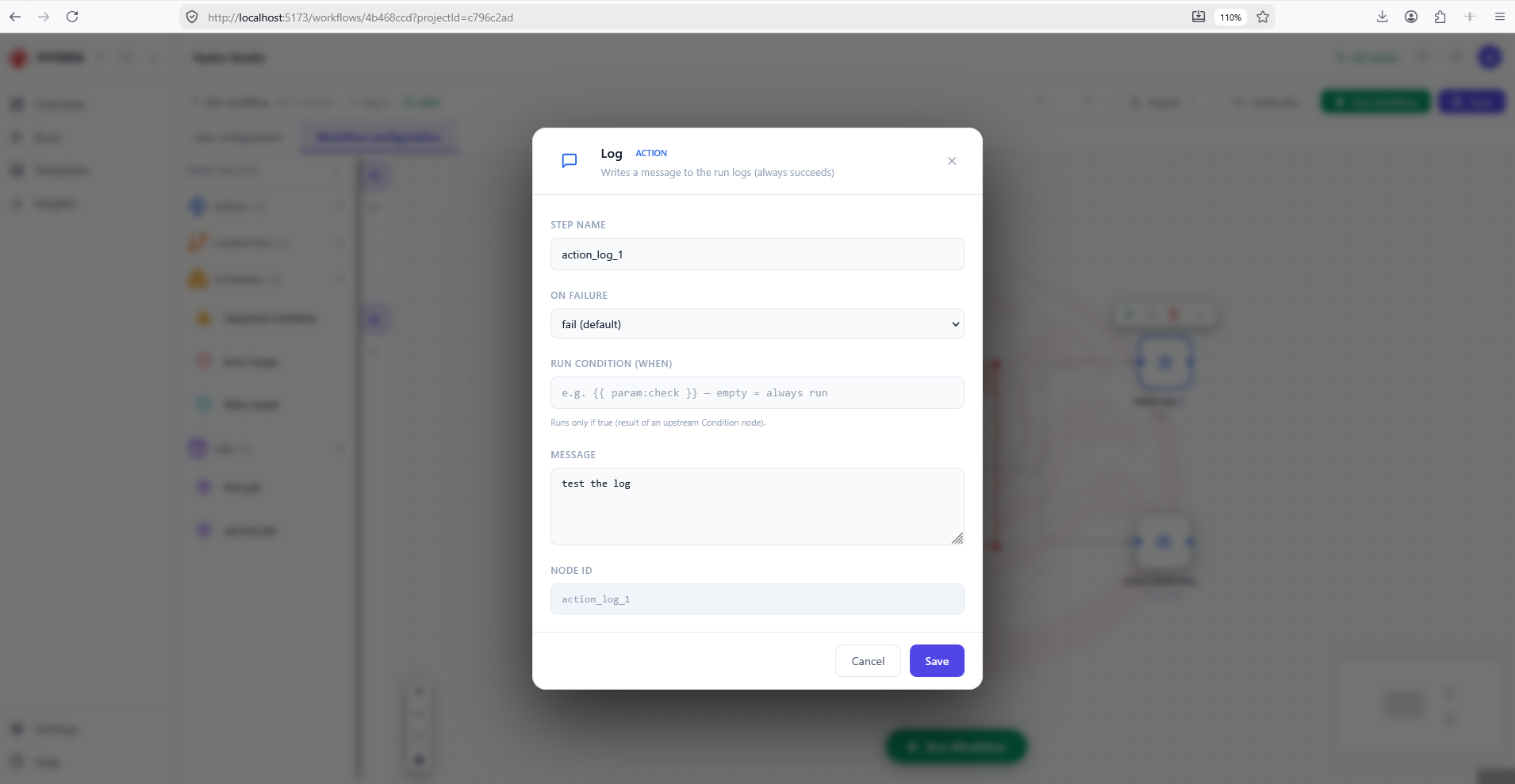
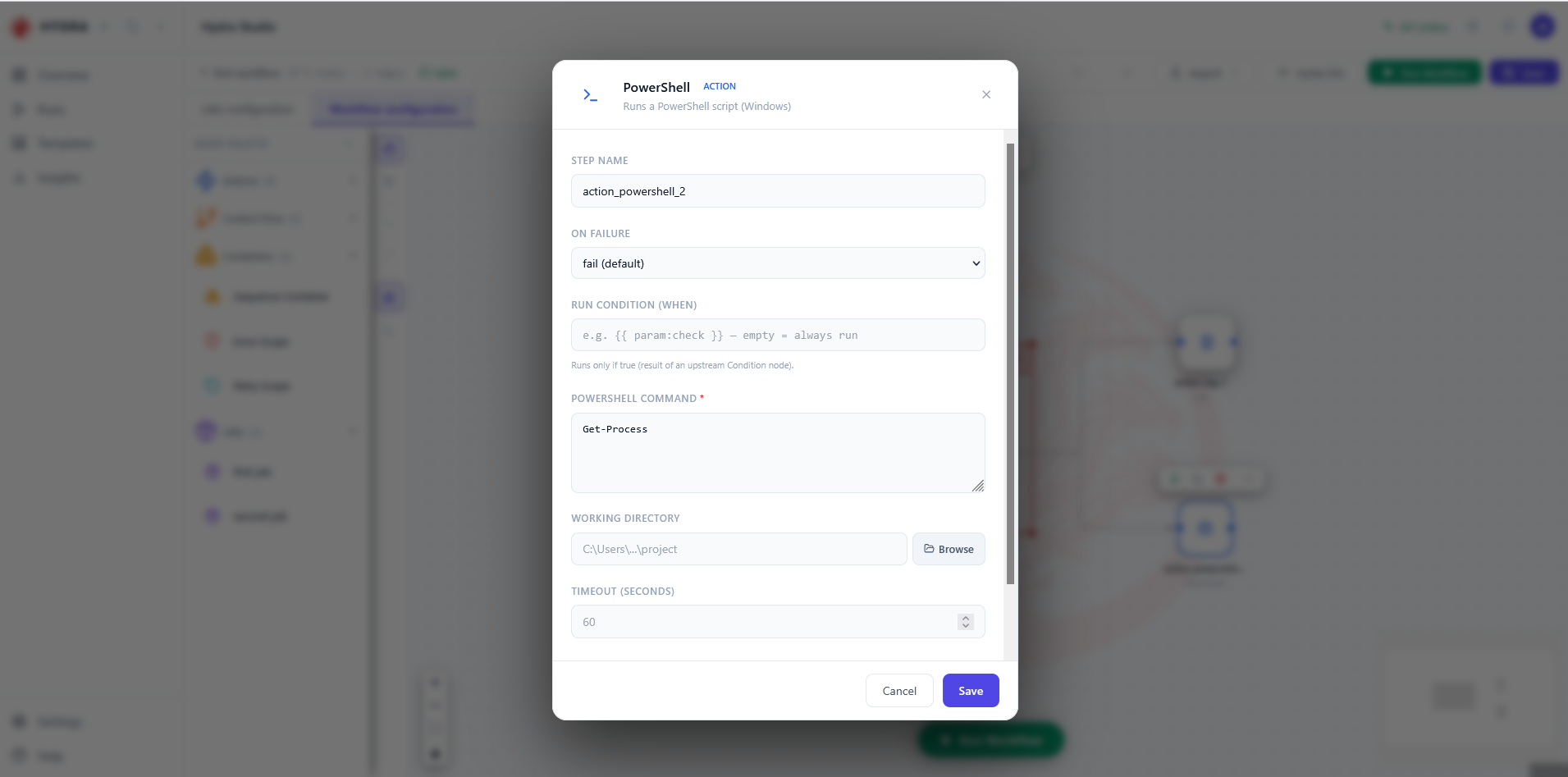
Both dialogs carry a Run condition (when). Left empty, the step always runs; filled in, it runs only when the expression is true. That is how a Condition node upstream steers the rest of the graph.
Hydra does not swap PowerShell for Bash when it runs on Linux. Each action refuses the wrong platform outright: a PowerShell step fails on Linux and macOS, a Bash step fails on Windows. If a workflow has to run on both, replace the node yourself, or guard each one with a Run condition. A workflow that is portable everywhere is a workflow with no shell action in it.
The same frame around a different payload: a message for Log, a command for PowerShell. Only on failure and run condition are shared by every action.
Log         ACTION   message
PowerShell  ACTION   command · working directory · timeout (60 s)
08Read the DSL the canvas produces
Objective
Connect what you have been reading on screen to the four files on disk.
Actions
- With a job open, select Hydra DSL in the top bar.
- Walk through the four tabs in order.
- Close the panel.
Jobs configuration → Hydra DSL
A job is not one file but four, and the panel gives one tab to each. Read them in this order and the job explains itself: where the data comes from, what happens to it, where it goes, and how the three are wired together.
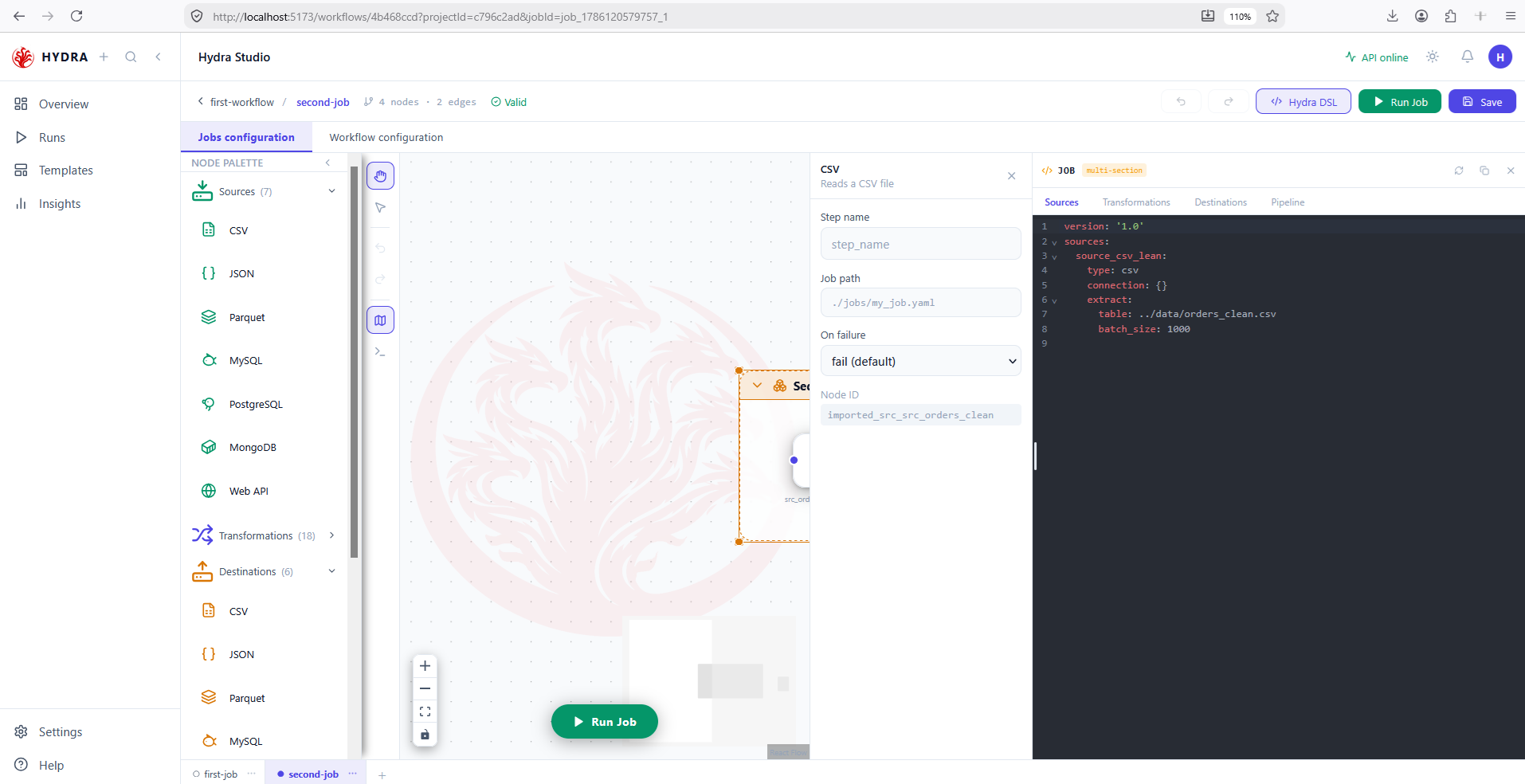
extract.table.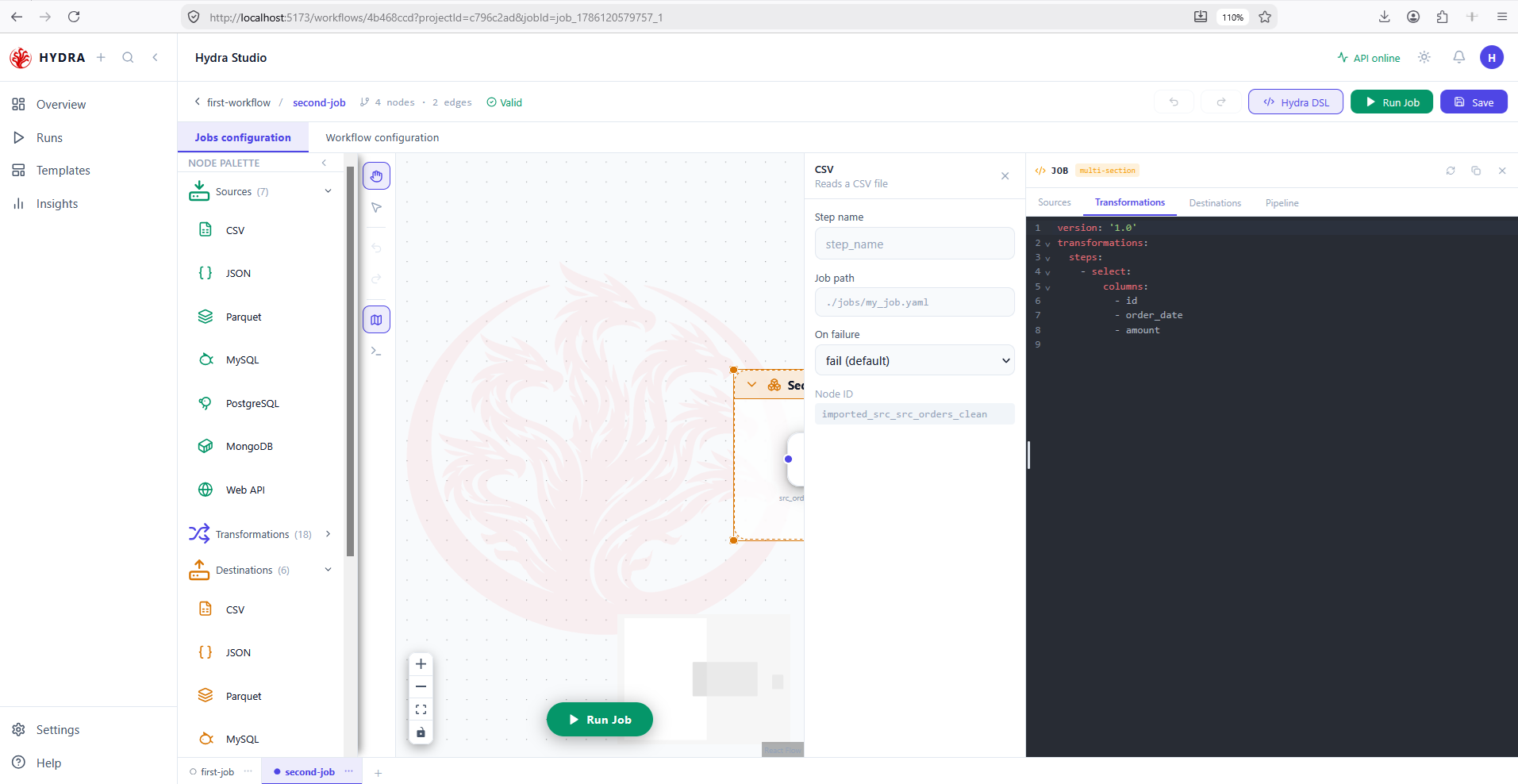
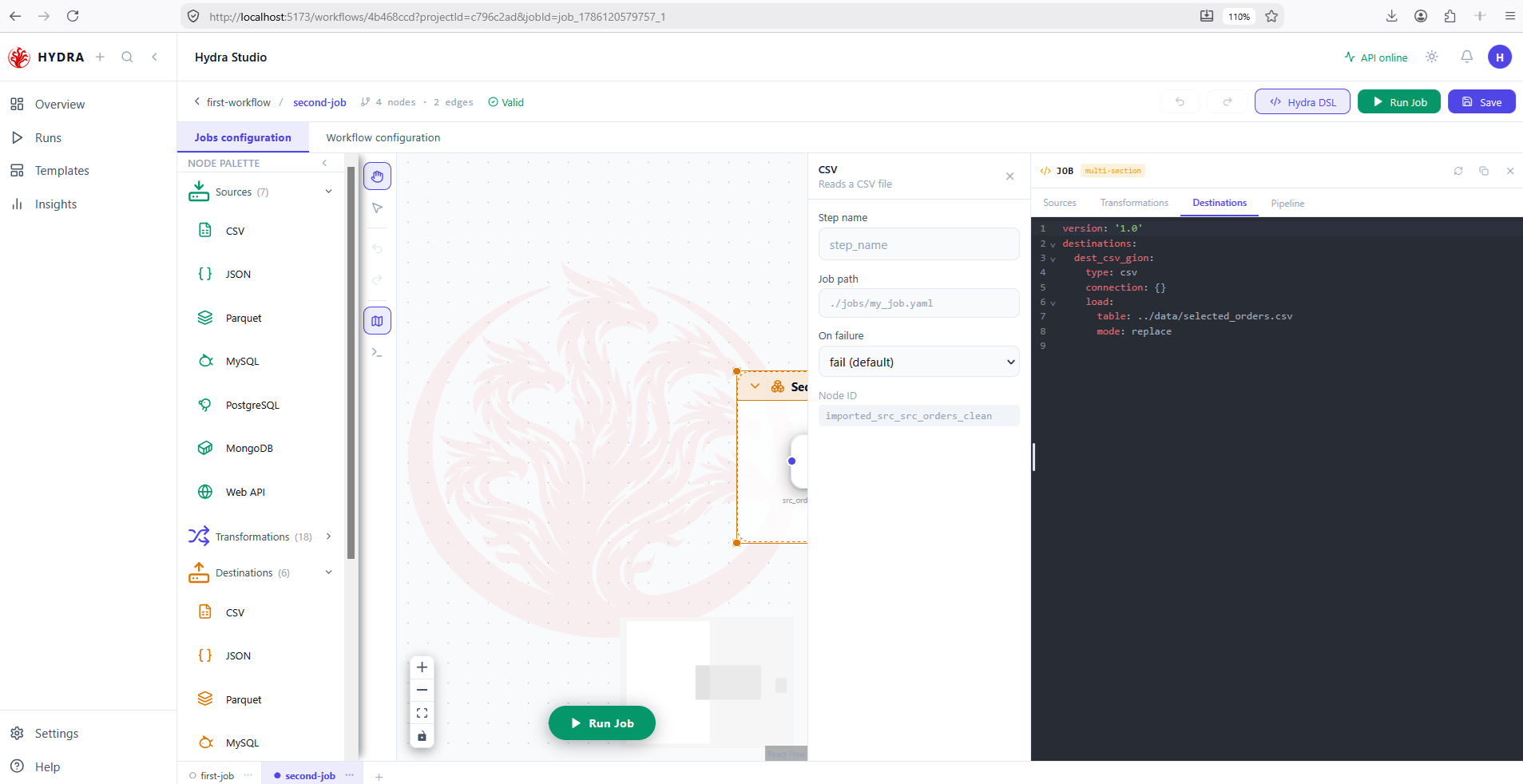
mode: replace, which empties the target before writing.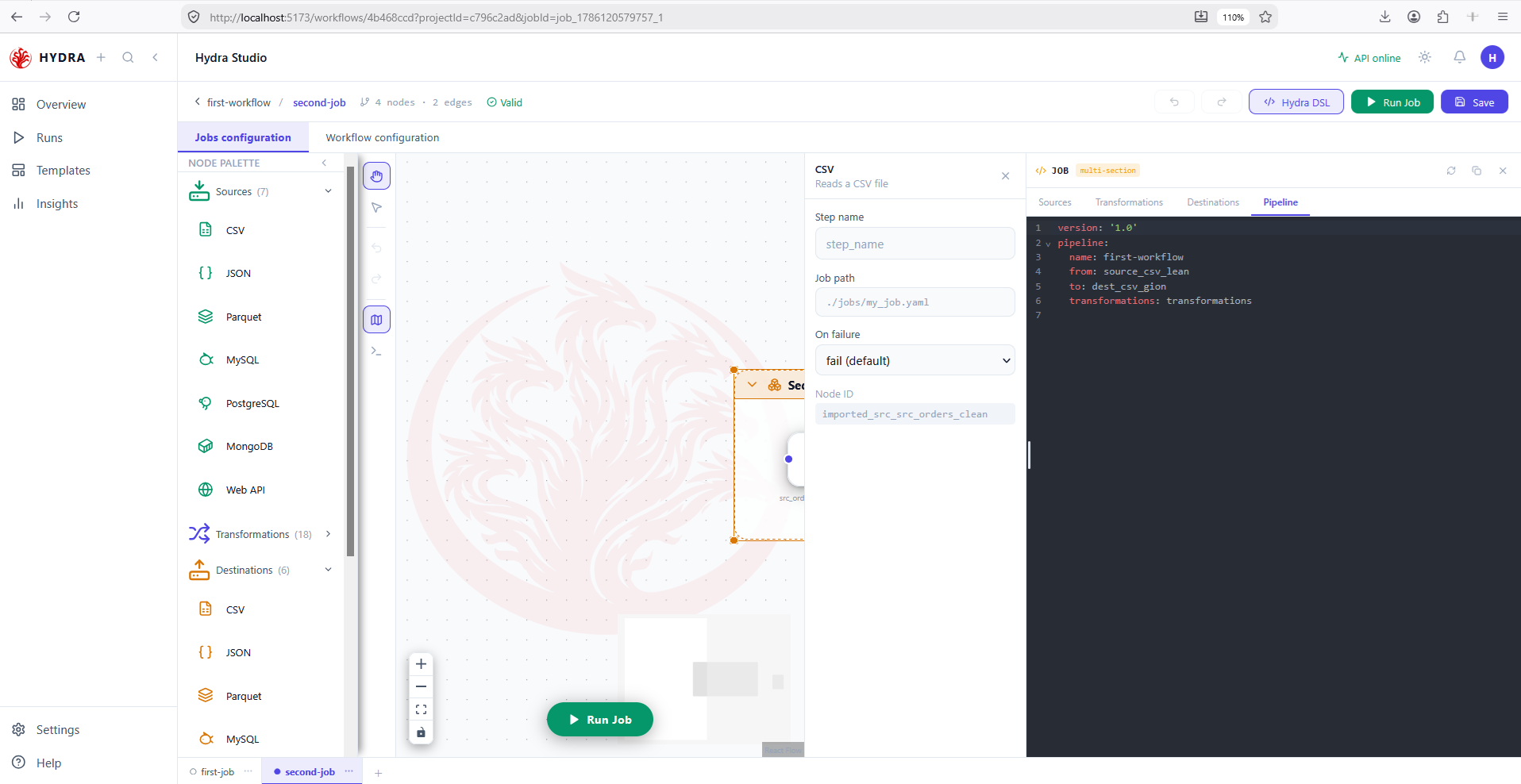
from and to hold the identifiers, never the file paths.Identifiers, not paths, in pipeline.yaml. That indirection is why a source can be repointed at another file without touching the wiring.
sources:          source id  → type, connection, extract
transformations:  steps      → one operation per entry
destinations:     dest id    → type, connection, load
pipeline:         from: <source id>   to: <dest id>
09Read the workflow the canvas describes
Objective
See the whole orchestration as one file, and find each thing you read on screen inside it.
Actions
- Compare each
namebelow with a node on the canvas. - Compare each
depends_onwith an edge. - Look for the containers — and notice they are absent.
hdrctl workflow validate ./workflow.yaml
Four steps, in the order the graph imposes. first-job starts alone, second-job waits for it, and the two actions both wait for second-job — so they run in parallel, because nothing links them to each other.
version: "1.0"
workflow:
  name: first-workflow
  trigger:
    type: manual
  steps:
    - name: first-job
      type: job
      job: ./jobs/first-job
      depends_on: []
      on_failure: skip

    - name: second-job
      type: job
      job: ./jobs/second-job
      depends_on: ["first-job"]
      on_failure: skip

    - name: action_log_1
      type: action
      action: log
      params:
        message: "test the log"
      depends_on: ["second-job"]

    - name: action_powershell_2
      type: action
      action: powershell
      params:
        command: Get-Process
        timeout: 60
      depends_on: ["second-job"]
The Error Scope is nowhere in this file, and neither are the other two containers. All that survives is the on_failure: skip it wrote on each of its children. That is the whole contract: you draw a container, Hydra writes a policy.
| On the canvas | In the file |
|---|---|
| A node | an entry under steps |
| An edge | a name inside depends_on |
| A Job node | type: job and a job path |
| An Action node | type: action, its action and its params |
| An Error Scope | on_failure on each child |
| A Retry Scope | retry on each child |
| A Sequence Container | nothing at all |
Two jobs, two actions, no container. The step count matches the four executable nodes, not the five drawn on screen.
✅ Workflow valid — no errors detected.
Tips and traps
Sources and transformations live in Jobs configuration. Jobs and actions live in Workflow configuration.
A container never runs. Five nodes on screen can mean four steps in the YAML.
An edge leaves a right handle and enters a left handle. Direction is never ambiguous.
The Valid badge means the manifest parses. Only a run proves the job works.
A policy reaches only what sits inside the container. A node beside it gets nothing.
Studio can be ahead of the disk. Open the file to be sure.
Counts and durations are live values. Never quote them as thresholds.
An animation is not an outcome. Wait for a terminal state on the Runs page.
3. Checklist
| Verification | Expected result |
|---|---|
| Workflow counters | 5 nodes · 3 edges for four executable steps |
| Scene switch | The palette changes with the tab |
| Containers | Sequence, Error Scope and Retry Scope identified |
| Error Scope options | skip, continue, fail — three values |
| Job shape | Source, transformation, destination in both jobs |
| Hydra DSL | Four tabs: sources, transformations, destinations, pipeline |
| Nothing changed | The workflow is still marked Valid |
4. Troubleshooting
| Symptom | Cause | Fix |
|---|---|---|
| The palette has no Sources | You are on Workflow configuration | Switch to Jobs configuration |
| No Actions in the palette | You are inside a job | Actions belong to orchestration; switch scenes |
| A node ignores its container | It sits beside the container, not inside it | Drag it into the frame until the header highlights |
| Node count exceeds step count | Containers are counted as nodes | Expected — they are not steps |
| A PowerShell step fails on Linux | The action is bound to Windows | Replace it with a Bash action, or guard it with a run condition |
| An edge refuses to connect | You started from a left handle | Drag from a right handle to a left one |
5. Next lesson
You can now read a workflow without touching it. The next lesson opens the node palette properly — what each category holds, what the counts mean, and how to find the node you need.