

Organize workflow steps with containers
Use Sequence, Error, and Retry containers to group workflow steps, control failure behavior, and keep the canvas readable.
1. Objective
Goal
Find the Containers category, compare its three container types, place first-job inside each relevant scope, and learn how to collapse, detach, and configure the container from the workflow canvas.
Continue with studio-course, the manual first-workflow, and the saved first-job from the preceding lessons. Do not create a parallel replacement project.
Prerequisites
- The top bar shows API online.
first-workflowis open in the editor.first-jobis available under Jobs in the node palette.
2. Steps
01Find the Containers category
Objective
Locate the grouping tools in the node palette.
Actions
- Open
first-workflow. - Stay on the current canvas while you scan the node palette.
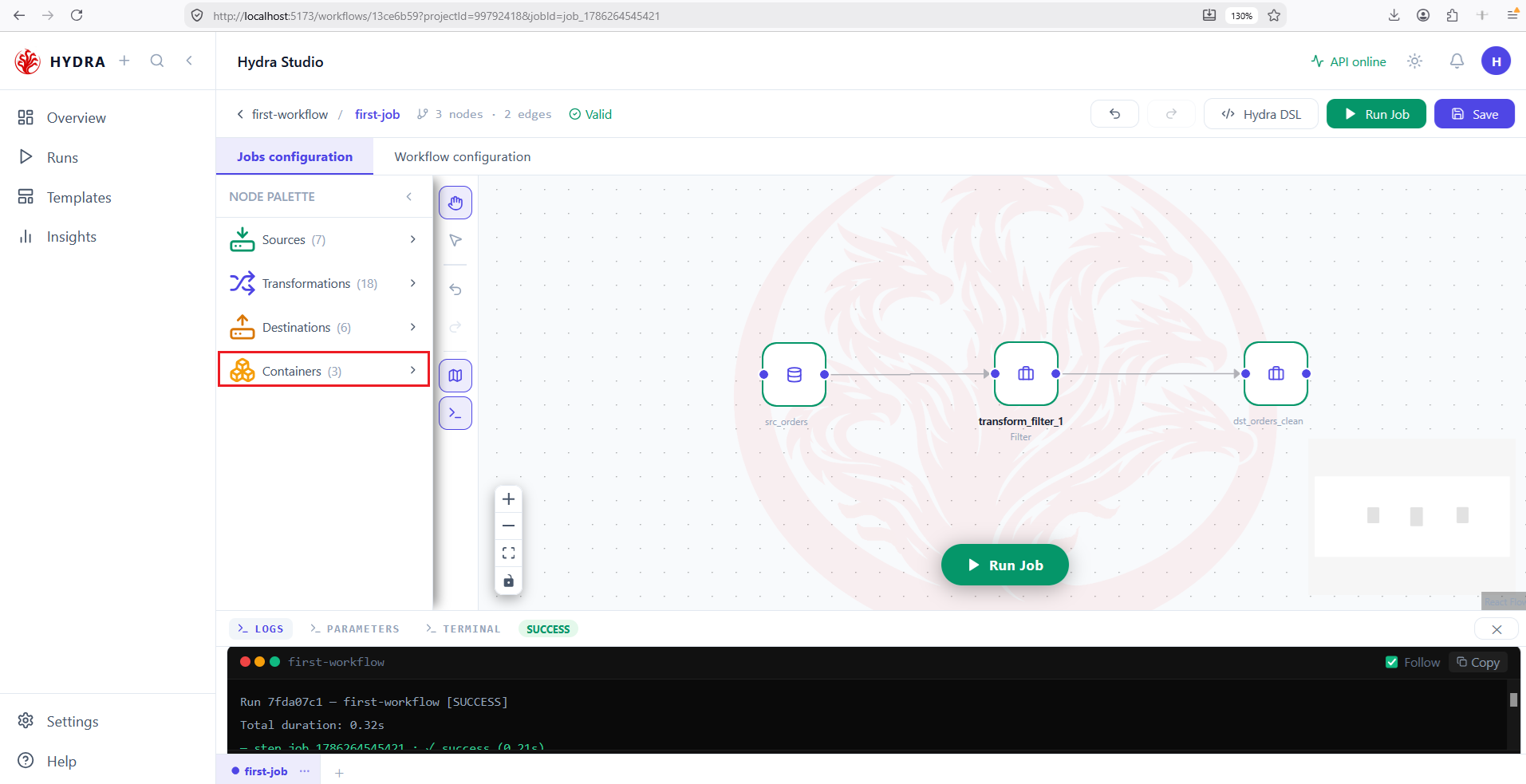
- Find Containers (3) below Destinations.
NODE PALETTE → Containers
The orange Containers (3) category appears below the workflow actions and control-flow nodes.
02Compare the three container types
Objective
Choose a container from the behavior you need rather than from its appearance.
Actions
- Expand Containers (3).
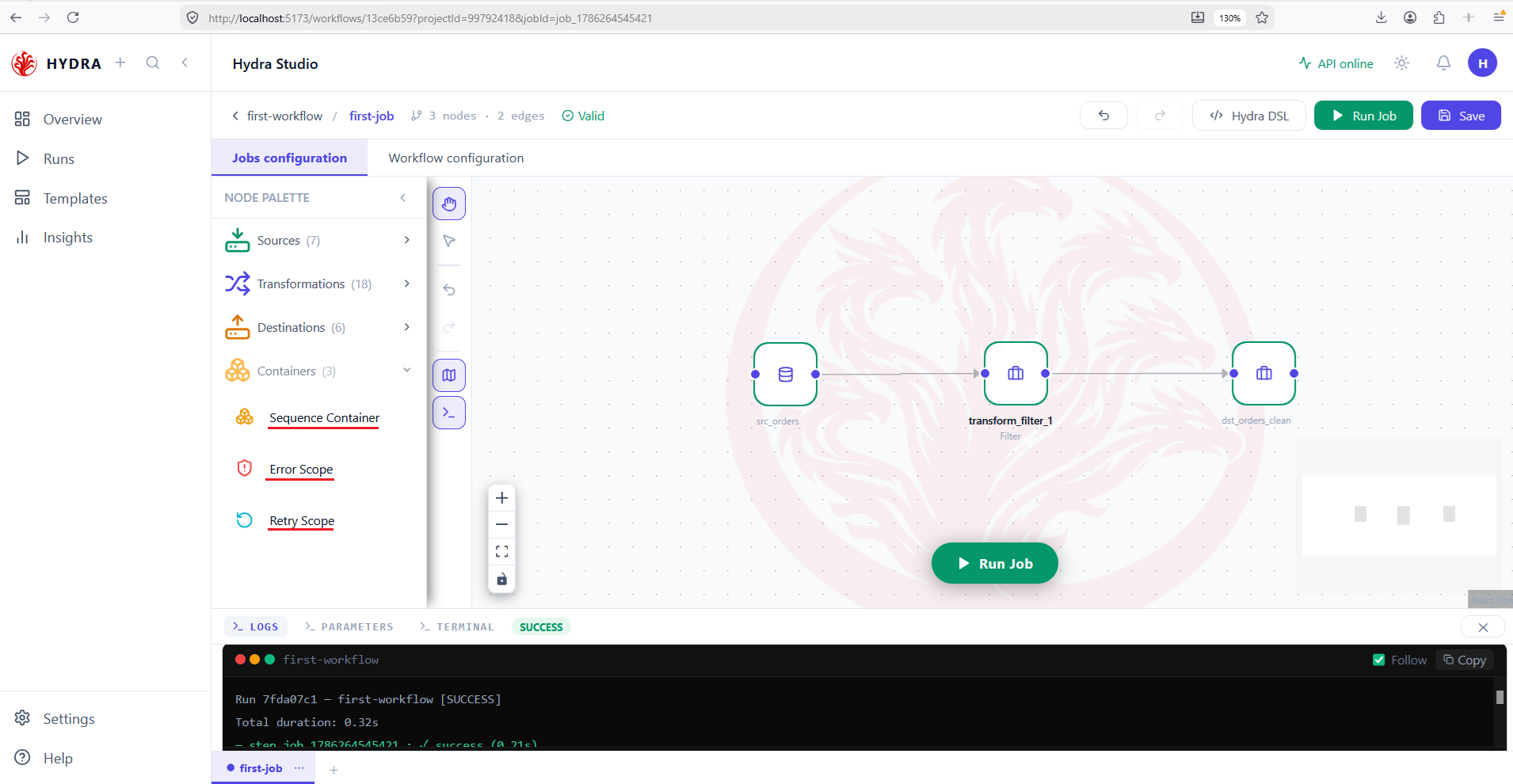
- Read Sequence Container, Error Scope, and Retry Scope.
- Keep the category open for the next steps.
Containers (3) → expand
Sequence Container  — group ordered steps
Error Scope         — choose behavior after child failure
Retry Scope         — retry a failed child
03Group a job in a Sequence
Objective
Make first-job a child of a Sequence container and use its compact view.
Actions
- Select Workflow configuration.
- Drag Sequence Container onto empty canvas space.
- Drag
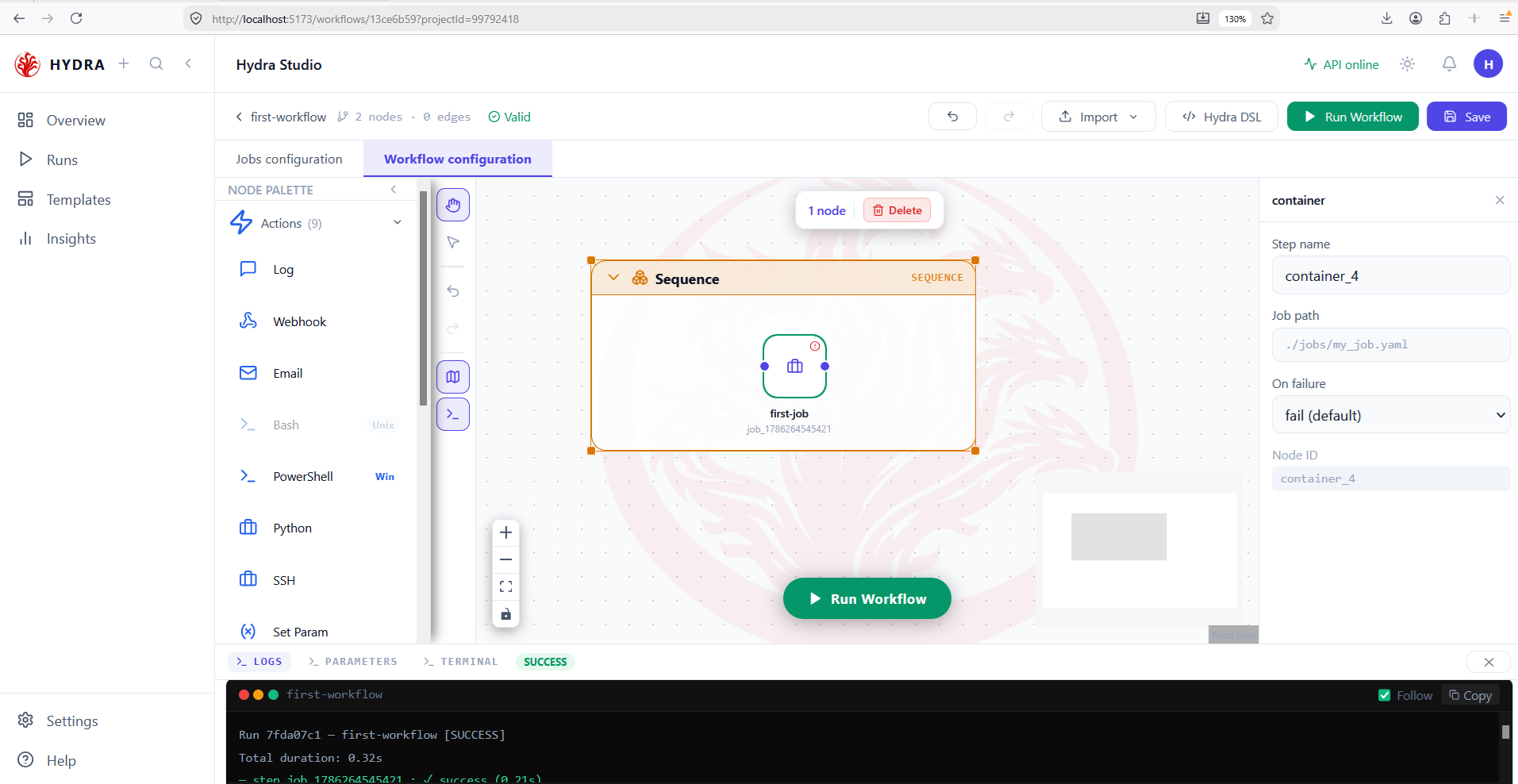
first-jobinside the orange frame. - Release the job only when it is visibly contained.
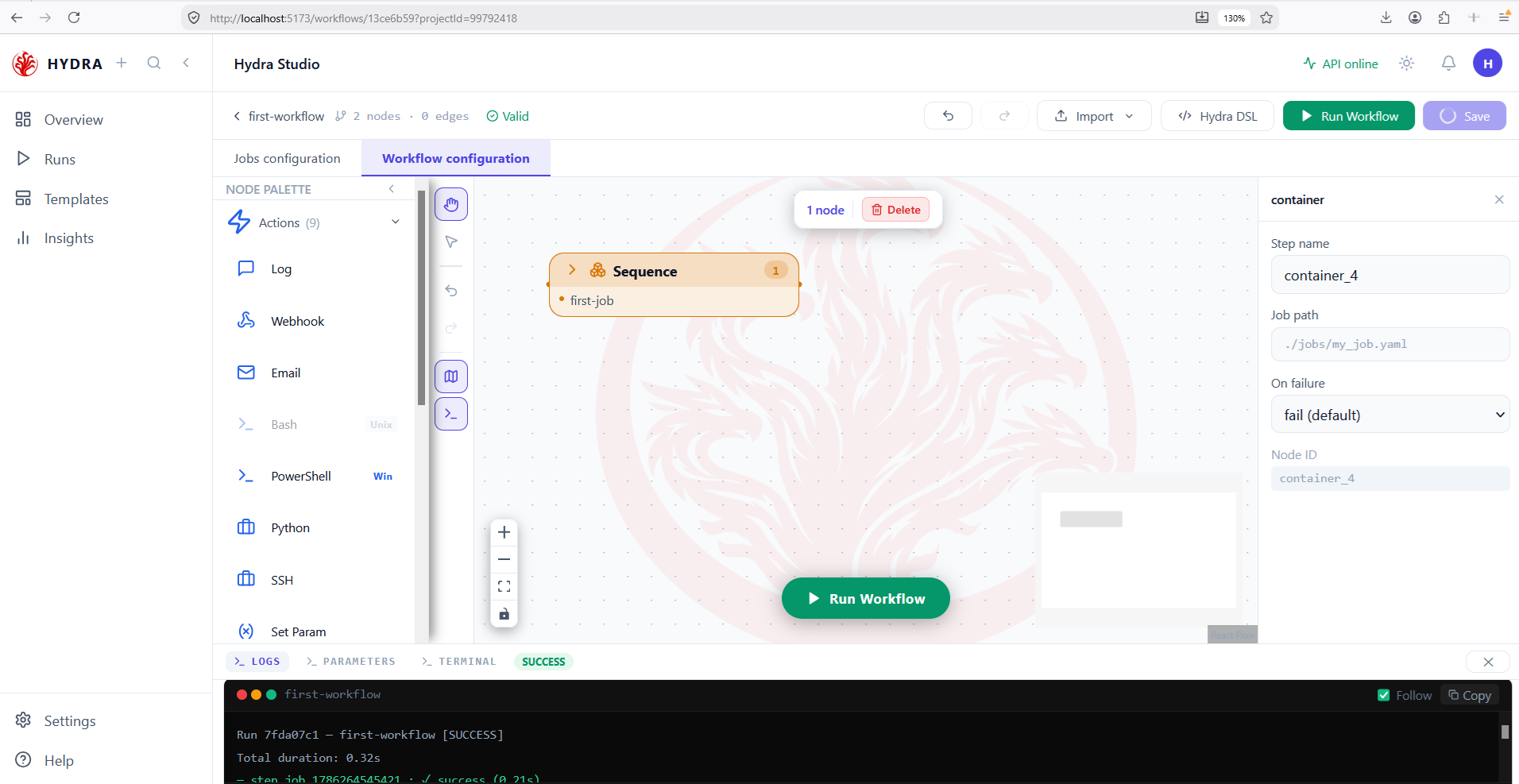
- Select the chevron in the container header to collapse it, then expand it again.
Sequence Container ← first-job → collapse / expand
The expanded container shows the job on the canvas. The collapsed container keeps a compact child list and displays a count of 1.
04Detach a step from its container
Objective
Remove the parent relationship without deleting either the job or the container.
Actions
- Expand the Sequence container.
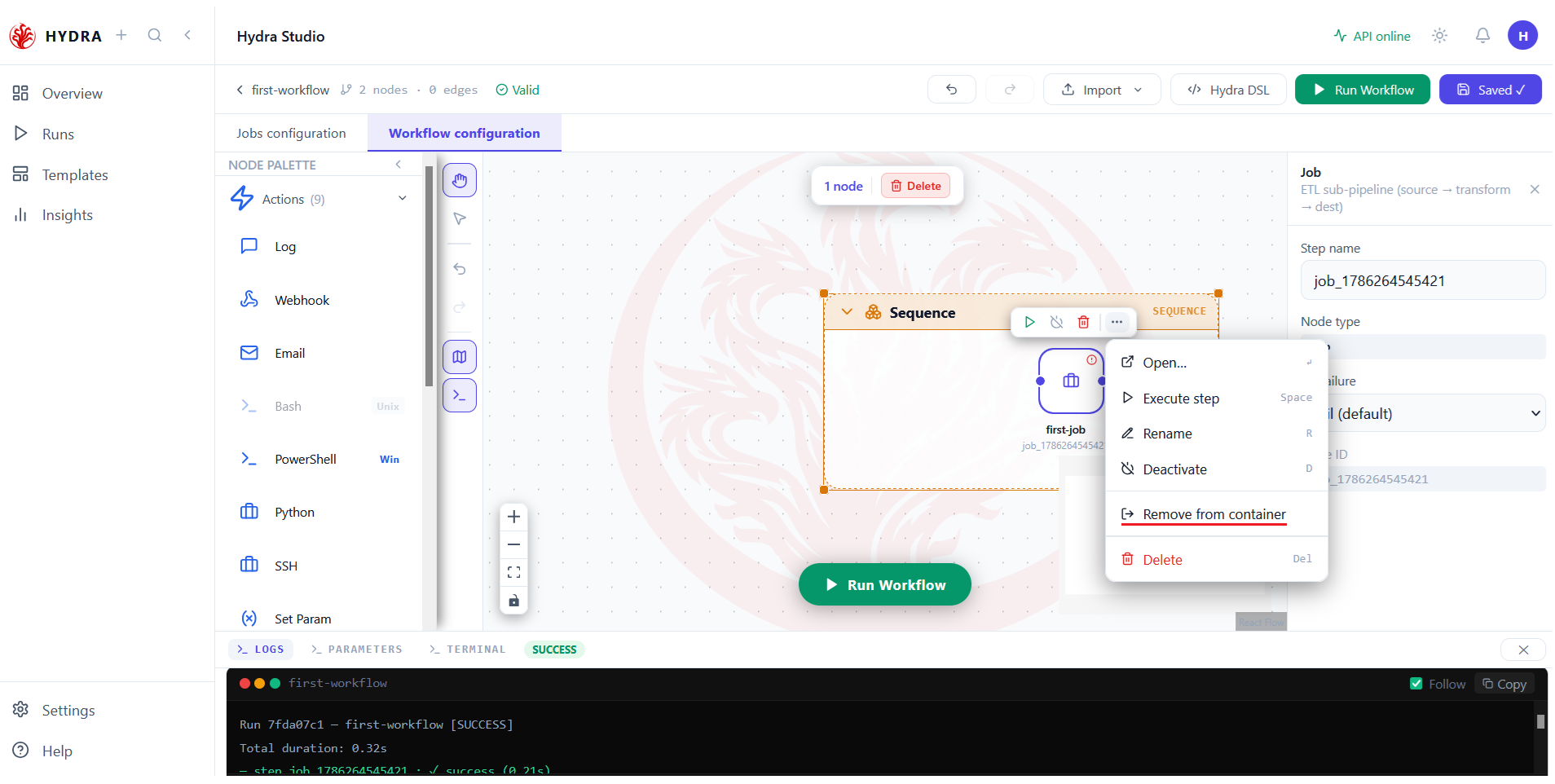
- Open the context menu on
first-job. - Select Remove from container.
- Move the detached job to empty canvas space if needed.
first-job → More → Remove from container
The job remains on the workflow canvas as an independent node. The Sequence container remains available and becomes empty.
05Choose an Error Scope policy
Objective
Control what the workflow does when a child inside the scope fails.
Actions
- Drag Error Scope onto the canvas.
- Move
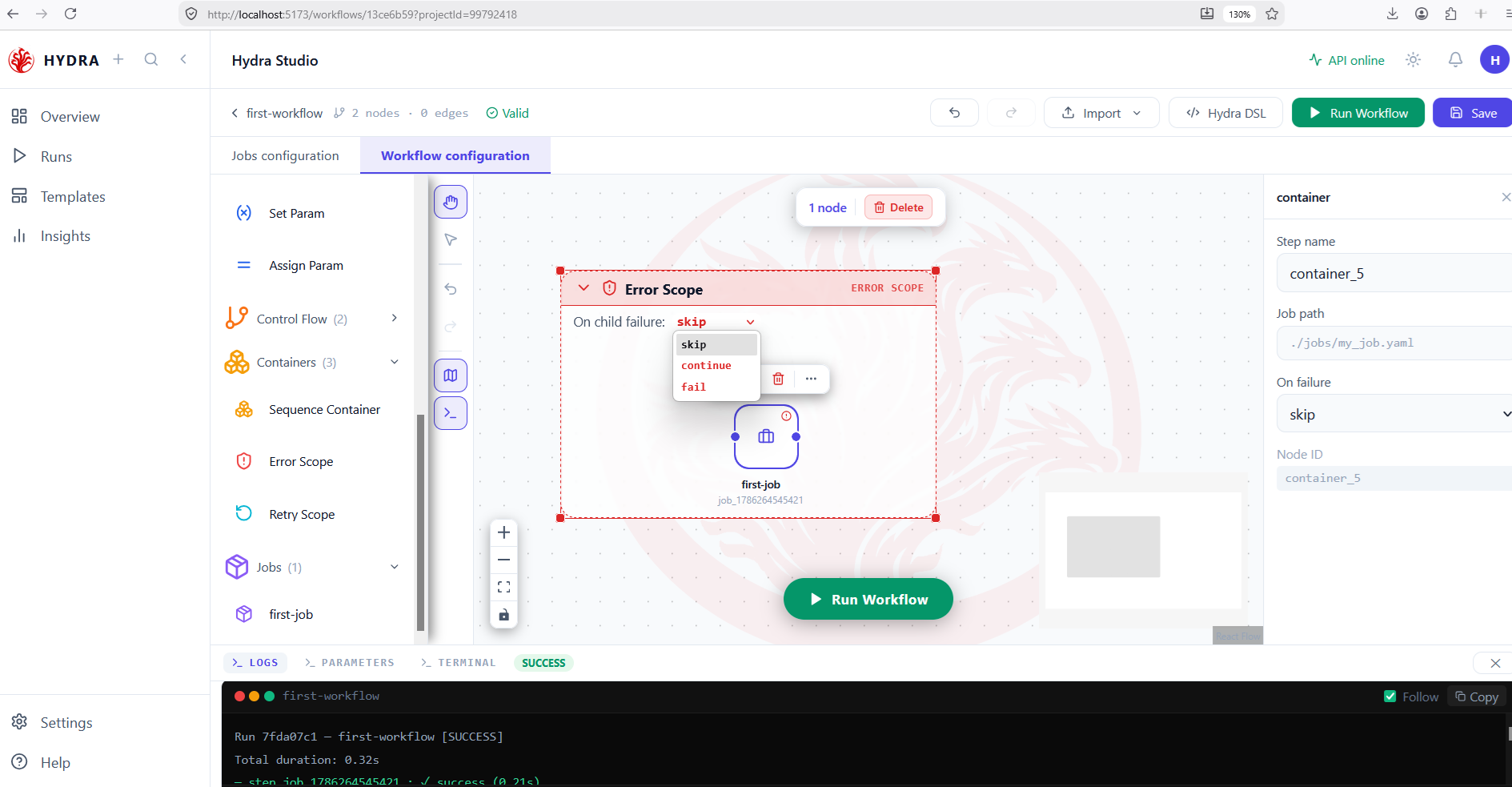
first-jobinside the red frame. - Open On child failure in the container header.
- Compare
skip,continue, andfail, then select the behavior required by the workflow.
Error Scope ← first-job → On child failure
The selected behavior appears in the container header and in the inspector's On failure field.
skip      — skip the failed child path
continue  — continue after the failure
fail      — fail the workflow
06Configure a Retry Scope
Objective
Retry a failed child a limited number of times with a delay between attempts.
Actions
- Drag Retry Scope onto empty canvas space.
- Move
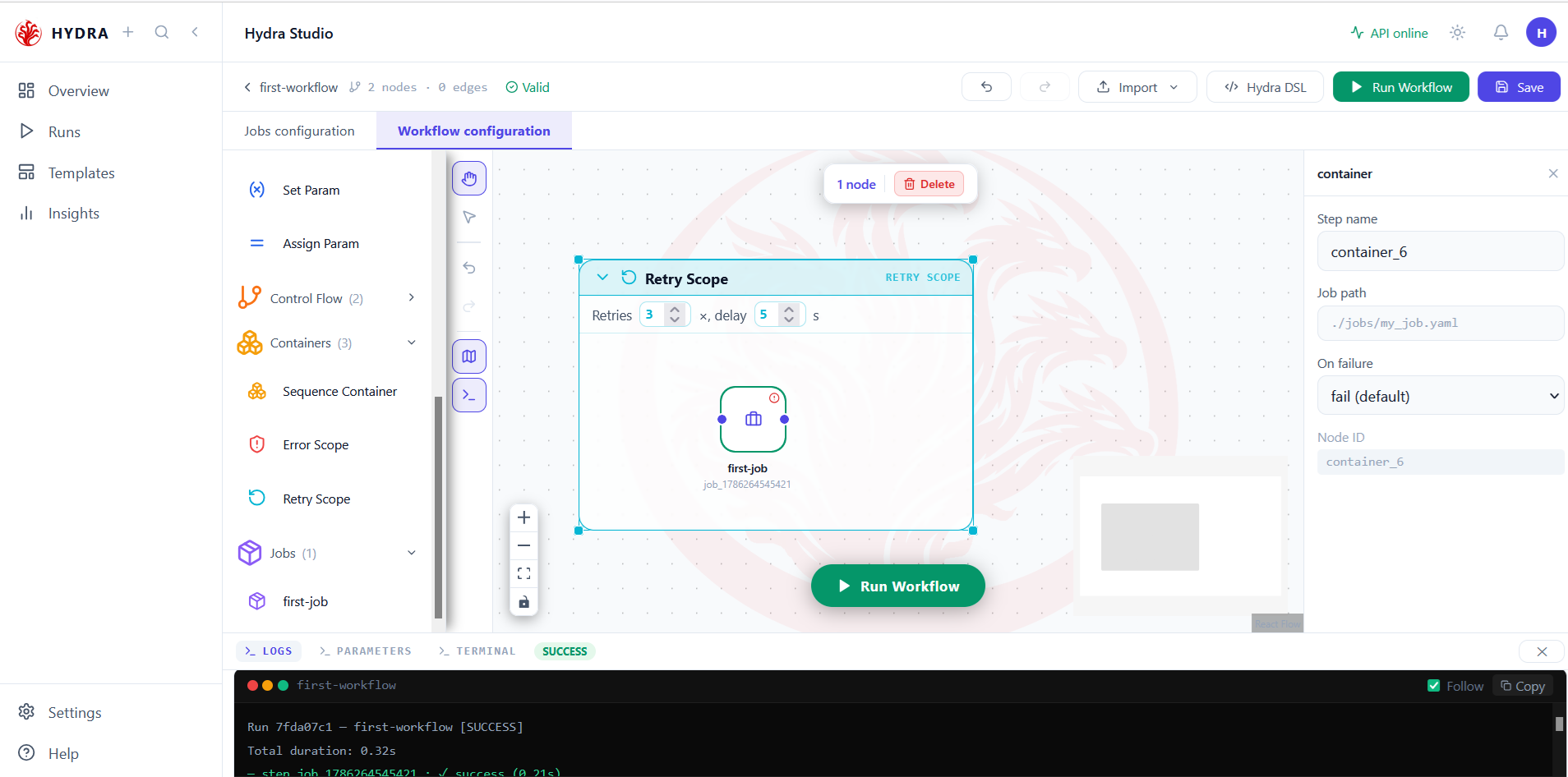
first-jobinside the cyan frame. - Set Retries to
3. - Set delay to
5seconds.
Retry Scope ← first-job → 3 retries × 5 s
The Retry Scope header displays both values and the job remains visibly inside the scope.
Retries 3 ×, delay 5 s
Tips and traps
Use Sequence when the goal is organization, not failure recovery.
A node that merely overlaps a container may still be outside it. Confirm that it moves and collapses with the parent.
Use Remove from container to detach a child without deleting the workflow step.
Delete and Remove from container are different actions. Check the context-menu label before selecting it.
Choose an Error Scope policy deliberately: skip, continue, and fail produce different workflow outcomes.
Unlimited or aggressive retries can hide a persistent failure. Keep both the retry count and delay bounded.
3. Checklist
| Verification | Expected result |
|---|---|
| Palette | Sequence Container, Error Scope, and Retry Scope are visible |
| Sequence | first-job stays attached in expanded and collapsed views |
| Detachment | The job remains on the canvas after Remove from container |
| Error Scope | skip, continue, and fail are available |
| Retry Scope | Three retries and a five-second delay are visible |
4. Troubleshooting
| Symptom | Cause | Fix |
|---|---|---|
| The job does not collapse with the Sequence | It overlaps the frame but is not a child | Drag it out, then drop it again inside the expanded container |
| The job disappears after an action | Delete was selected instead of Remove from container | Undo the deletion, then use the job context menu to detach it |
| Error behavior is unexpected | The wrong On child failure option is selected | Open the Error Scope menu and confirm skip, continue, or fail |
| The retry takes too long | The retry count or delay is too high | Reduce the values in the Retry Scope header |
5. Next lesson
The workflow now survives a failing step. One thing is still fixed in stone: every value it uses is written into a manifest. The last lesson moves those values onto the canvas, where a run can change them as it goes.